


Even a small review can become a coordination problem. Each discipline returns a separate marked-up PDF. Comments land in email threads. Someone manually consolidates feedback into a spreadsheet. By the time a response goes back to the team, it's unclear which version it references, and half the items still have no owner.
The bottleneck is rarely getting feedback; it's closing it out. Reviews stall when there's no single shared set, no clear owner per comment, and no reliable way to confirm what's been resolved without rebuilding an issue register by hand.
Drawboard Projects is built around a different premise: the drawing is the record. Instead of markups living in separate files and actions living in a separate register, everything, including annotations, threaded discussion, assigned tasks, and status updates, stays anchored to the exact location on the sheet it refers to, live and visible to the whole team.
There's no consolidation step, because there's never a split set to reconcile. There's no manual issue log to maintain, because the Task List is generated from the work itself. And because every item has a location, an owner, and a status, you can see what's open, what's resolved, and what's at risk from a single view, without chasing anyone for an update.
This walkthrough covers how to put that structure into practice, from setting up the shared set to closing out the final item.
In most teams, reviewing drawings and tracking the review are two separate jobs. One happens on the PDF; the other happens in a spreadsheet or issue log maintained alongside it. Every time a piece of feedback moves from one to the other, something gets lost: the exact location it refers to, the discussion behind it, whether it was actually picked up or just transcribed and forgotten.
Drawboard Projects removes that transcription step by making the drawing the working record. Every team member marks up the same live set. Markups, comments, and action items stay anchored to the exact location on the sheet they refer to, visible to everyone, updated in real time. Because feedback never leaves the drawing, there's nothing to re-enter, reconcile, or chase down in a separate document.
The result is that progress becomes readable without any extra work. Drawing and Document lists show the review status and assignee for every item in the set. Pinned tasks carry an owner, a due date, and a status that updates as work moves forward. The Task List uncovers all of that context across the whole project in one view, filtered however you need it—by contributor, team, task type, and more.
Instead of asking where the latest markup set is or whether a comment was picked up, the project shows you.
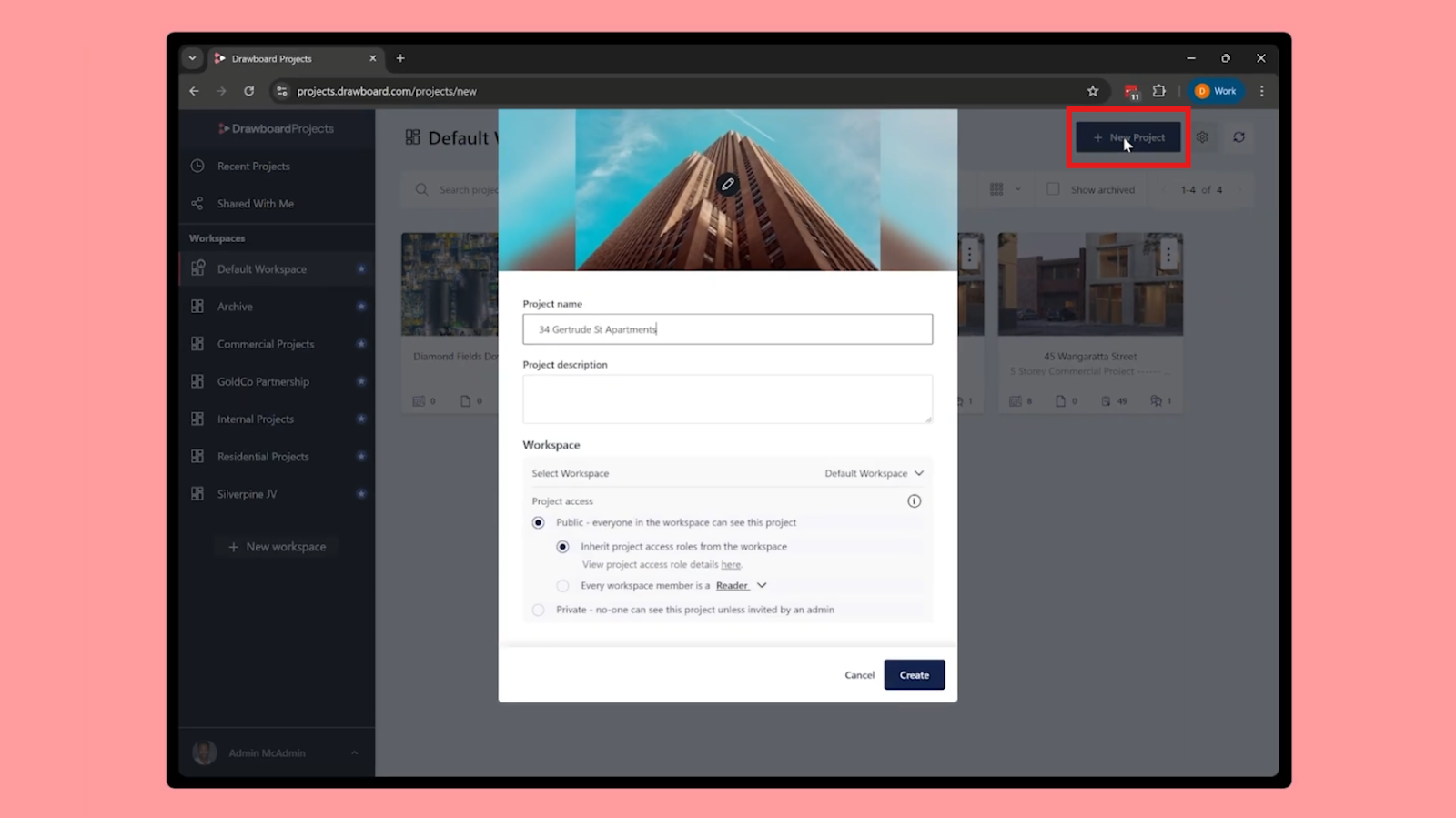
Start by getting everyone working from the same source of truth.
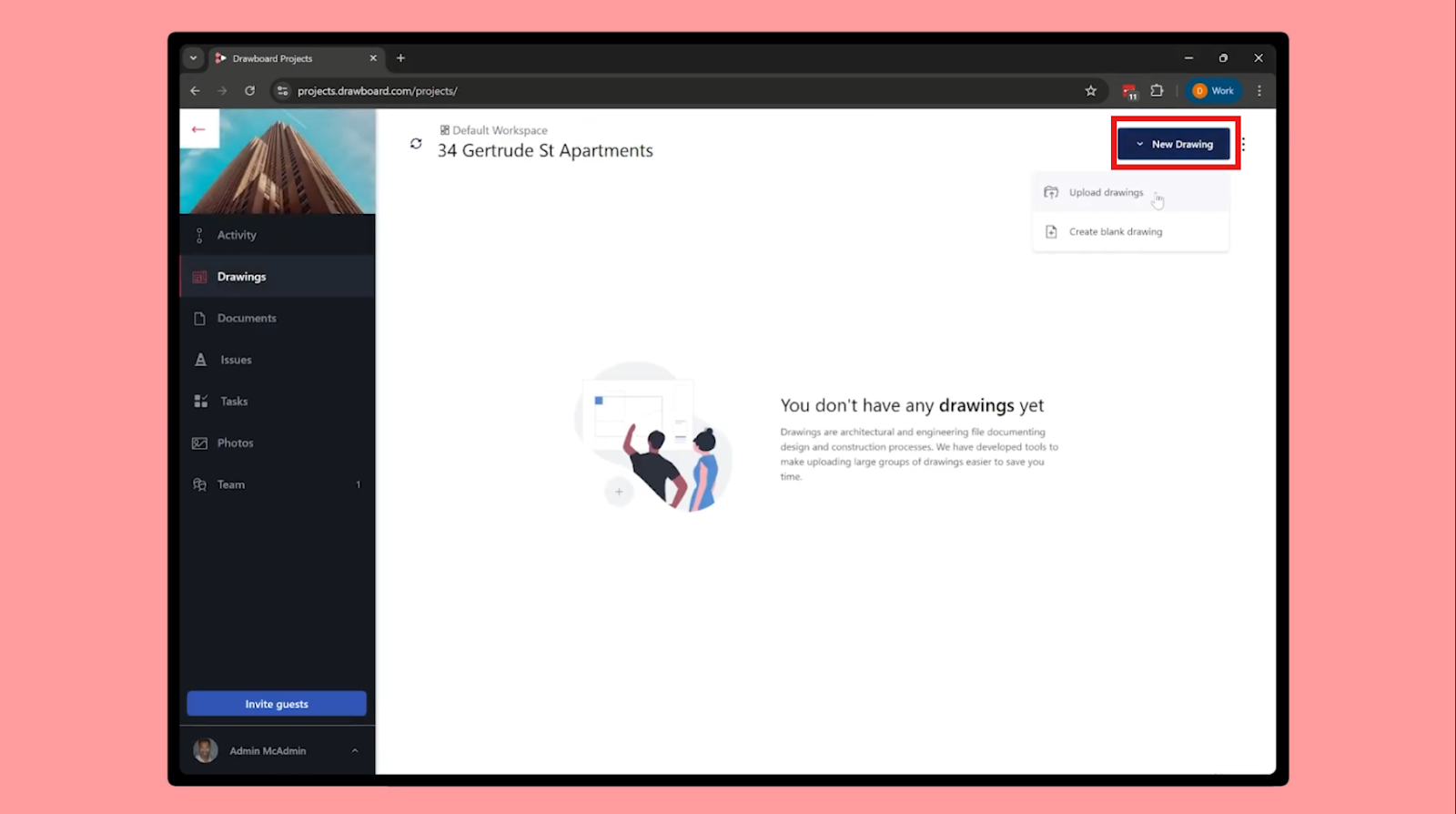
To set up the shared set:
For clients or subcontractors, Projects supports guest access with time-limited, permission-controlled permissions, so external contributors can mark up and comment directly in the shared set rather than returning separate files through email.
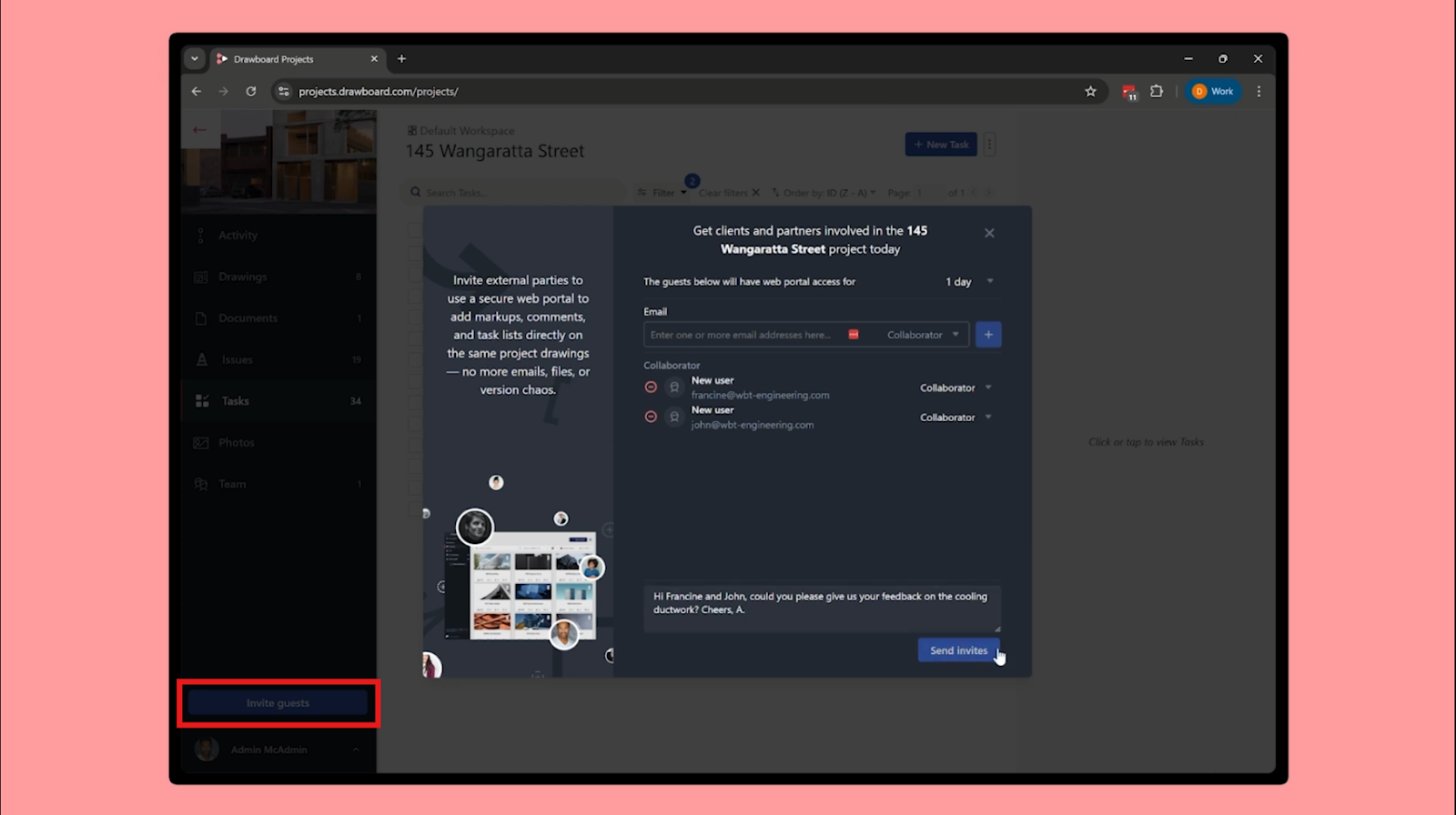
The goal at this stage is straightforward: all review input lands in one place. Emailed redlines, photos of printed drawings, and verbal feedback with no record are the kinds of disconnected input that fragment a review before it's started.
Once the set is centralized, everyone is working from the same files, and the markup history is complete by default. That reduces version confusion and provides valuable context into the decisions made at each project stage.
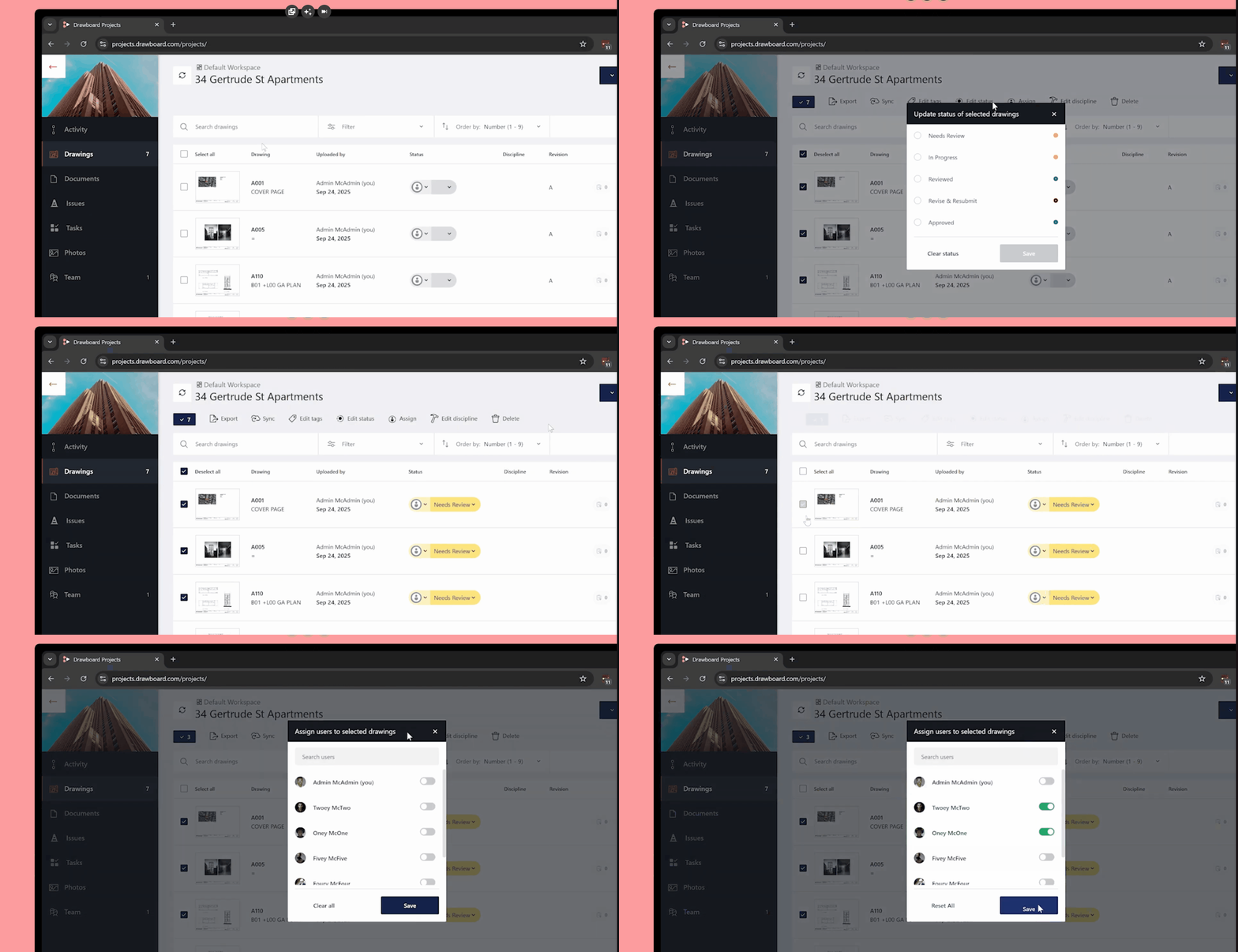
Before work begins, make sure each drawing and document has a status set and an assignee. The specific status will depend on your team's workflows and naming conventions, but what matters is that the list reflects real state from the start. A drawing with no assignee and no status is invisible to the progress tracking this workflow depends on.
Once statuses and assignees are set, the lists become useful for managing the review as it runs. Sorting and filtering by Status lets you cut the list down to drawings that still need attention. Toggling the Open Issues filter narrows it further to items with unresolved actions against them. Used together, these give you a quick read on where the review stands without opening individual drawings.
The list also makes risk visible before it becomes a conversation. A drawing package with no assignee, or a set of items that hasn't moved status in several days, stands out before it becomes a blocker.
Open a drawing and mark up directly where the feedback applies. Callouts, annotations, and ink stay anchored to the exact location they refer to, so context is preserved for anyone who picks them up later. Those markups are stored in the Markup List, giving you a scannable index of every annotation on the sheet, so you can navigate directly to each one rather than scrolling through the drawing manually.

When feedback needs to prompt a response, add a comment on the drawing and @mention the person responsible. The mention triggers a notification that takes them directly to that drawing, where they have the full context of the markup.
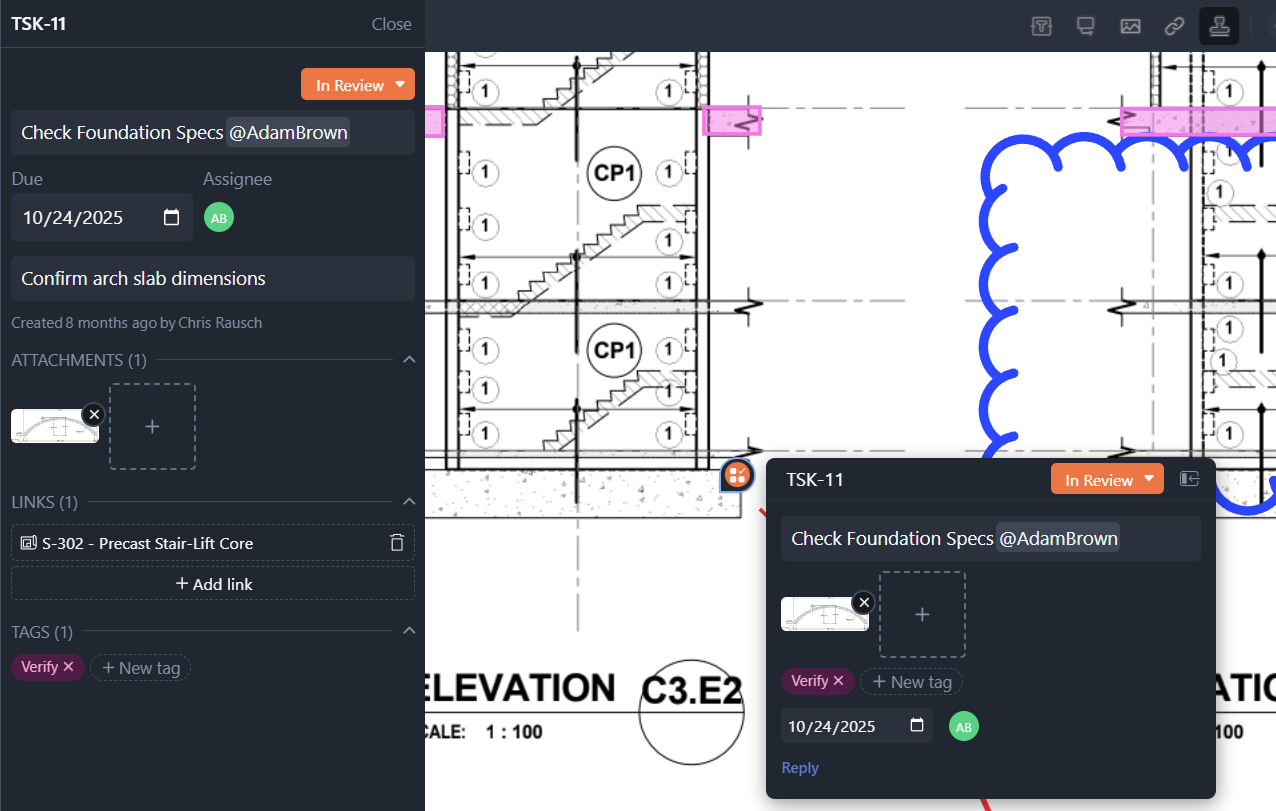
For feedback that needs more than a response, convert it into a Task. Tasks carry an assignee, a due date, a status, photos, and a full activity history that logs every status change, comment, and update as the item progresses. Everything is pinned to the location on the drawing it refers to, so the person assigned has the full picture without a separate briefing. Every Task created on a drawing feeds into the Task List, where progress across the whole set becomes visible in one place.
Use markups and comments for observations and discussion, like flagging a dimension that doesn't reconcile between two sheets. Use Tasks for anything that needs an owner, a deadline, and a closed status, like assigning the correction and tracking it to resolution. Applied consistently, that split keeps feedback from stalling without a clear next step.
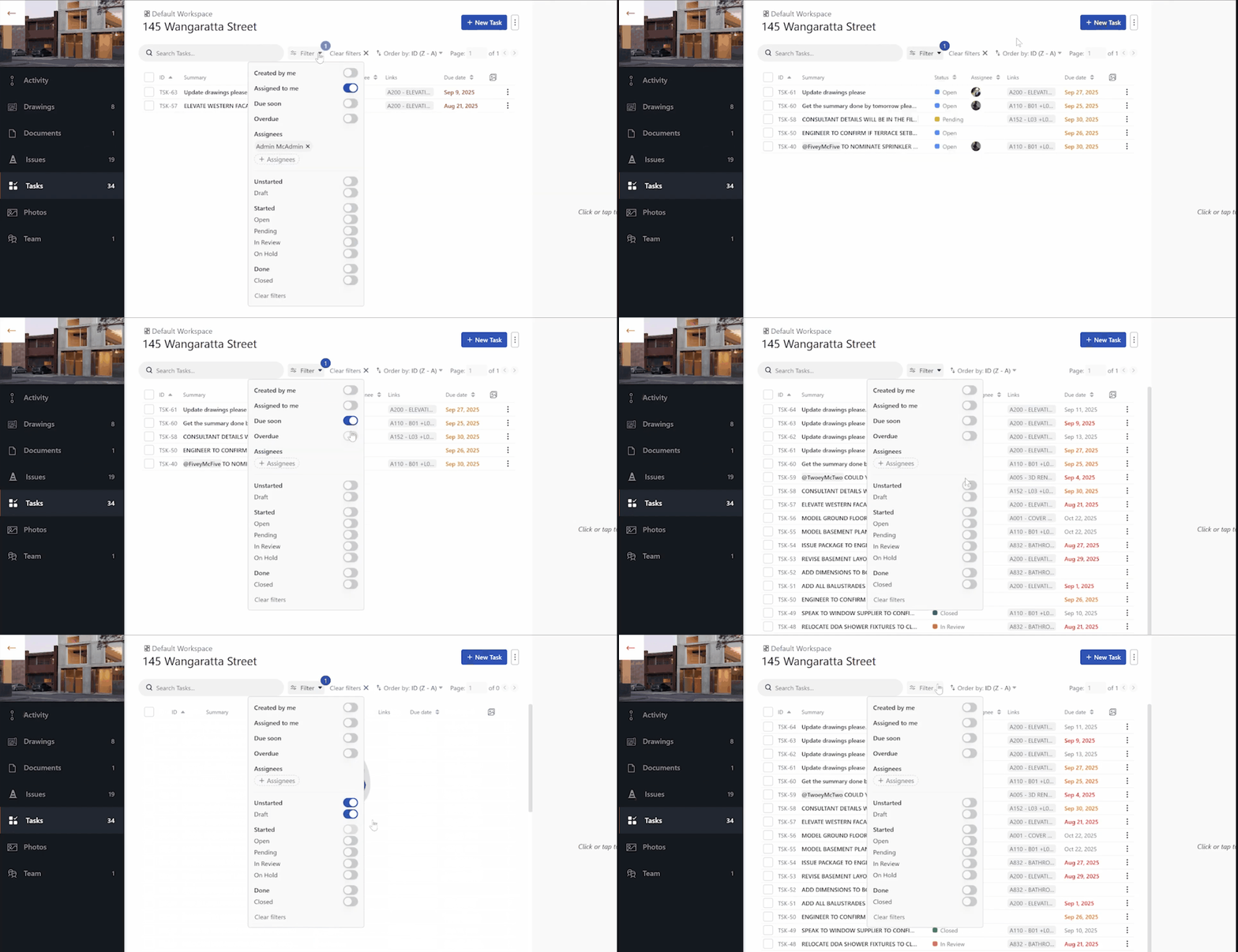
With tasks being created across the set, the Task List gives you a running view of where the review stands without opening individual drawings.
The Task List shows all open items across your drawings and documents.
What remains is a live action register, accurate because it reflects the actual state of work on the drawings rather than a manually updated spreadsheet. Filtering by assignee, status, type, or tag gives you specific cuts of the data: everything assigned to a particular person, all items of a certain type, all items marked high priority. No export or reformatting required, and no separate document to keep current.
The same Task List that shows you what's open also shows you who is carrying it.
Filter by Assigned to check individual workloads at any point in the review cycle. If one reviewer is overloaded, on-site, or unavailable, you can reassign their open items directly from the list. The reassigned person receives a notification and picks up with full context, because everything is still anchored to the drawing.
This matters most in the final stretch. Late in a review cycle, a handful of overdue items assigned to one unavailable person can block sign-off for the rest of the team. Catching that through the list and redistributing quickly keeps the review moving without a separate conversation to coordinate the handover.
The assignee view also works as a capacity check across the whole review: where work is concentrated, whether it's balanced, and where support is needed before it gets raised in a meeting.
The fastest way to lose time in a review is context switching: moving between the PDF, your inbox, and a separate register just to piece together the state of a single item.
Keeping markups, comments, Tasks, and status updates anchored to the drawing removes that overhead. There is no reconciliation step, no parallel spreadsheet to maintain, and no version to chase. When an item needs attention, it is on the drawing. When the review is nearly done, the Task List shows exactly what is left.
Because everything happens in one place, the record builds itself as the review runs. Every Task carries a full activity history: who was assigned, what was discussed, when the status changed, and what was attached. Annotation history captures authors and timestamps across the markup set. Filtered Task exports give you a snapshot of the review at any point, structured for reporting, handover documentation, or audit purposes.
Once open items are resolved and the set is complete, update the drawing statuses to reflect sign-off and issue for the next revision. The audit trail doesn't need to be assembled after the fact. It was there the whole time.
Get started with a Drawboard Projects demo today.
Even a small review can become a coordination problem. Each discipline returns a separate marked-up PDF. Comments land in email threads. Someone manually consolidates feedback into a spreadsheet. By the time a response goes back to the team, it's unclear which version it references, and half the items still have no owner.
The bottleneck is rarely getting feedback; it's closing it out. Reviews stall when there's no single shared set, no clear owner per comment, and no reliable way to confirm what's been resolved without rebuilding an issue register by hand.
Drawboard Projects is built around a different premise: the drawing is the record. Instead of markups living in separate files and actions living in a separate register, everything, including annotations, threaded discussion, assigned tasks, and status updates, stays anchored to the exact location on the sheet it refers to, live and visible to the whole team.
There's no consolidation step, because there's never a split set to reconcile. There's no manual issue log to maintain, because the Task List is generated from the work itself. And because every item has a location, an owner, and a status, you can see what's open, what's resolved, and what's at risk from a single view, without chasing anyone for an update.
This walkthrough covers how to put that structure into practice, from setting up the shared set to closing out the final item.
In most teams, reviewing drawings and tracking the review are two separate jobs. One happens on the PDF; the other happens in a spreadsheet or issue log maintained alongside it. Every time a piece of feedback moves from one to the other, something gets lost: the exact location it refers to, the discussion behind it, whether it was actually picked up or just transcribed and forgotten.
Drawboard Projects removes that transcription step by making the drawing the working record. Every team member marks up the same live set. Markups, comments, and action items stay anchored to the exact location on the sheet they refer to, visible to everyone, updated in real time. Because feedback never leaves the drawing, there's nothing to re-enter, reconcile, or chase down in a separate document.
The result is that progress becomes readable without any extra work. Drawing and Document lists show the review status and assignee for every item in the set. Pinned tasks carry an owner, a due date, and a status that updates as work moves forward. The Task List uncovers all of that context across the whole project in one view, filtered however you need it—by contributor, team, task type, and more.
Instead of asking where the latest markup set is or whether a comment was picked up, the project shows you.
Start by getting everyone working from the same source of truth.
To set up the shared set:
For clients or subcontractors, Projects supports guest access with time-limited, permission-controlled permissions, so external contributors can mark up and comment directly in the shared set rather than returning separate files through email.
The goal at this stage is straightforward: all review input lands in one place. Emailed redlines, photos of printed drawings, and verbal feedback with no record are the kinds of disconnected input that fragment a review before it's started.
Once the set is centralized, everyone is working from the same files, and the markup history is complete by default. That reduces version confusion and provides valuable context into the decisions made at each project stage.
Before work begins, make sure each drawing and document has a status set and an assignee. The specific status will depend on your team's workflows and naming conventions, but what matters is that the list reflects real state from the start. A drawing with no assignee and no status is invisible to the progress tracking this workflow depends on.
Once statuses and assignees are set, the lists become useful for managing the review as it runs. Sorting and filtering by Status lets you cut the list down to drawings that still need attention. Toggling the Open Issues filter narrows it further to items with unresolved actions against them. Used together, these give you a quick read on where the review stands without opening individual drawings.
The list also makes risk visible before it becomes a conversation. A drawing package with no assignee, or a set of items that hasn't moved status in several days, stands out before it becomes a blocker.
Open a drawing and mark up directly where the feedback applies. Callouts, annotations, and ink stay anchored to the exact location they refer to, so context is preserved for anyone who picks them up later. Those markups are stored in the Markup List, giving you a scannable index of every annotation on the sheet, so you can navigate directly to each one rather than scrolling through the drawing manually.
When feedback needs to prompt a response, add a comment on the drawing and @mention the person responsible. The mention triggers a notification that takes them directly to that drawing, where they have the full context of the markup.
For feedback that needs more than a response, convert it into a Task. Tasks carry an assignee, a due date, a status, photos, and a full activity history that logs every status change, comment, and update as the item progresses. Everything is pinned to the location on the drawing it refers to, so the person assigned has the full picture without a separate briefing. Every Task created on a drawing feeds into the Task List, where progress across the whole set becomes visible in one place.
Use markups and comments for observations and discussion, like flagging a dimension that doesn't reconcile between two sheets. Use Tasks for anything that needs an owner, a deadline, and a closed status, like assigning the correction and tracking it to resolution. Applied consistently, that split keeps feedback from stalling without a clear next step.
With tasks being created across the set, the Task List gives you a running view of where the review stands without opening individual drawings.
The Task List shows all open items across your drawings and documents.
What remains is a live action register, accurate because it reflects the actual state of work on the drawings rather than a manually updated spreadsheet. Filtering by assignee, status, type, or tag gives you specific cuts of the data: everything assigned to a particular person, all items of a certain type, all items marked high priority. No export or reformatting required, and no separate document to keep current.
The same Task List that shows you what's open also shows you who is carrying it.
Filter by Assigned to check individual workloads at any point in the review cycle. If one reviewer is overloaded, on-site, or unavailable, you can reassign their open items directly from the list. The reassigned person receives a notification and picks up with full context, because everything is still anchored to the drawing.
This matters most in the final stretch. Late in a review cycle, a handful of overdue items assigned to one unavailable person can block sign-off for the rest of the team. Catching that through the list and redistributing quickly keeps the review moving without a separate conversation to coordinate the handover.
The assignee view also works as a capacity check across the whole review: where work is concentrated, whether it's balanced, and where support is needed before it gets raised in a meeting.
The fastest way to lose time in a review is context switching: moving between the PDF, your inbox, and a separate register just to piece together the state of a single item.
Keeping markups, comments, Tasks, and status updates anchored to the drawing removes that overhead. There is no reconciliation step, no parallel spreadsheet to maintain, and no version to chase. When an item needs attention, it is on the drawing. When the review is nearly done, the Task List shows exactly what is left.
Because everything happens in one place, the record builds itself as the review runs. Every Task carries a full activity history: who was assigned, what was discussed, when the status changed, and what was attached. Annotation history captures authors and timestamps across the markup set. Filtered Task exports give you a snapshot of the review at any point, structured for reporting, handover documentation, or audit purposes.
Once open items are resolved and the set is complete, update the drawing statuses to reflect sign-off and issue for the next revision. The audit trail doesn't need to be assembled after the fact. It was there the whole time.
Get started with a Drawboard Projects demo today.


We are a PDF and collaboration company. We believe that creating more effective connections between people reduces waste.
Our best work has been overtaken by busywork. That’s why we’ve created ways to help people get back to working wonders without any paper in sight.
Drawboard PDF lets you mark up and share with ease, and Drawboard Projects brings collaborative design review to architecture and engineering teams.
At Drawboard, we work our magic so our customers can get back to working theirs.
We are a PDF and collaboration company. We believe that creating more effective connections between people reduces waste.
Our best work has been overtaken by busywork. That’s why we’ve created ways to help people get back to working wonders without any paper in sight.
Drawboard PDF lets you mark up and share with ease, and Drawboard Projects brings collaborative design review to architecture and engineering teams.
At Drawboard, we work our magic so our customers can get back to working theirs.


