


Design reviews involve moving through dozens or hundreds of drawings. You check one sheet, move to the next, jump back to verify a detail, forward again to see how elements connect. The more drawings in your set, the more time you spend navigating between them.
Multi Drawing View lets you see multiple drawings simultaneously in one workspace. You can view your entire drawing set together in a continuous scrollable list, a customizable grid, or side by side.
This changes how you navigate and review. Instead of opening individual files and switching between them, you scroll through your drawings like pages in a document, zoom into any sheet without losing sight of the others, and mark up across multiple drawings in one session.
Here's a closer look at the three view modes, how markup navigation works across your drawing set, and how Multi Drawing View changes coordination workflows.
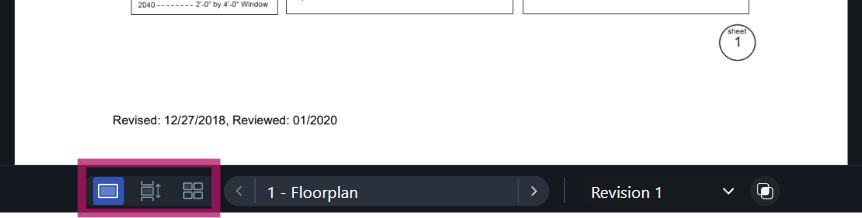
Multi Drawing View gives you three viewing modes, accessible from the quick toolbar on the bottom-middle of the canvas:

For more control, open the view settings to customize:
Example: An electrical engineer uses the multi-drawing list with a double-page layout to scroll through architectural plans alongside their lighting layouts, keeping both visible at once without clicking back and forth or using two windows.
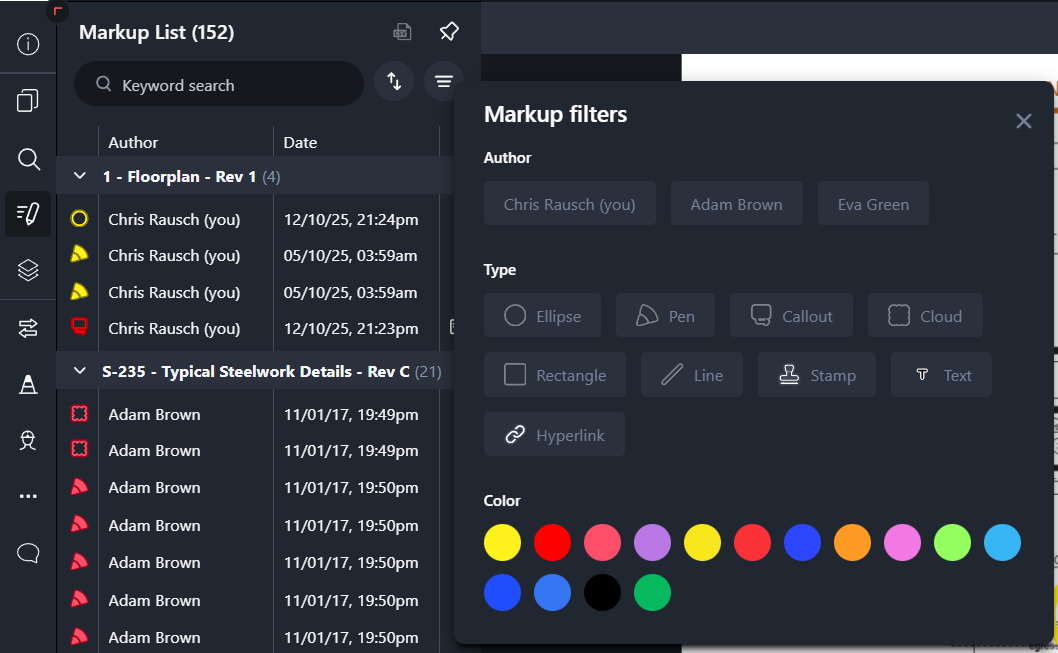
The markup list now works across your entire drawing set when you're in Multi Drawing View mode. When no drawing is selected, the markup list shows all markups across all drawings. When you select a specific drawing, the list filters to show just that drawing's markups—but you can remove the filter to return to the full project view.
You can also filter markups by author, type (pen, callout, stamp, text, etc.), or color, so it’s easier to find specific kinds of annotations across large drawing sets.
This helps with:
Click any item in the markup list and you'll navigate directly to that location on the drawing.
Example: A design lead filters the markup list by the structural engineer's name, sees all their markups across 80 drawings, and clicks through to respond. They can also filter by callout or stamp types, author, and even markup color to see only specific markups.
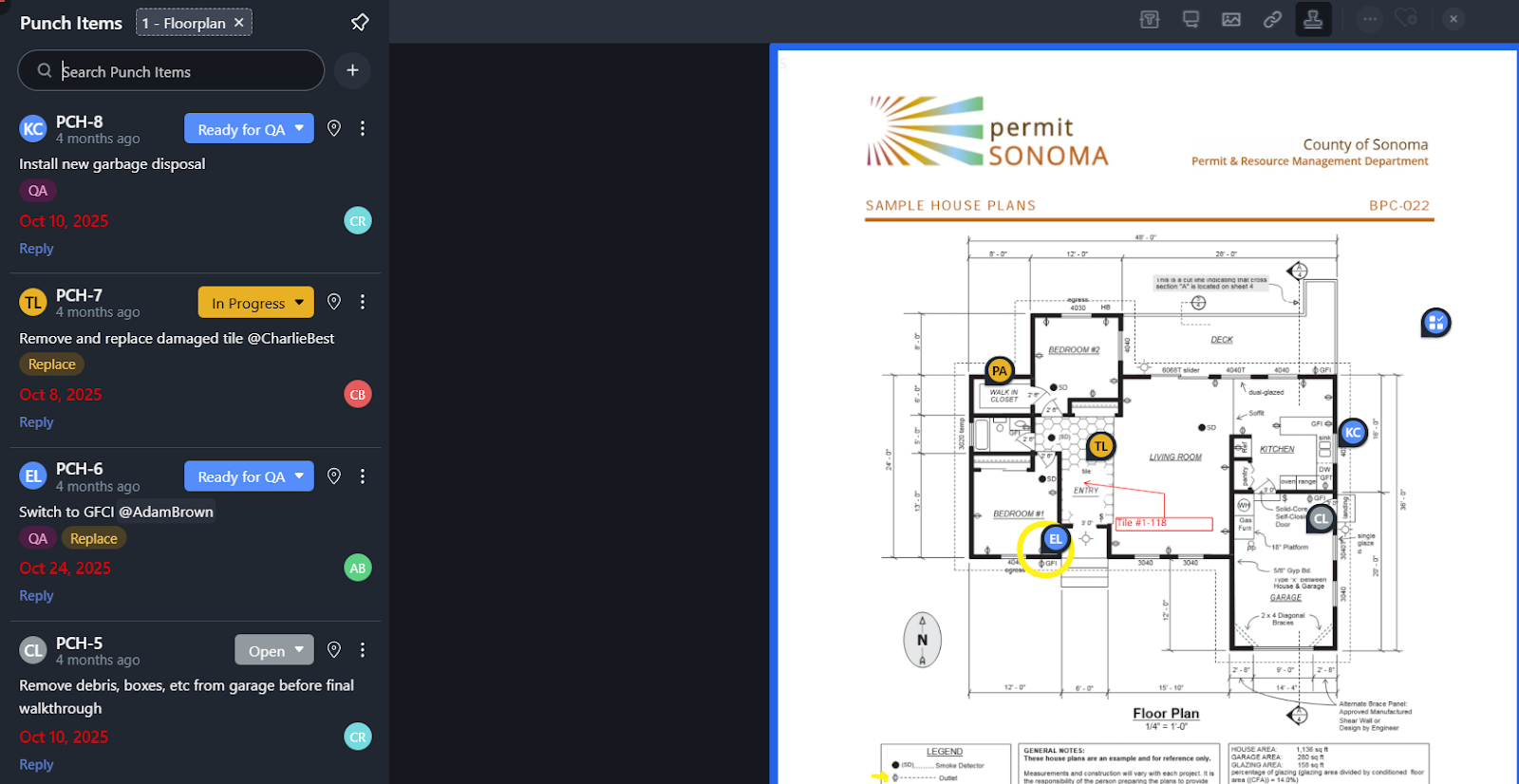
Tasks and comments work differently. To see a drawing's tasks, issues (like RFIs and Punch Lists), and comments, select that drawing by clicking on it. The task list and comment panel update to show what's on that specific sheet, and task pins become visible on the canvas.
This keeps the visual workspace manageable when you're viewing many drawings at once. Select different drawings as you review to see their specific coordination items.
Example: A QA reviewer scrolls through drawings in grid view, clicks on sheets that need attention, and checks the task list and comments for each one to see open punch items, their status, and any discussion threads.
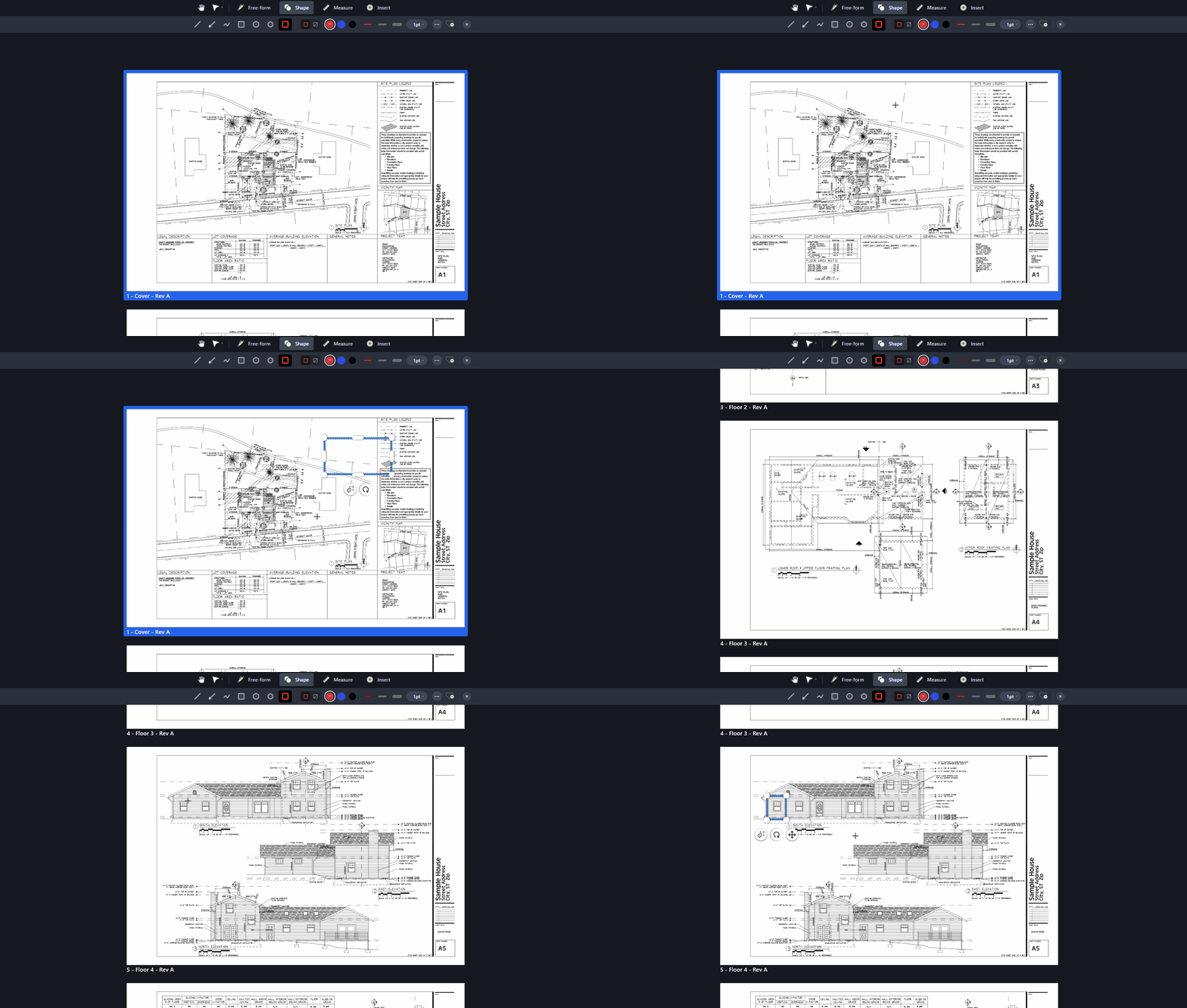
Multi Drawing View is a fully live workspace. Everything you can do in single-drawing mode works here—zoom, pan, annotate, measure, drop pins, access your markup library.
Mark up Drawing 12, pan to Drawing 13, continue annotating, scroll to Drawing 14, then add your dynamic stamp of approval on them all in seconds. Your review stays fluid, and you maintain visual context of how drawings relate to each other while you work.
All your standard tools are available:
You can work across multiple sheets without losing your place.
Example: During a coordination review, a mechanical engineer identifies a duct routing issue that affects three consecutive floor plans. They mark up all three locations in one session, maintaining visual context of how the issue progresses vertically through the building.
Multi-view removes friction from four common coordination workflows:
The result: less time navigating, more time reviewing.
Multi Drawing View is available now for all Drawboard Projects users.
Open any project, click "Multi Drawing View" in the drawing list (or open your preferred drawings with multi-select checkboxes or manually by double-clicking each), and choose your view mode from the quick toolbar on the canvas. If your work changes, customize the view mode to fit your device and workflows.
Need help getting started? Check the Support Centre for more information, or contact our team if you need a hand.
Design reviews involve moving through dozens or hundreds of drawings. You check one sheet, move to the next, jump back to verify a detail, forward again to see how elements connect. The more drawings in your set, the more time you spend navigating between them.
Multi Drawing View lets you see multiple drawings simultaneously in one workspace. You can view your entire drawing set together in a continuous scrollable list, a customizable grid, or side by side.
This changes how you navigate and review. Instead of opening individual files and switching between them, you scroll through your drawings like pages in a document, zoom into any sheet without losing sight of the others, and mark up across multiple drawings in one session.
Here's a closer look at the three view modes, how markup navigation works across your drawing set, and how Multi Drawing View changes coordination workflows.
Multi Drawing View gives you three viewing modes, accessible from the quick toolbar on the bottom-middle of the canvas:
For more control, open the view settings to customize:
Example: An electrical engineer uses the multi-drawing list with a double-page layout to scroll through architectural plans alongside their lighting layouts, keeping both visible at once without clicking back and forth or using two windows.
The markup list now works across your entire drawing set when you're in Multi Drawing View mode. When no drawing is selected, the markup list shows all markups across all drawings. When you select a specific drawing, the list filters to show just that drawing's markups—but you can remove the filter to return to the full project view.
You can also filter markups by author, type (pen, callout, stamp, text, etc.), or color, so it’s easier to find specific kinds of annotations across large drawing sets.
This helps with:
Click any item in the markup list and you'll navigate directly to that location on the drawing.
Example: A design lead filters the markup list by the structural engineer's name, sees all their markups across 80 drawings, and clicks through to respond. They can also filter by callout or stamp types, author, and even markup color to see only specific markups.
Tasks and comments work differently. To see a drawing's tasks, issues (like RFIs and Punch Lists), and comments, select that drawing by clicking on it. The task list and comment panel update to show what's on that specific sheet, and task pins become visible on the canvas.
This keeps the visual workspace manageable when you're viewing many drawings at once. Select different drawings as you review to see their specific coordination items.
Example: A QA reviewer scrolls through drawings in grid view, clicks on sheets that need attention, and checks the task list and comments for each one to see open punch items, their status, and any discussion threads.
Multi Drawing View is a fully live workspace. Everything you can do in single-drawing mode works here—zoom, pan, annotate, measure, drop pins, access your markup library.
Mark up Drawing 12, pan to Drawing 13, continue annotating, scroll to Drawing 14, then add your dynamic stamp of approval on them all in seconds. Your review stays fluid, and you maintain visual context of how drawings relate to each other while you work.
All your standard tools are available:
You can work across multiple sheets without losing your place.
Example: During a coordination review, a mechanical engineer identifies a duct routing issue that affects three consecutive floor plans. They mark up all three locations in one session, maintaining visual context of how the issue progresses vertically through the building.
Multi-view removes friction from four common coordination workflows:
The result: less time navigating, more time reviewing.
Multi Drawing View is available now for all Drawboard Projects users.
Open any project, click "Multi Drawing View" in the drawing list (or open your preferred drawings with multi-select checkboxes or manually by double-clicking each), and choose your view mode from the quick toolbar on the canvas. If your work changes, customize the view mode to fit your device and workflows.
Need help getting started? Check the Support Centre for more information, or contact our team if you need a hand.


We are a PDF and collaboration company. We believe that creating more effective connections between people reduces waste.
Our best work has been overtaken by busywork. That’s why we’ve created ways to help people get back to working wonders without any paper in sight.
Drawboard PDF lets you mark up and share with ease, and Drawboard Projects brings collaborative design review to architecture and engineering teams.
At Drawboard, we work our magic so our customers can get back to working theirs.
We are a PDF and collaboration company. We believe that creating more effective connections between people reduces waste.
Our best work has been overtaken by busywork. That’s why we’ve created ways to help people get back to working wonders without any paper in sight.
Drawboard PDF lets you mark up and share with ease, and Drawboard Projects brings collaborative design review to architecture and engineering teams.
At Drawboard, we work our magic so our customers can get back to working theirs.


