
How Drawboard Makes It Easy to Add Page Numbers to PDFs

Add Page Numbers Exactly Where You Need Them
Choose whether to number every page or only selected pages, so you can leave out covers, title pages, or appendices.

Control Where Numbering Starts and Ends
Begin numbering from any value, which is useful when your PDF is part of a larger document set or needs to follow an existing numbering sequence.

Pick the Number Style and Format
Use the numbering style and formatting that best fits your document, whether you need simple page counts or a more structured presentation.
Match the Look of Your Document
Adjust font family, style, size, and color so page numbers feel consistent with the rest of the file instead of looking added on.
Control Placement and Margins
Choose where page numbers appear on the page and fine-tune spacing from the edges, helping them stay visible without interfering with content.
Make Reviews, Printing, and Navigation Easier
Clear numbering gives every page a shared reference point, which helps with feedback, print sets, internal review, and general document navigation.
How to Use The Page Numbering Tool

Add your PDF to the tool by dragging and dropping it in, or select it from your file browser.
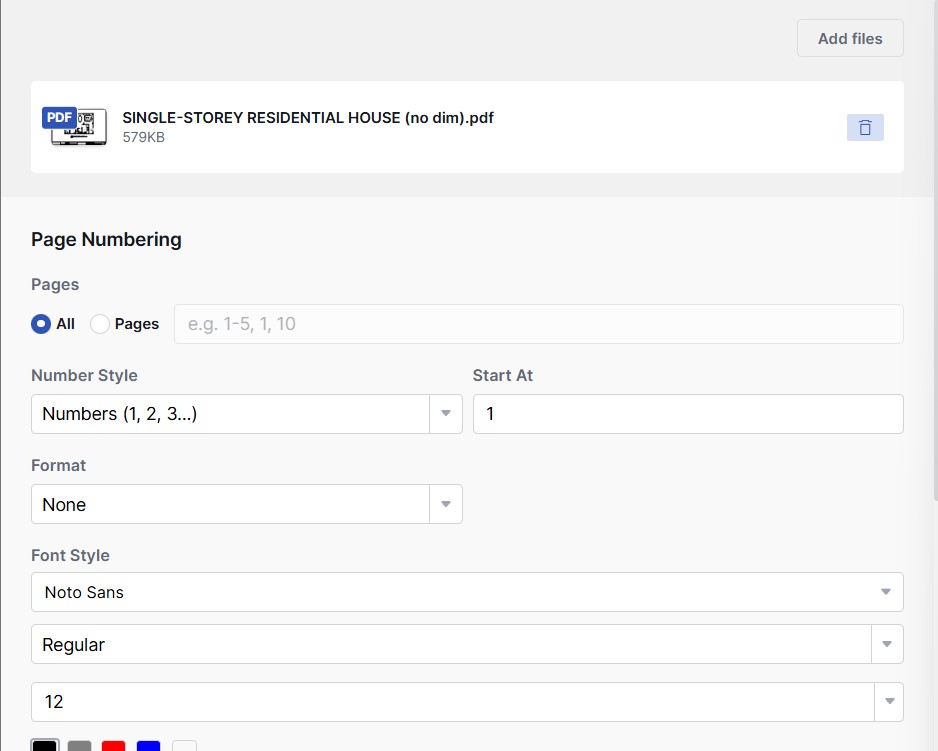
Choose what pages to number, where you want the page numbers to appear on the pages, and how they should look.
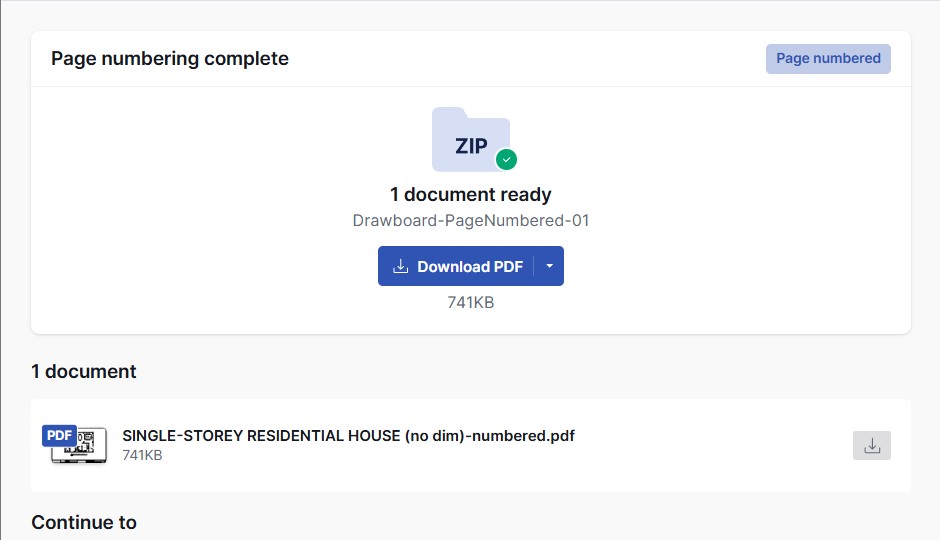
Select Add Page Numbers in the bottom-right corner to apply the numbering. Then, download your updated PDF.
Page Numbering FAQs


Explore Drawboard's
Paid Plans
Discover more features with our premium plans.

Microsoft Store, Sep 2021


.svg)


.png)

