Add Watermarks

Add clear status labels or branding to your PDF—draft, confidential, or approved—in just a few clicks.

How Drawboard Makes It Easy to Add Watermarks

Add Text or Image Watermarks

Use either text or an uploaded image, depending on whether you need a simple status label like Draft or Confidential, or a branded mark such as a logo.

Control How the Watermark Looks

Adjust font, size, bold, italic, underline, color, and opacity so the watermark is clear enough to serve its purpose without overwhelming the page.

Place It Exactly Where You Want It

Choose the watermark position on the page and decide whether it should sit above or below the document content.

Rotate, Scale, or Tile Across the Page

Apply rotation for diagonal stamps, scale the watermark relative to the page, or use the mosaic option to repeat it across the full sheet.

Apply It to All Pages or Specific Pages

Add a watermark across the full PDF or only on selected pages, which is useful when only certain sections need status labels or branding.

No Account or Installation Required

Work directly with your file without installing a tool, sending it to yourself, or needing to create an account.

How to Use The Watermark Tool
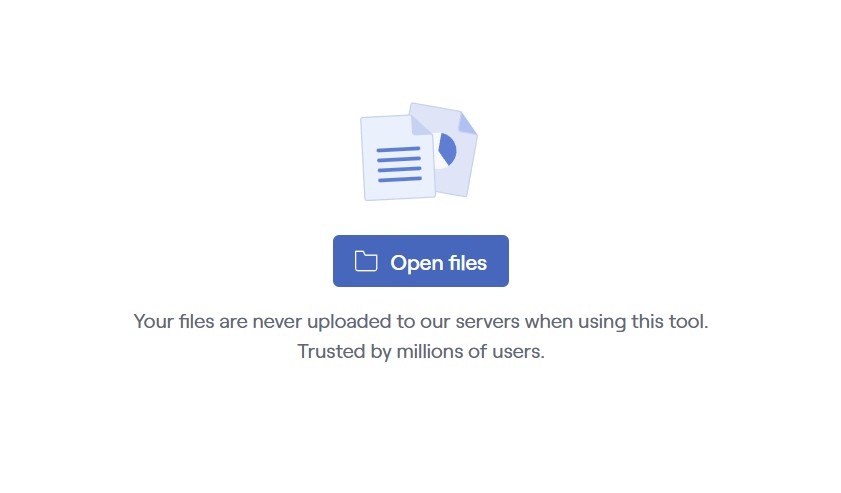
Enter your watermark text or choose which image to add as a watermark.
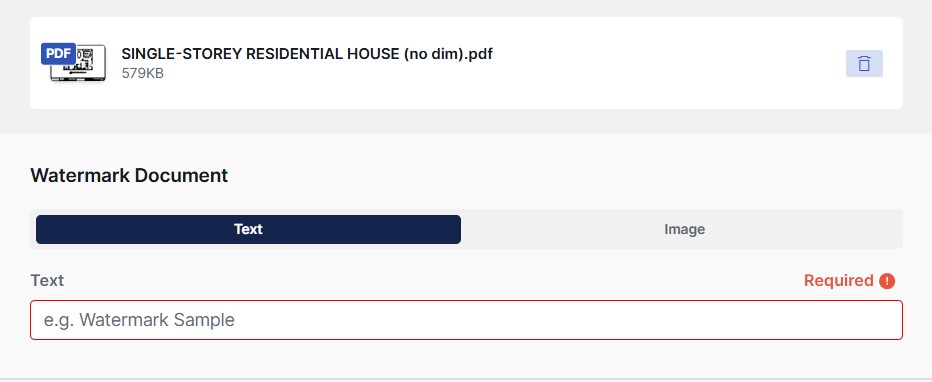
Customize your watermark’s font, color, rotation, opacity, and position until it matches your needs.
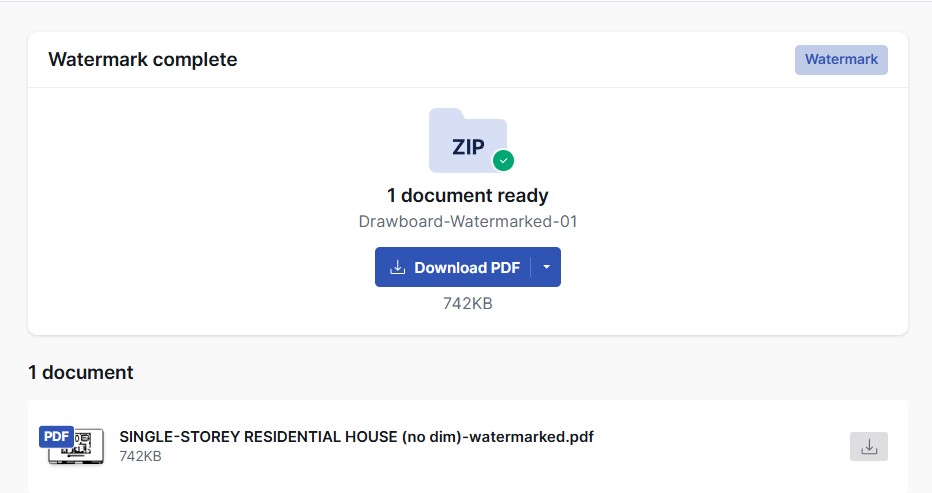
Select Add Watermark to apply your text or image, then download your updated PDF.

Watermarks FAQs

Why trust Drawboard PDF’s free watermark tool?
Our free online-based tool makes it easy to label files clearly without uploading them, creating an account, or rebuilding the document. You can add useful document status in seconds and keep control of the file the whole time.
When should I use a watermark?
You should use a watermark when you need to clearly communicate how a document should be viewed or handled. This includes marking files as draft, confidential, or approved, adding branding, or indicating ownership. It is especially useful when documents are shared with others and need clear context on every page.
Can I use either text or an image as a watermark?
Yes, you can use either text or an image as a watermark. This gives you flexibility to apply simple labels like Draft or Confidential, or use logos and other visual marks for branding or ownership.
Can I control how visible the watermark is?
Yes, you can control how visible the watermark is. The tool lets you adjust opacity so the watermark remains noticeable without making the document hard to read.
Can I choose where the watermark appears on the page?
Yes, you can choose where the watermark appears on the page. You can position it in different areas of the page and decide whether it should appear above or below the document content.
Can I apply the watermark to only part of a document?
Yes, you can apply the watermark to only part of a document. You can use it across all pages or limit it to selected pages when only certain sections need labeling.

Explore Drawboard's
Paid Plans

Discover more features with our premium plans.

4.7
13,256 user ratings
Microsoft Store, Sep 2021

Explore Drawboard PDF's full modification tools

Get started with
Drawboard PDF
download windows
Web browser button
Apple app store button
Download Google Play for Android
Available on Windows, iOS, macOS, Android and in your web browser.