


Your drawing set lives in Autodesk Forma (formerly Construction Cloud). Your design review happens somewhere else, so every cycle starts with an export and a copy that's already out of date the moment someone uploads a newer revision.
The Autodesk Forma integration is now rolling out in Drawboard Projects. Drawings import directly from Forma, stay linked to their source, carry markups forward when a new revision arrives, and publish back to Forma as a new file once the review is done.
Import straight from Forma
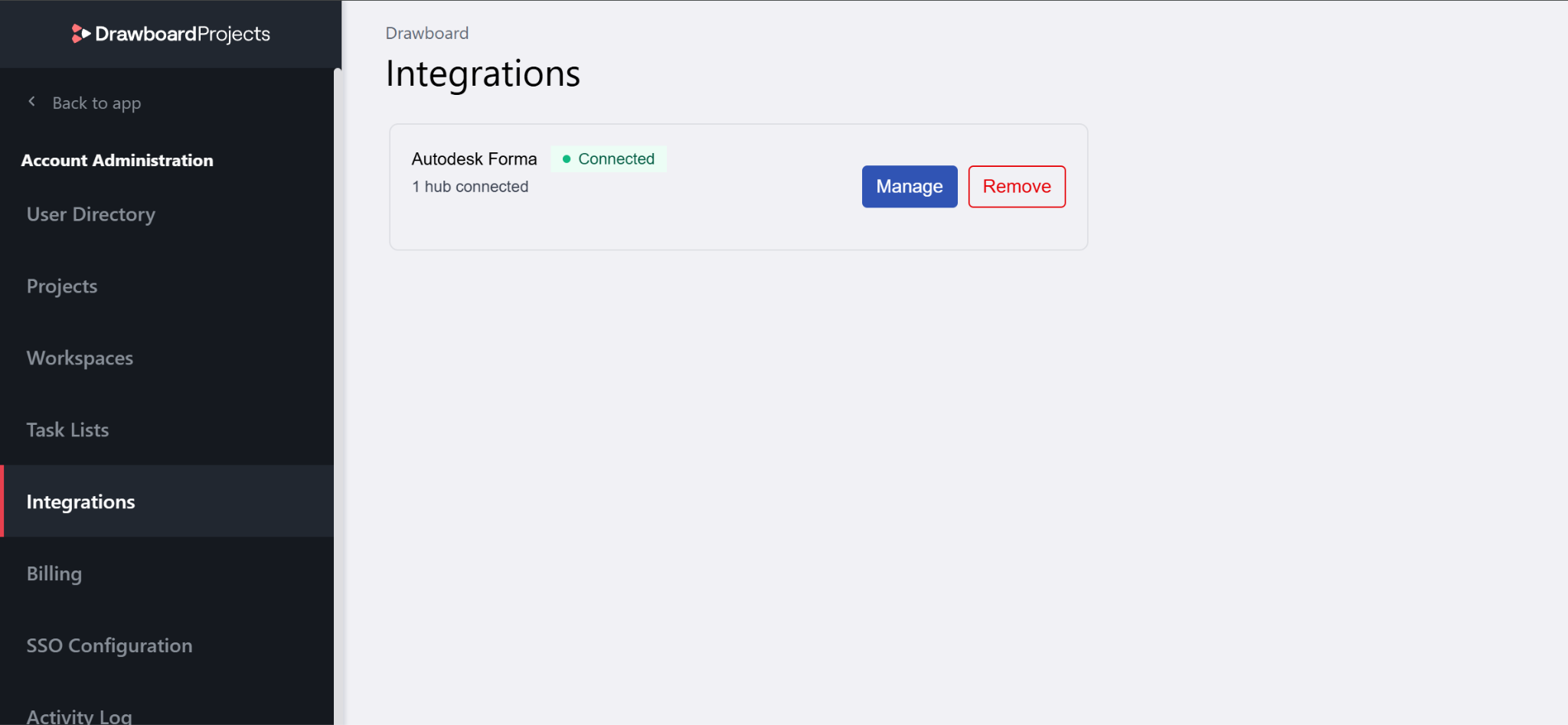
An org admin connects your Forma hub once from the Integrations tab and selects which Forma projects are available to the team.
From the Documents tab, choose Upload and then Import from Forma. The file picker opens directly into your connected Forma projects and includes search, so pulling two sheets from a folder of two hundred takes seconds.
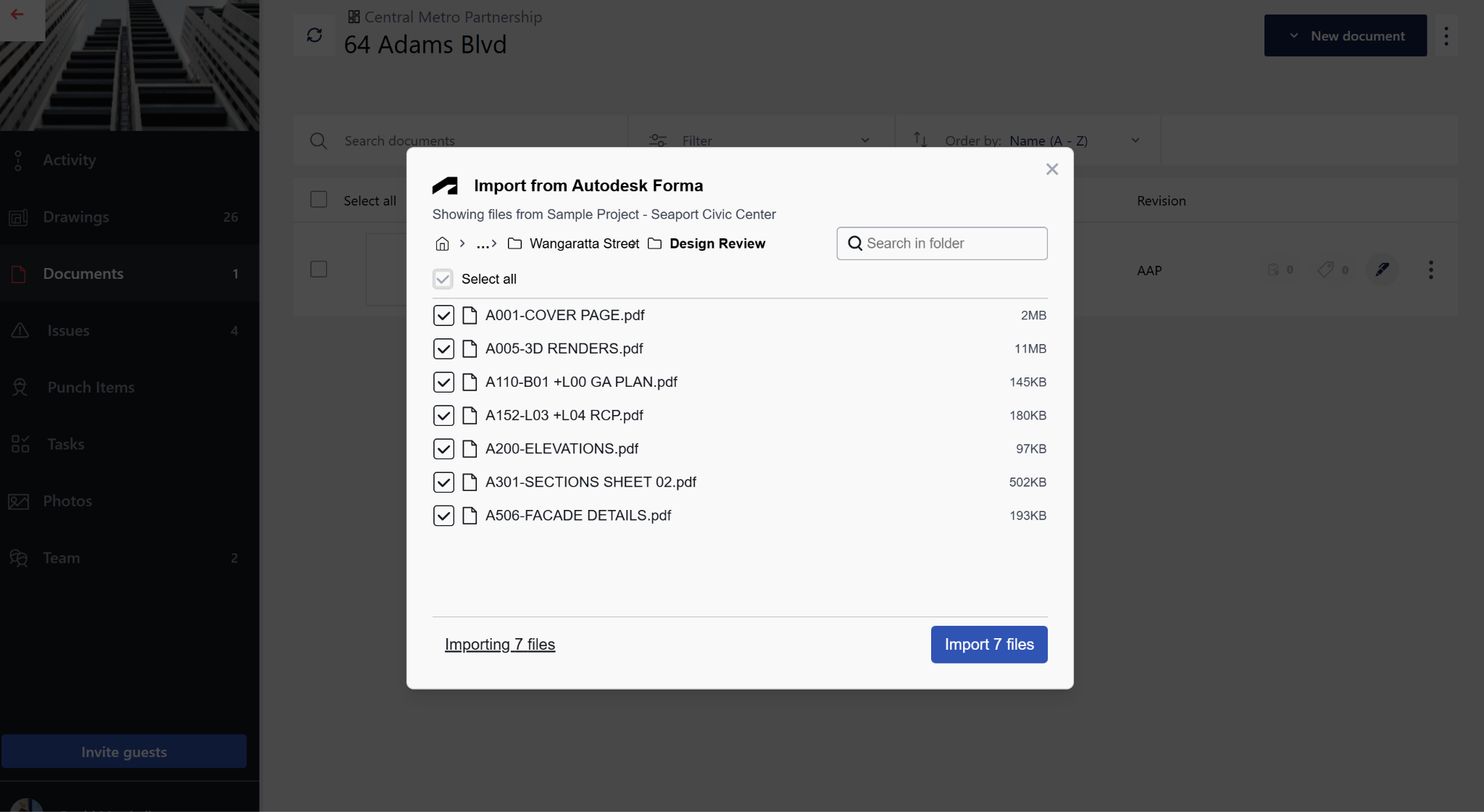
Select what you need and the drawings come across with their Forma details attached, each showing its current sync status.
Example: A design lead sets up a review for a street upgrade package and brings the whole folder across in one pass, rather than downloading twelve sheets, renaming them, and uploading them one by one.
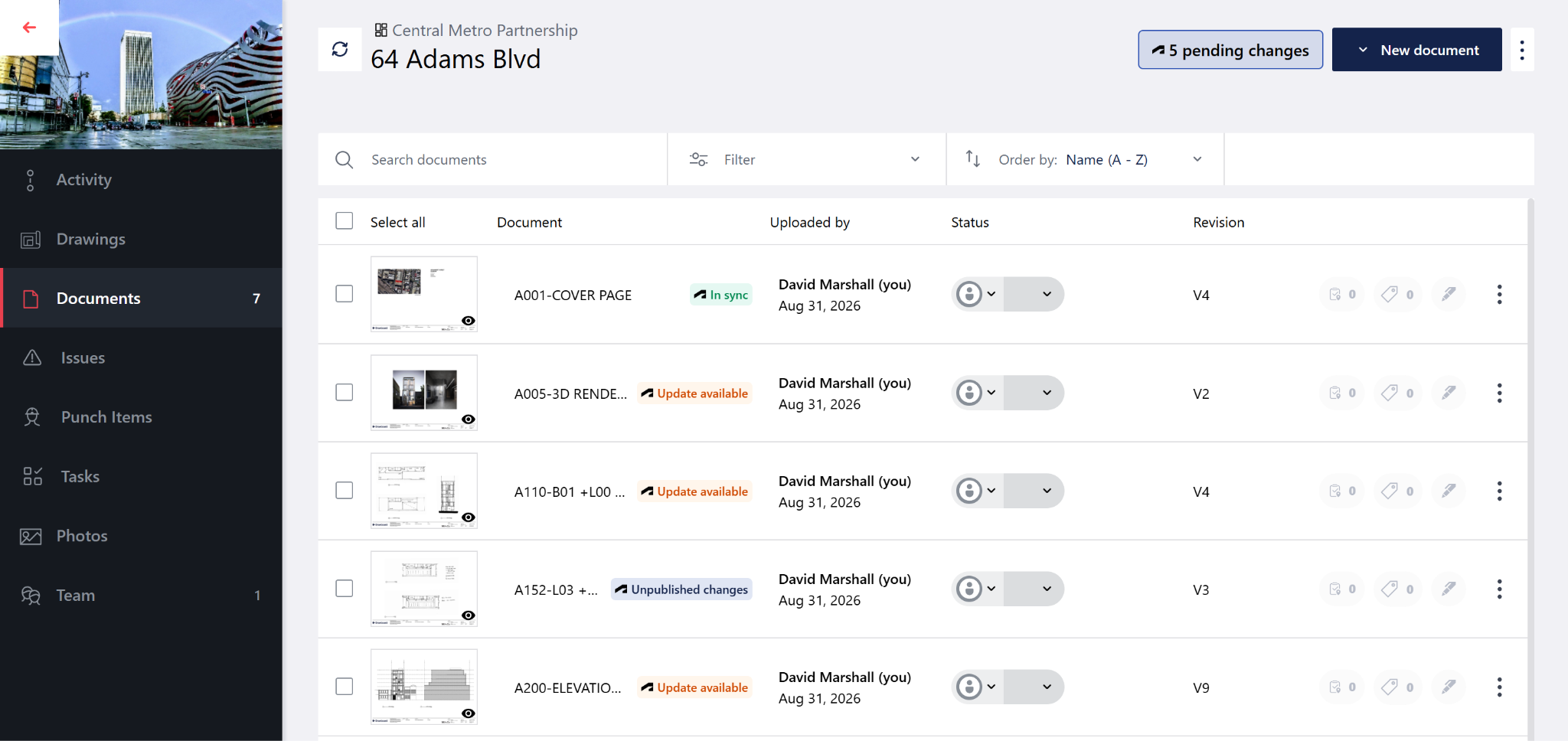
Every imported drawing keeps its connection to Forma, and anyone on the project can read the state of the set from the list view.
A drawing that matches the latest version in Forma shows as in sync. When a newer version is released in Forma, it shows Update available. The Pending Changes indicator at the top of your drawing list collects everything that needs attention - drawings with updates available from Forma, and drawings holding local markups that haven't been published yet.
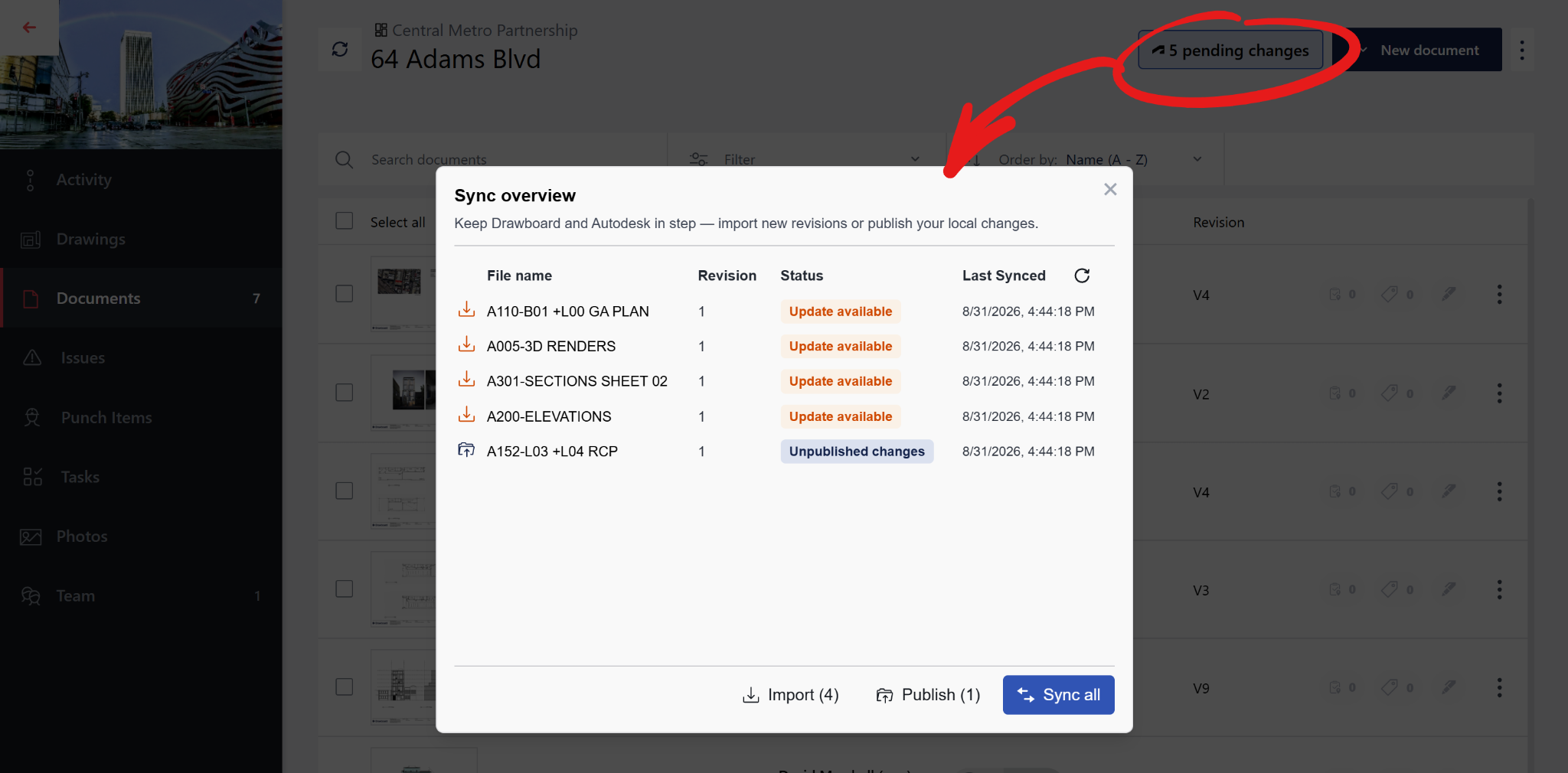
Sync All handles the batch. Drawings with nothing to resolve update without any input, and Drawboard Projects only stops to ask about drawings where you have markups on a sheet that’s since been superseded.
Example: An admin opens the project on Monday morning, hits Sync All, and clears nine drawings without a single decision. The one that needs attention is the sheet the team was marking up on Friday afternoon.
New revisions land in Forma while reviews are still running. When Projects finds a drawing with both a newer Forma version and local markups, it asks how to handle it.
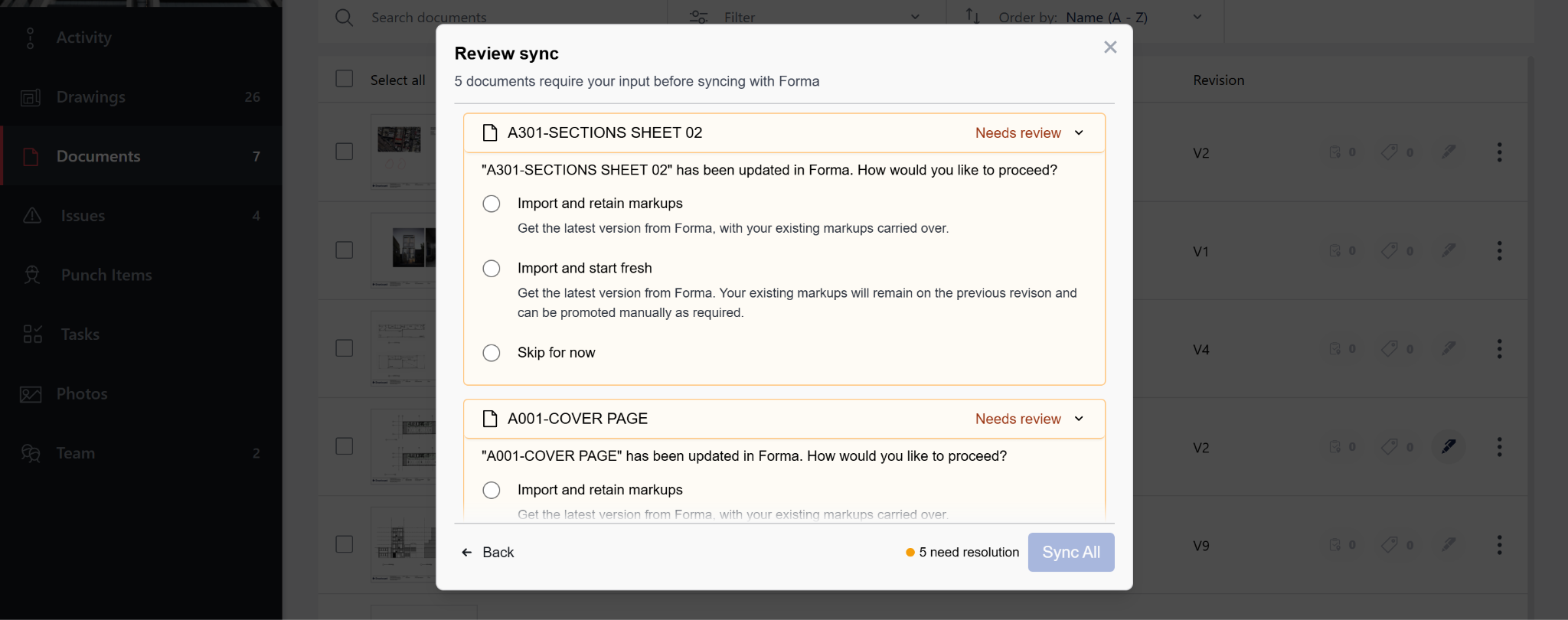
Choose Import and retain markups, and Projects brings in the new revision with your existing markups carried over. Every markup lands on the current drawing with its tracking and assignee intact. Choose Import and start fresh if the previous review cycle is closed and the next pass should start clean - your markups stay on the earlier revision and can be promoted manually if anything needs to carry forward.
If the team is mid-session, skip the update and stay on the current revision until the discussion wraps.
Example: A design lead is halfway through a group markup session when the structural team releases updated sheets. The room finishes their current discussion, an admin imports the update with markups retained, and the review continues against the current drawing without losing a single comment.
When the review is done, the marked-up drawing publishes back to Forma. A drawing with markups that haven't been sent back yet shows as Unpublished changes. Publish from the same menu and Drawboard Projects writes the file into Forma, where it sits in the version history alongside everything else the project team can see.
Nothing publishes automatically. Publishing requires an admin role, so it is always a deliberate action taken by someone accountable for the record — which means in-progress annotations never land in front of the wider project before anyone intended.
Teams can import from Forma, run the full review in Drawboard Projects, and publish back at milestones rather than continuously.
Example: A project admin closes out a services coordination review and publishes the consolidated markups. The structural lead opens the new version in Forma that afternoon with every comment in place on the drawing.
Not every marked-up drawing needs to go back as a new version of the original. At the end of a review milestone, you can publish a copy of your marked-up drawings to a different location in Forma - a Reviews folder, a consultant issue package, or anywhere else that fits your document structure. Set a description, choose your destination, and the file lands in Forma as a standalone record of the review.
External consultants, subcontractors, and clients can view drawings, mark up, raise and close tasks, and join live review sessions in Drawboard Projects without Autodesk credentials. What they don't get is write access to Forma - the record is only ever updated by the people accountable for it.
Setup happens on web, but importing, syncing, and marking up all work across web, iPad, and Windows. Once a drawing is in the project it behaves like any other Drawboard Projects drawing. The site team opens the current revision on an iPad or a Surface and marks it up where the work is happening.
Example: A facade consultant reviews the current cladding details over two days and closes out three tasks. The design lead publishes the result back to Forma once, when the package is resolved.
The Autodesk Forma integration is available now in Drawboard Projects. An org admin can connect your hub from the Integrations tab, and the rest of the team can start importing straight away.
Stop treating file export as part of your review process. Drawings arrive current, stay current while the review runs, and go back with the outcome attached.
For more information on setting up the integration, check out our Learning Hub article.
Your drawing set lives in Autodesk Forma (formerly Construction Cloud). Your design review happens somewhere else, so every cycle starts with an export and a copy that's already out of date the moment someone uploads a newer revision.
The Autodesk Forma integration is now rolling out in Drawboard Projects. Drawings import directly from Forma, stay linked to their source, carry markups forward when a new revision arrives, and publish back to Forma as a new file once the review is done.
Import straight from Forma
An org admin connects your Forma hub once from the Integrations tab and selects which Forma projects are available to the team.
From the Documents tab, choose Upload and then Import from Forma. The file picker opens directly into your connected Forma projects and includes search, so pulling two sheets from a folder of two hundred takes seconds.
Select what you need and the drawings come across with their Forma details attached, each showing its current sync status.
Example: A design lead sets up a review for a street upgrade package and brings the whole folder across in one pass, rather than downloading twelve sheets, renaming them, and uploading them one by one.
Every imported drawing keeps its connection to Forma, and anyone on the project can read the state of the set from the list view.
A drawing that matches the latest version in Forma shows as in sync. When a newer version is released in Forma, it shows Update available. The Pending Changes indicator at the top of your drawing list collects everything that needs attention - drawings with updates available from Forma, and drawings holding local markups that haven't been published yet.
Sync All handles the batch. Drawings with nothing to resolve update without any input, and Drawboard Projects only stops to ask about drawings where you have markups on a sheet that’s since been superseded.
Example: An admin opens the project on Monday morning, hits Sync All, and clears nine drawings without a single decision. The one that needs attention is the sheet the team was marking up on Friday afternoon.
New revisions land in Forma while reviews are still running. When Projects finds a drawing with both a newer Forma version and local markups, it asks how to handle it.
Choose Import and retain markups, and Projects brings in the new revision with your existing markups carried over. Every markup lands on the current drawing with its tracking and assignee intact. Choose Import and start fresh if the previous review cycle is closed and the next pass should start clean - your markups stay on the earlier revision and can be promoted manually if anything needs to carry forward.
If the team is mid-session, skip the update and stay on the current revision until the discussion wraps.
Example: A design lead is halfway through a group markup session when the structural team releases updated sheets. The room finishes their current discussion, an admin imports the update with markups retained, and the review continues against the current drawing without losing a single comment.
When the review is done, the marked-up drawing publishes back to Forma. A drawing with markups that haven't been sent back yet shows as Unpublished changes. Publish from the same menu and Drawboard Projects writes the file into Forma, where it sits in the version history alongside everything else the project team can see.
Nothing publishes automatically. Publishing requires an admin role, so it is always a deliberate action taken by someone accountable for the record — which means in-progress annotations never land in front of the wider project before anyone intended.
Teams can import from Forma, run the full review in Drawboard Projects, and publish back at milestones rather than continuously.
Example: A project admin closes out a services coordination review and publishes the consolidated markups. The structural lead opens the new version in Forma that afternoon with every comment in place on the drawing.
Not every marked-up drawing needs to go back as a new version of the original. At the end of a review milestone, you can publish a copy of your marked-up drawings to a different location in Forma - a Reviews folder, a consultant issue package, or anywhere else that fits your document structure. Set a description, choose your destination, and the file lands in Forma as a standalone record of the review.
External consultants, subcontractors, and clients can view drawings, mark up, raise and close tasks, and join live review sessions in Drawboard Projects without Autodesk credentials. What they don't get is write access to Forma - the record is only ever updated by the people accountable for it.
Setup happens on web, but importing, syncing, and marking up all work across web, iPad, and Windows. Once a drawing is in the project it behaves like any other Drawboard Projects drawing. The site team opens the current revision on an iPad or a Surface and marks it up where the work is happening.
Example: A facade consultant reviews the current cladding details over two days and closes out three tasks. The design lead publishes the result back to Forma once, when the package is resolved.
The Autodesk Forma integration is available now in Drawboard Projects. An org admin can connect your hub from the Integrations tab, and the rest of the team can start importing straight away.
Stop treating file export as part of your review process. Drawings arrive current, stay current while the review runs, and go back with the outcome attached.
For more information on setting up the integration, check out our Learning Hub article.


We are a PDF and collaboration company. We believe that creating more effective connections between people reduces waste.
Our best work has been overtaken by busywork. That’s why we’ve created ways to help people get back to working wonders without any paper in sight.
Drawboard PDF lets you mark up and share with ease, and Drawboard Projects brings collaborative design review to architecture and engineering teams.
At Drawboard, we work our magic so our customers can get back to working theirs.
We are a PDF and collaboration company. We believe that creating more effective connections between people reduces waste.
Our best work has been overtaken by busywork. That’s why we’ve created ways to help people get back to working wonders without any paper in sight.
Drawboard PDF lets you mark up and share with ease, and Drawboard Projects brings collaborative design review to architecture and engineering teams.
At Drawboard, we work our magic so our customers can get back to working theirs.


