


The best PDF app for your iPad depends on what you actually do with PDFs.
Architects, engineers, and contractors need precise annotation tools for large-format drawings and dense spec sheets, where every comment and revision cloud needs to be legible, placed precisely, and traceable back to whoever left it.
Professionals working with contracts and agreements need to edit text, fill forms, and collect signatures without touching a printer. Students want to take handwritten notes in class with an Apple Pencil and still feel like they're writing with pen on paper.
No matter what you need an iPad PDF app for, we’ll help you find the right one based on the jobs they're best suited for.
Drawboard PDF on iPad treats Apple Pencil markup as the center of the workflow rather than a secondary feature. The experience feels closer to working with pen on paper than a traditional PDF editor, with pressure-sensitive ink that responds naturally to Apple Pencil input across highlights, freeform drawing, detailed markups, comments, and signatures.
The same document also travels with you across devices. Drawboard PDF runs on iPhone, Windows, macOS, Android, and web, so tablet markup, desktop review, and browser access all run through the same account without exporting or re-uploading.
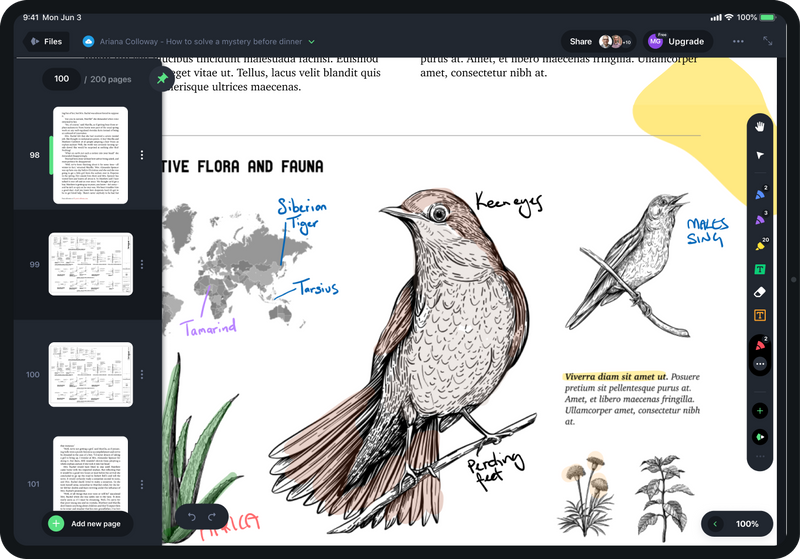
The Markup Toolbar keeps the heaviest annotation work efficient. Navigation, selection, freeform tools, shapes, review tools, measurement tools, insert tools, and Markup Library access all live directly on the canvas, so repeat markup work doesn't require digging through menus. Architects can redline drawings, engineers can drop in measurements and notes, and students can mark up class materials without switching to a heavier tool.

On paid plans, teams reviewing technical drawings get a few additional tools that go beyond standard PDF annotation. For example, Markup Library stores reusable annotations such as engineering symbols, stamps, common notes, ink marks, shapes, lines, text, and callouts, then lets you reuse them across documents.
There are also measurement tools that support length, polylength, rectangle area, polygon area, and calibration, which makes Drawboard PDF a better fit for scale-aware drawings than a basic highlighter app.

When a document needs to stay connected after the first markup pass, Store+Share keeps it in Drawboard Cloud so collaborators can access the same file across devices and review rounds. That's a more reliable approach than circulating exported PDFs by email, particularly when feedback accumulates across multiple revisions and you need a single source of truth.
For teams that eventually need formal review coordination across stakeholders and drawing revisions, Drawboard Projects adds task tracking, issue management, review statuses, and revision control directly on top of the drawings themselves.
Drawboard PDF is the right fit when markup is the work itself. Architects, engineers, construction teams, and anyone working through complex technical PDFs with an Apple Pencil will find it closer to the precision of pen on paper than any general-purpose editor on this list.
Drawboard pricing includes a free Basic plan and paid Pro tiers for Drawboard PDF.
“I love this app! I use it in my iPad, HP laptop, and my phone. It works amazingly on all of them! I read a lot of articles/textbooks since I'm a college student and this app has never failed me” — Apple App Store User
“It can handle large pdf files quickly as compared with other software. Easy to give Markups on drawing in pdf format. Lots of pdf editing & markup features are available.” — G2 User
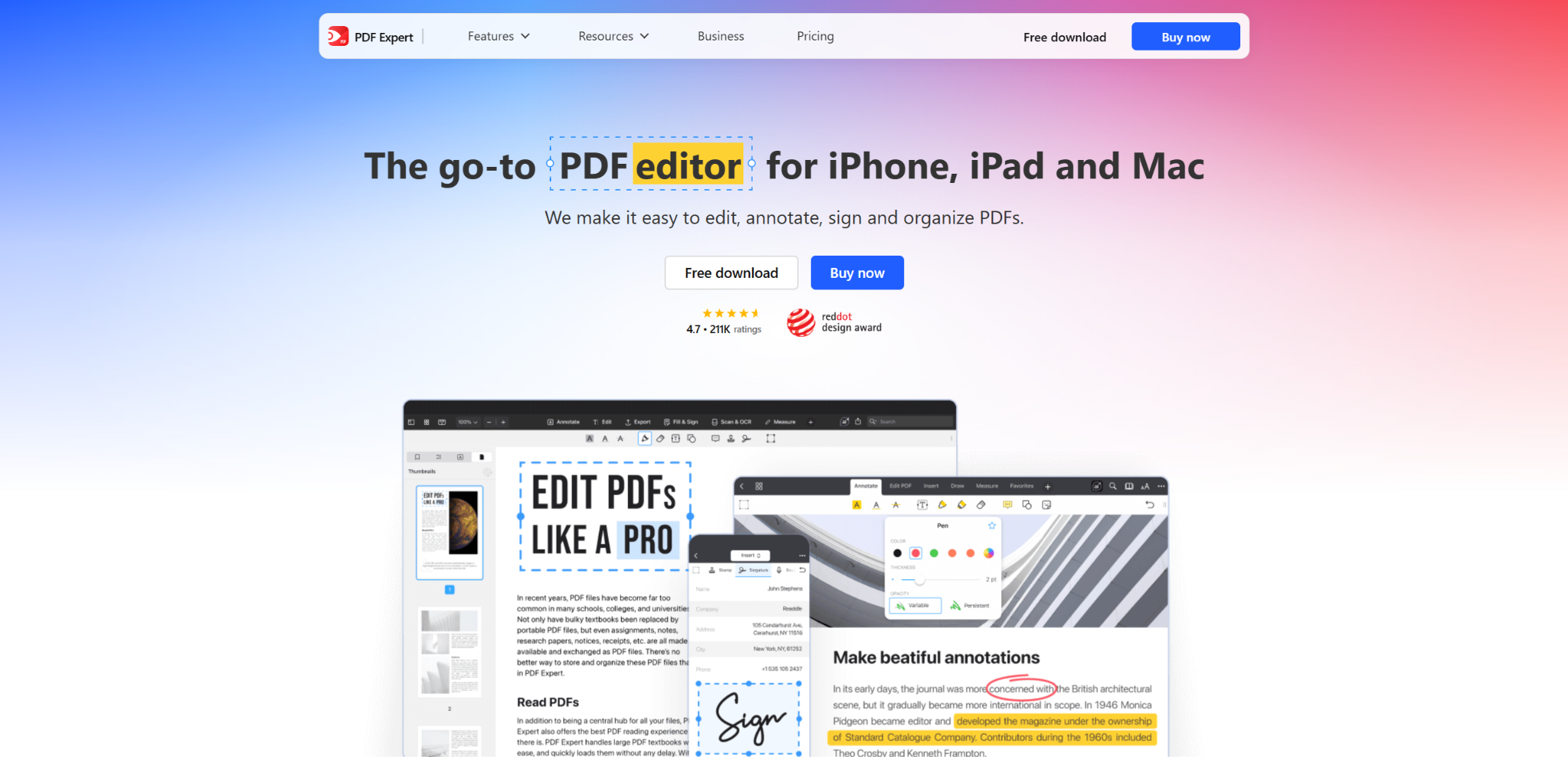
PDF Expert makes the most sense for people who exclusively live in Apple's ecosystem. Whether you're reviewing contracts on an iPad, signing documents on an iPhone, or making edits from a Mac, the experience stays consistent across devices. Beyond annotation, it also covers common PDF tasks like form filling, page management, signatures, and text editing.
PDF Expert’s best use case is day-to-day document work. You can read a contract, mark up comments, rearrange pages, add a signature, and make small corrections, all within the same app. That makes PDF Expert useful for consultants, educators, legal professionals, and business users who need a clean PDF workspace rather than a specialized technical markup tool.
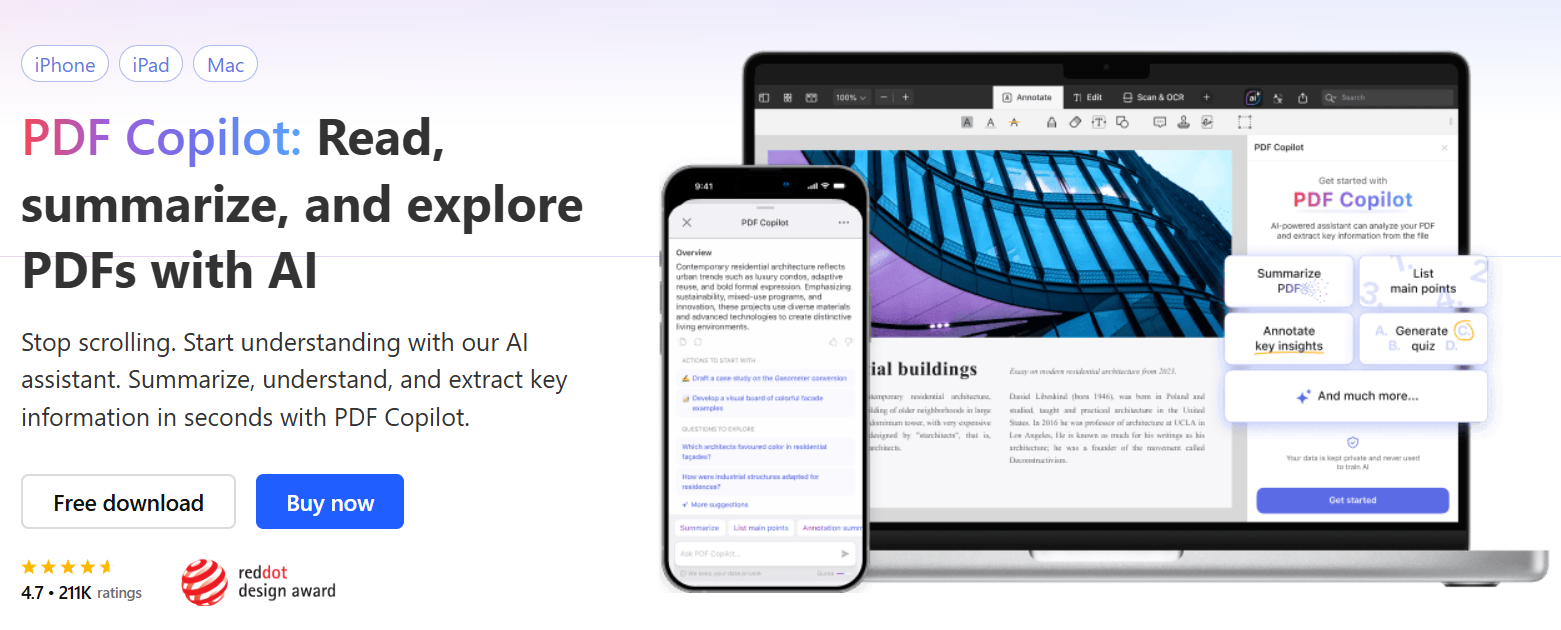
The paid version moves beyond annotation into document editing. With a paid plan, you can update existing text, make image changes, and add, delete, rotate, merge, and combine pages. You can also use PDF Copilot to generate summaries and answer questions about content in the PDF, which can save time when you're trying to understand a report or contract before diving into the details.
The main limitation is platform fit. Since PDF Expert is only available for Mac and iOS, it works best when all team members use Apple devices. Teams that also use non-Apple devices should look for a different editor. The iOS version also lacks some of the app’s core features, like OCR and advanced AI editing that uses PDF Copilot to reformat PDFs automatically and enhance scanned documents.
Overall, PDF Expert is a strong fit for iPad users who want one Apple-native PDF editor for everyday reading, annotation, signatures, and light document production. But without measurement tools or reusable markups, it’s not ideal for technical reviews or structured markup at scale.
PDF Expert offers a free download and Premium access through subscription options. There’s also a Lifetime option, but it doesn’t include updates or the iPad version.
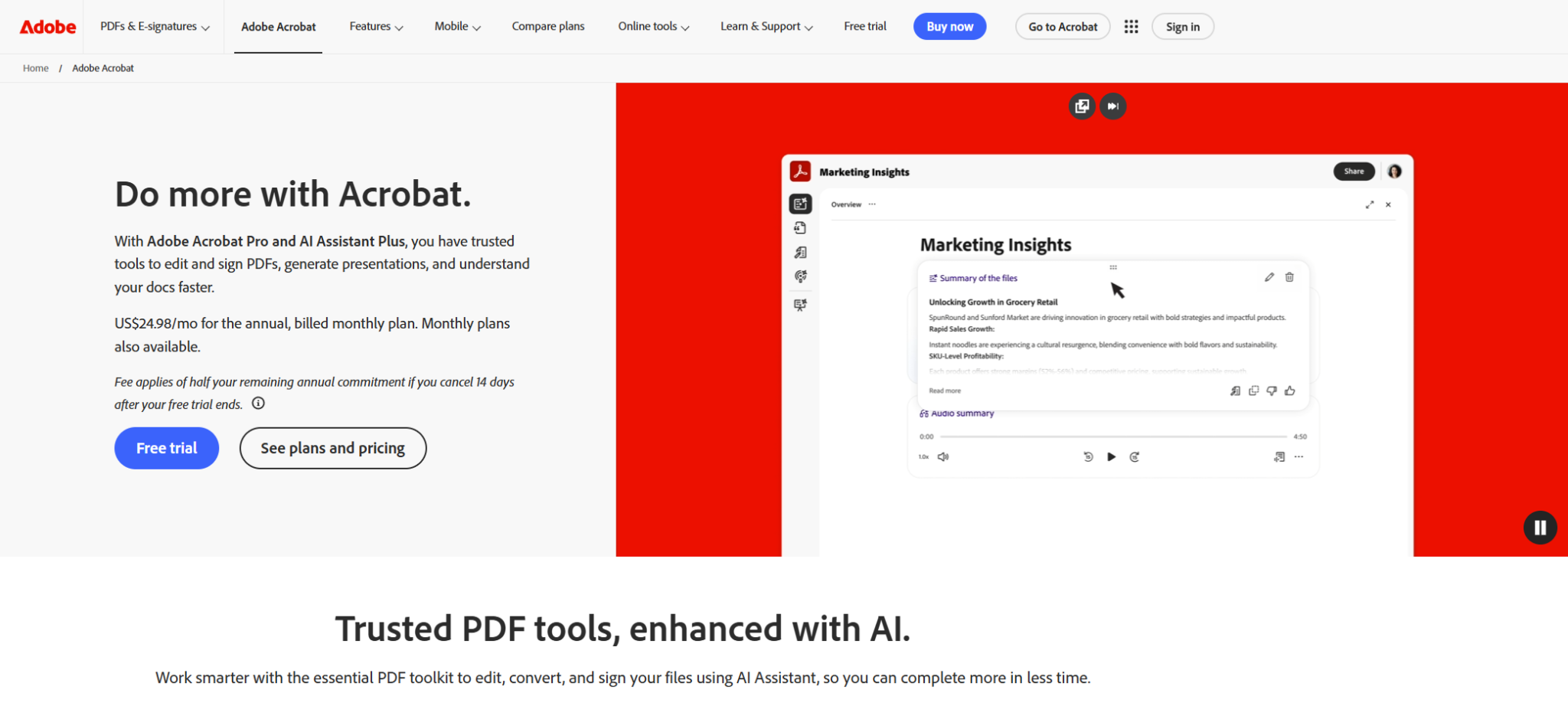
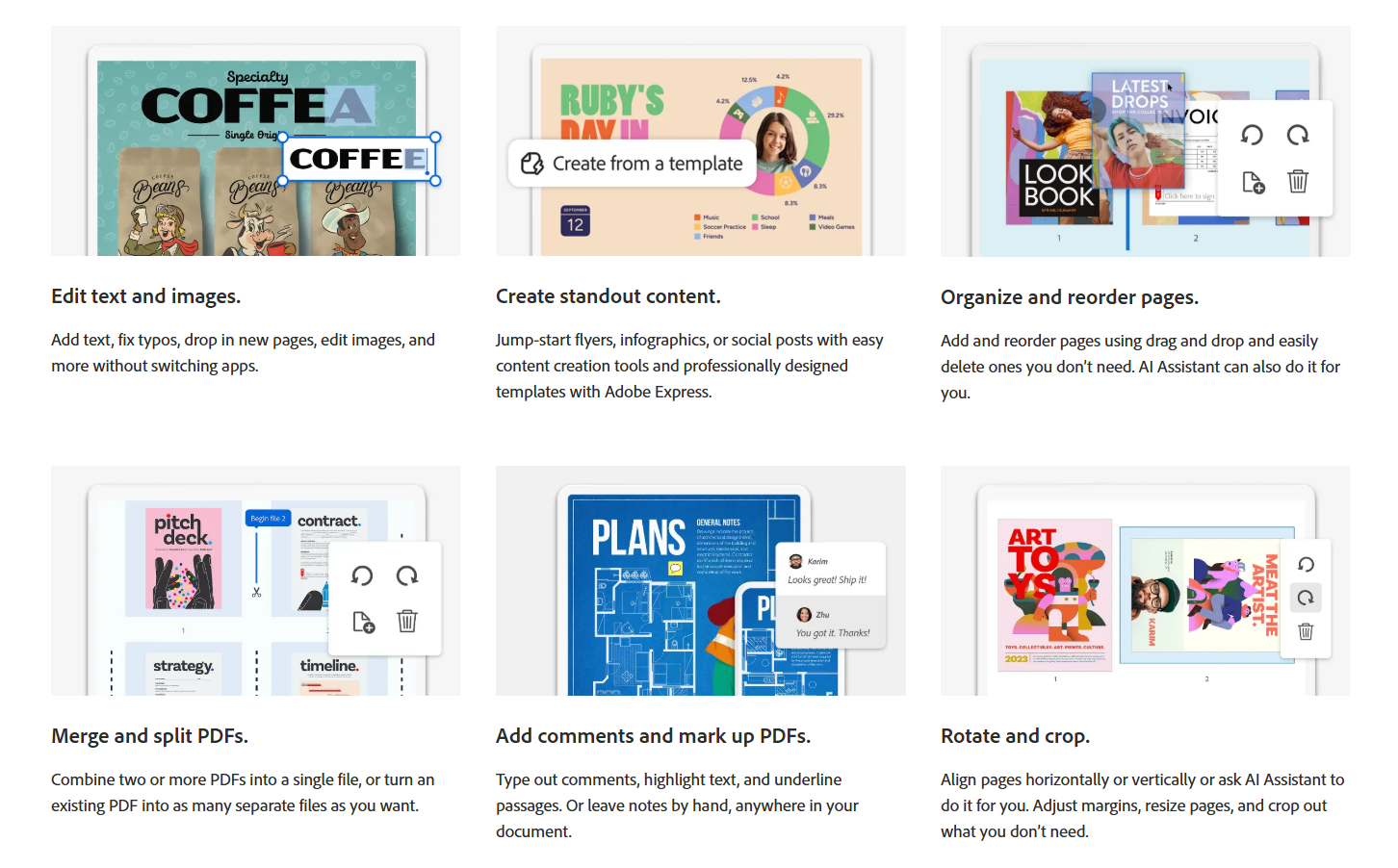
Adobe Acrobat makes the most sense for organizations that already rely on Adobe's document ecosystem. Acrobat covers reading, commenting, filling, signing, sharing, and managing PDFs on iPad, with paid plans adding deeper editing, OCR, redaction, comparison, forms, and AI-backed document work.
Adobe Acrobat's biggest advantage on iPad is how seamlessly it fits into the rest of Adobe's document workflow. A reviewer can mark up a contract on iPad, route it for signature, edit it on desktop, and keep the file inside an enterprise-approved toolchain without exporting or switching platforms. For legal, compliance, HR, and finance teams where PDFs carry approval workflows and security requirements, that continuity saves time and improves consistency.
Paid plans push Acrobat beyond a PDF reader into document management territory, adding deeper editing, conversion, forms, and redaction, with Acrobat AI Assistant and PDF Spaces available for teams that need AI-supported document analysis on top of that.
Adobe’s biggest shortcoming is complexity. If your main goal is marking up a drawing, worksheet, or document with an Apple Pencil, much of Acrobat's feature set may go unused.
The platform performs well when documents need signatures, approvals, security controls, or formal review processes, but that same depth can feel excessive for users who primarily want a fast and natural markup experience or a reliable page management tool.
Acrobat earns its place when PDFs sit at the center of a business process. A paralegal routing contracts for partner review, or an HR team managing offer letters and policy acknowledgments, will find the platform built around exactly that kind of work.
Adobe sells Acrobat through individual and team plans, with annual billing represented as monthly pricing.
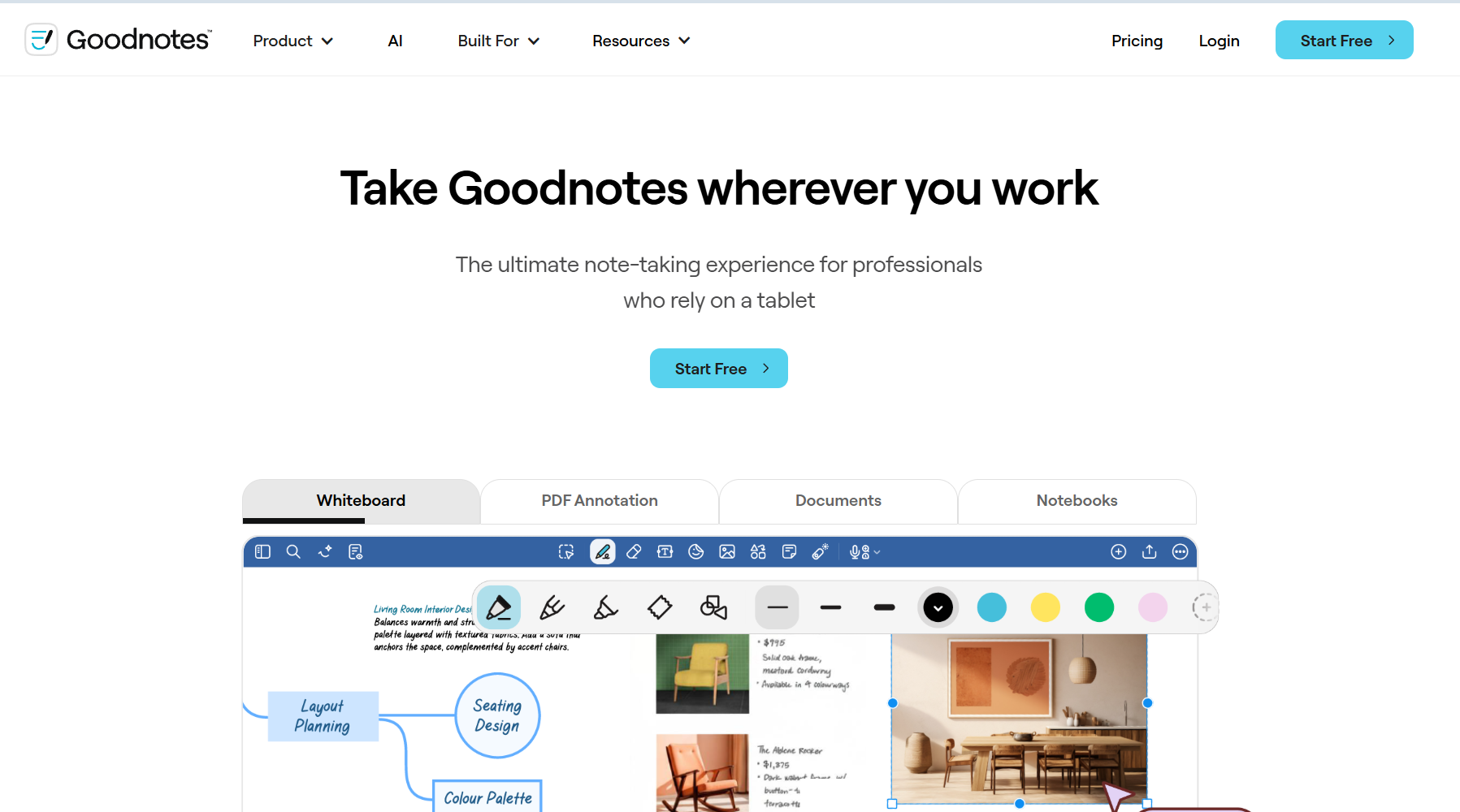
Goodnotes isn't really a PDF app. It's a note-taking workspace that happens to handle PDFs well, which is why many of its features lean towards academic work rather than office workflows.
Importing a PDF brings it into a notebook alongside your handwritten notes, templates, and other materials. A student can pull in lecture slides, write around them with an Apple Pencil, search their handwriting later, and keep everything organized by subject without bouncing between apps. It works the same way for meeting notes, planning documents, or anything where reference materials and written notes need to live together.
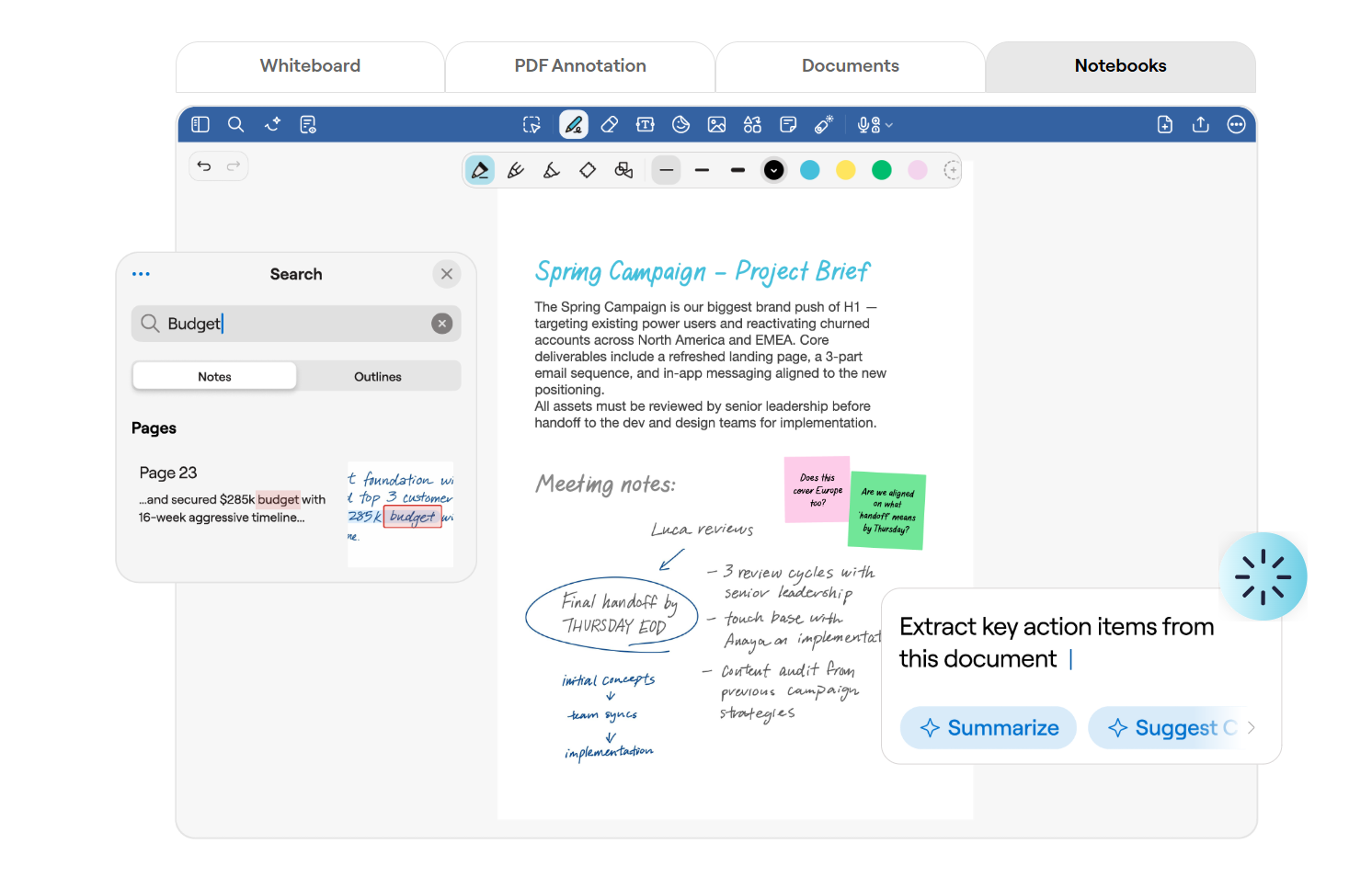
The app adds AI and productivity features on paid tiers. Features like handwriting recognition, transcription, summaries, and text conversion make it easier to organize information so notes become something you can revisit and study from rather than just a record of what was written. It also includes built-in study guide tools (with Pro or higher, or AI add-on plans) to turn your notes into mini lessons.
Limitations show up when the PDF needs more than annotation. Goodnotes can’t use OCR on scanned files and doesn’t offer redaction, form creation, or document comparison, so anything beyond writing and highlighting on top of a file requires a different tool. For note-heavy workflows it rarely matters, but it's worth knowing if your PDF work extends into editing or document production.
Goodnotes works best when the PDF supports the note-taking rather than the other way around. If the document is what gets handed off at the end, a dedicated PDF app will serve that job better.
Goodnotes publishes annual plan pricing for individual and team use. In addition to included AI features, there’s also a separate advanced AI add-on for $10/month.
Apple Preview and Markup is where most iPad users should start before downloading a dedicated PDF app. You can open PDFs, fill out forms, add text boxes, create signatures with Apple Pencil or your finger, and make basic page edits using tools already built into iPadOS.
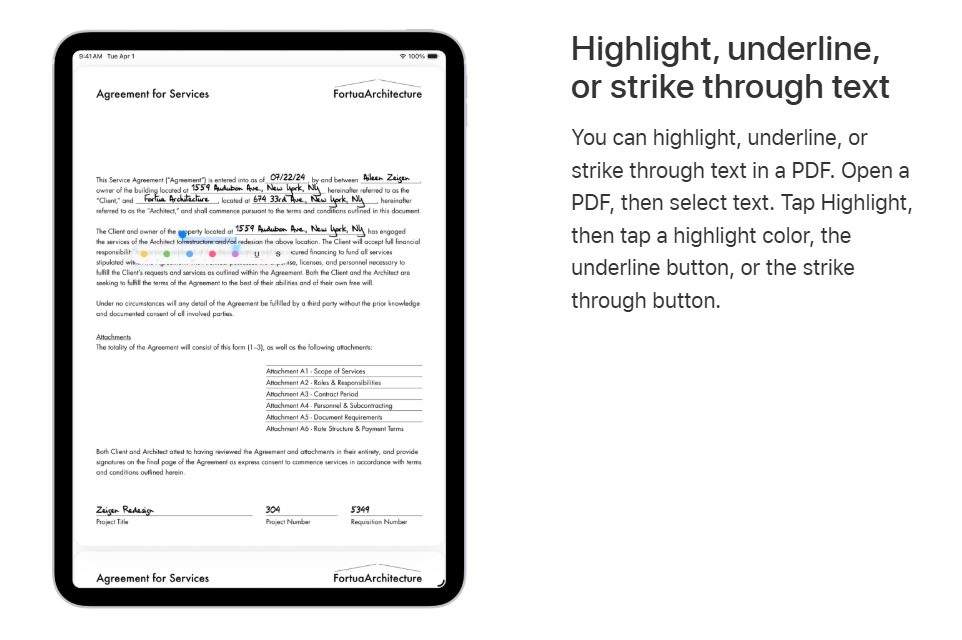
The biggest advantage is availability. If you need to fill a form, sign a document, drop in a quick note, or mark up a file before sending it back, Preview and Markup handles the job without another download or subscription. For occasional PDF work, that covers a surprising amount of what dedicated apps are often used for.
When PDF work becomes a regular part of the job, iPad’s native app falls short. Preview and Markup aren't built for reusable annotation libraries, technical measurement, OCR, or any workflow that involves tracking who changed what and when. Power users, frequent reviewers, and anyone managing documents across a team will outgrow the built-in toolset quickly.
For forms, signatures, quick annotations, and occasional edits, many iPad users will find the built-in tools already cover what they need. The moment PDF work becomes a regular part of the job, a dedicated app will fill the gaps.
Preview and Markup are included with supported iPads.
LiquidText is built around pulling out excerpts, connecting ideas, and reviewing multiple documents at once rather than marking up or editing files. It helps anyone working through large volumes of material, where understanding relationships between sources and establishing context is critical for connecting ideas.
The standout feature is the workspace beside the document. Key quotes, facts, and notes pull into a parallel area while keeping live links back to the source page, so nothing loses its context as research grows. Drawing connections between excerpts, pages, and documents builds a visual map of how ideas relate, and pinching or collapsing content lets you compare distant sections without losing your place.
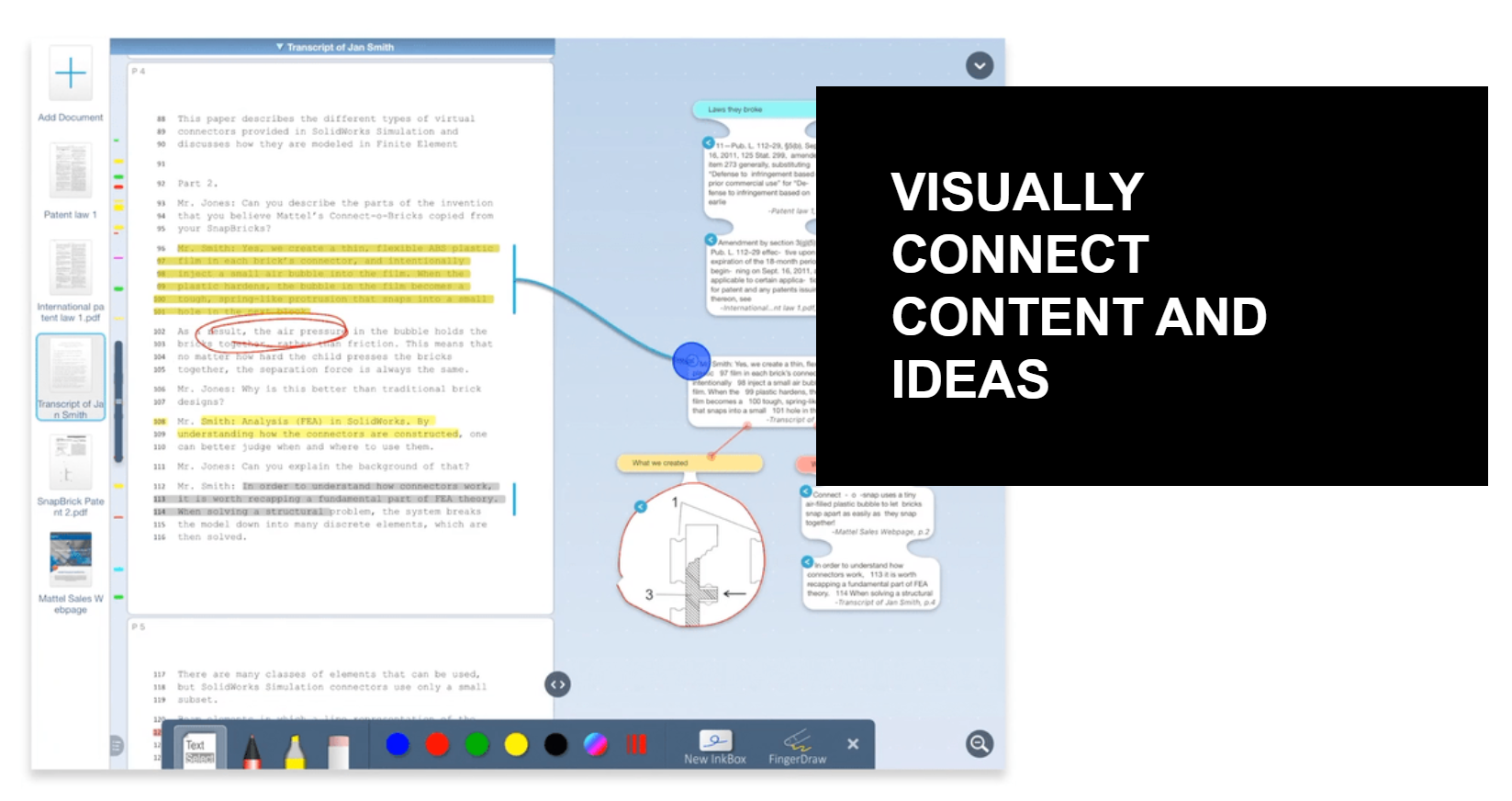
Multi-document projects extend that further, bringing PDFs, Word files, PowerPoint decks, web content, and reference manager metadata into a single workspace. Comparing sources, tracking arguments, or building a case from scattered evidence becomes considerably more manageable than juggling separate files.
Complexity is what holds LiquidText back as a general PDF tool for iPad. It rewards users who commit to its research-focused approach, but feels like overkill for highlighting, commenting, or simple annotation. Collaboration also requires everyone to be on LiquidText, since shared projects can't be accessed outside the app.
Researchers, academics, legal professionals, and anyone regularly working through dense multi-document material will find LiquidText’s capabilities a better fit than standard annotation or notetaking apps.
LiquidText offers a free Basic plan, a one-time Pro 2023 purchase, and paid LIVE subscriptions.
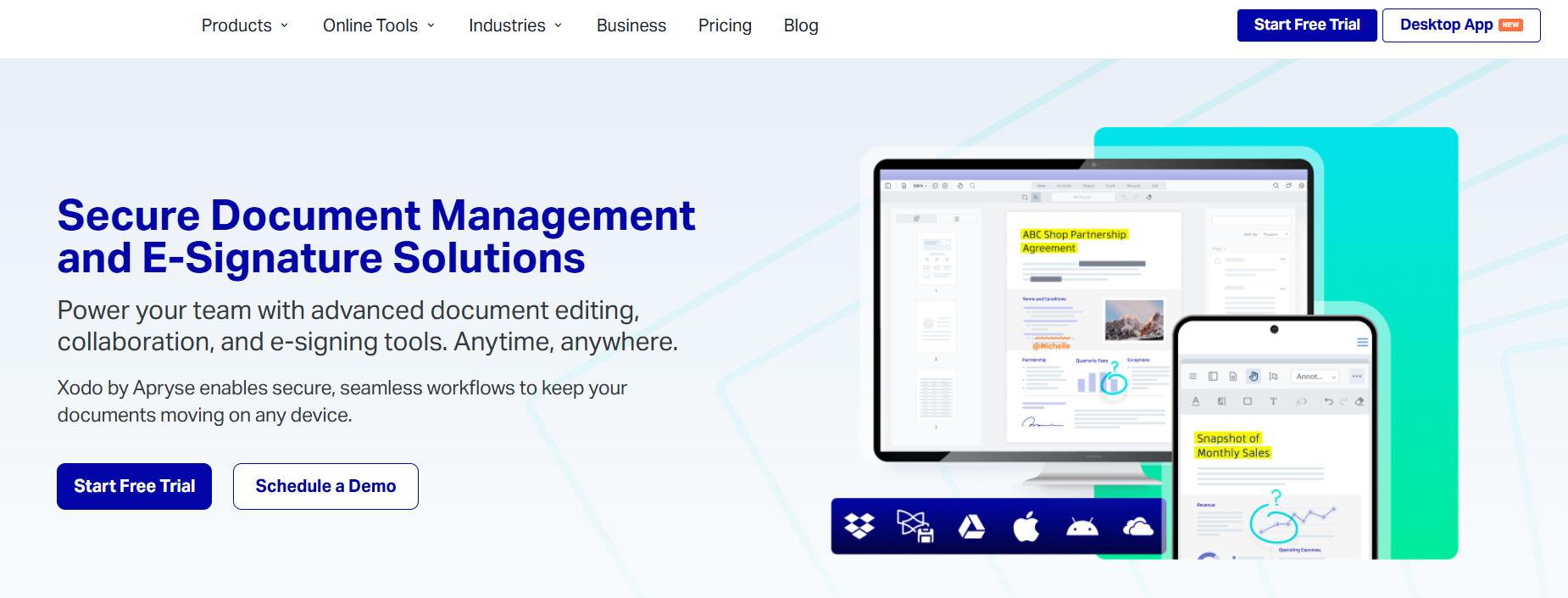
Xodo is a practical choice when PDF work doesn't stay on one device or platform. The same account covers iOS, Android, web, Windows, macOS, and Linux, so opening a document on iPad, editing it in a browser, and finalizing it on desktop doesn't require exporting or re-uploading at each step. Cloud storage works across Xodo Drive, Google Drive, OneDrive, Dropbox, and iCloud, so files stay accessible wherever the work happens to land.
Annotation, form filling, e-signatures, redaction, OCR on scanned documents, file conversion, and compression are all available without switching tools. Additionally, a built-in chat feature lets collaborators discuss documents in context rather than through a separate thread, and real-time collaboration means multiple people can work on the same file simultaneously.
The customizable toolbar also lets you bring the tools you actually use to the front, which helps on a smaller screen where menu depth can slow things down.
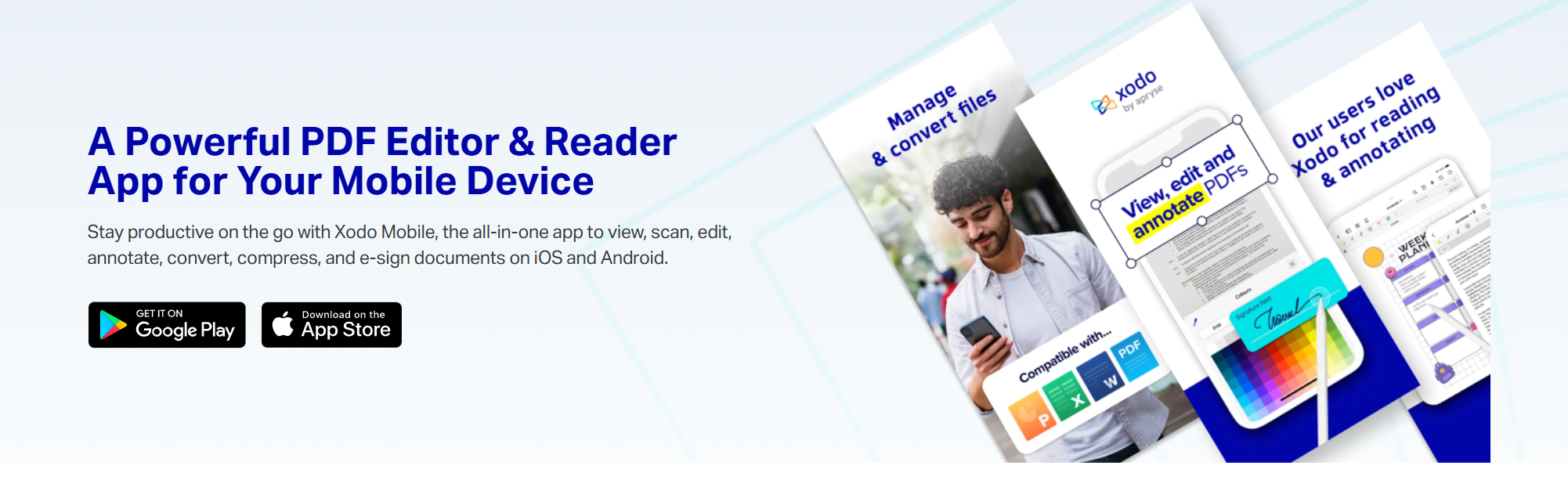
Where Xodo trades off is depth on any individual platform. The cross-platform breadth means no single experience is tuned specifically for iPad. The Apple Pencil works for freehand annotation, but the markup experience isn't built around it the way a pen-first app would be.
Users who primarily want a polished, touch-native annotation experience will notice the difference. Performance can also be an issue on some larger files, so if your work involves dense documents, an app built for scale may work better.
Xodo fits best when device and platform flexibility matter more than a best-in-class experience on any one of them. Mixed-device teams, remote professionals who move between office and field, and anyone managing documents across operating systems will get more mileage out of its breadth than a platform-specific app.
Xodo publishes separate plans for web tools, desktop software, and the full document suite. However, the iPad app is only available in Document Suite via personal or team subscriptions.
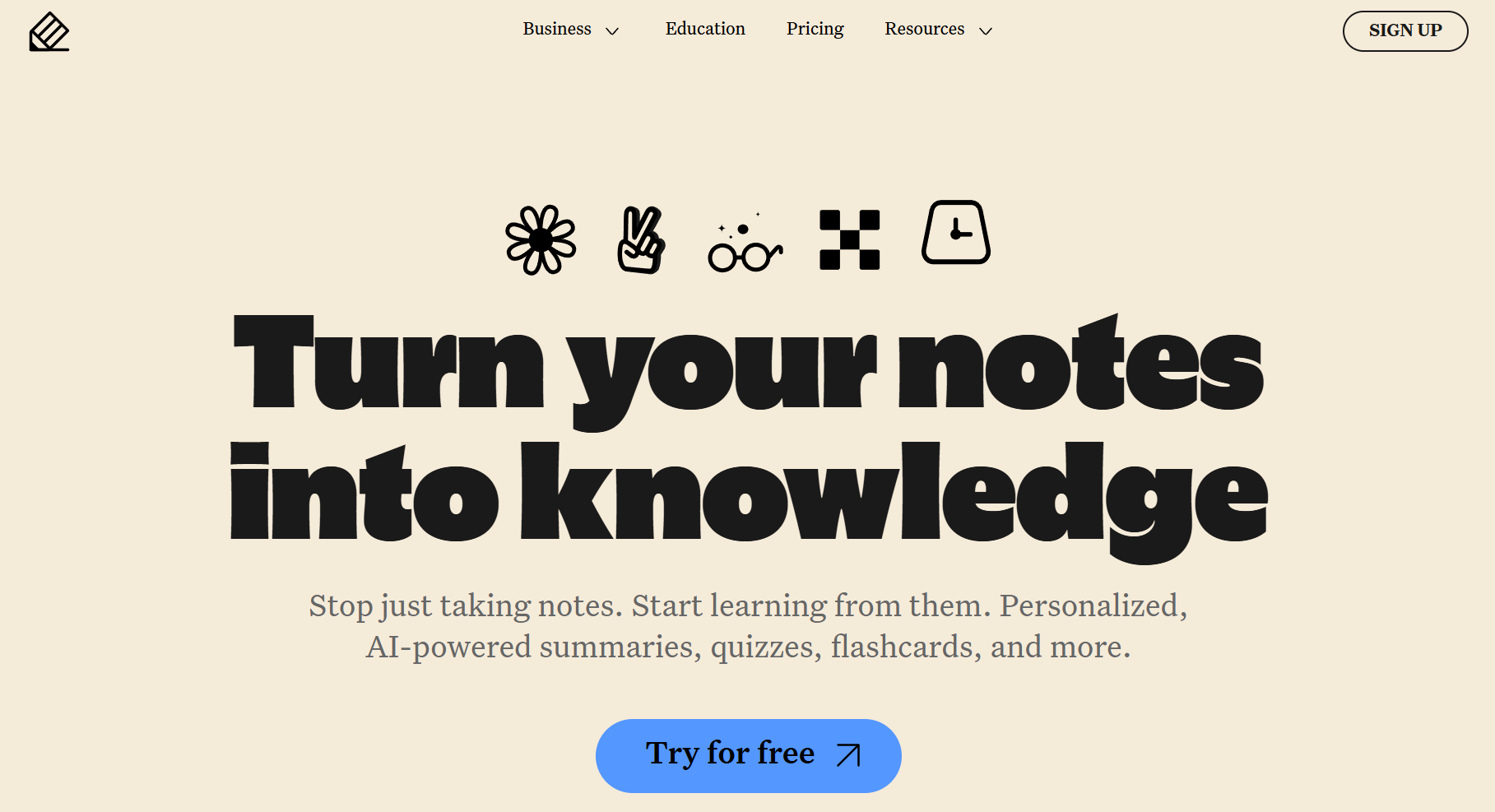
Notability is built around keeping notes connected to spoken content. PDF annotation, handwriting, audio recording, and transcription all live in the same workspace, which makes it a natural fit for lectures, meetings, interviews, and review sessions where what was said matters as much as what's on the page.
With Notability, a student can import a reading packet, mark it up during class, and keep the audio recording beside the handwritten notes. Outside of classrooms, a consultant can annotate a client document during a meeting, then use the transcription to recover what was discussed around a specific point without scrubbing through the full recording.
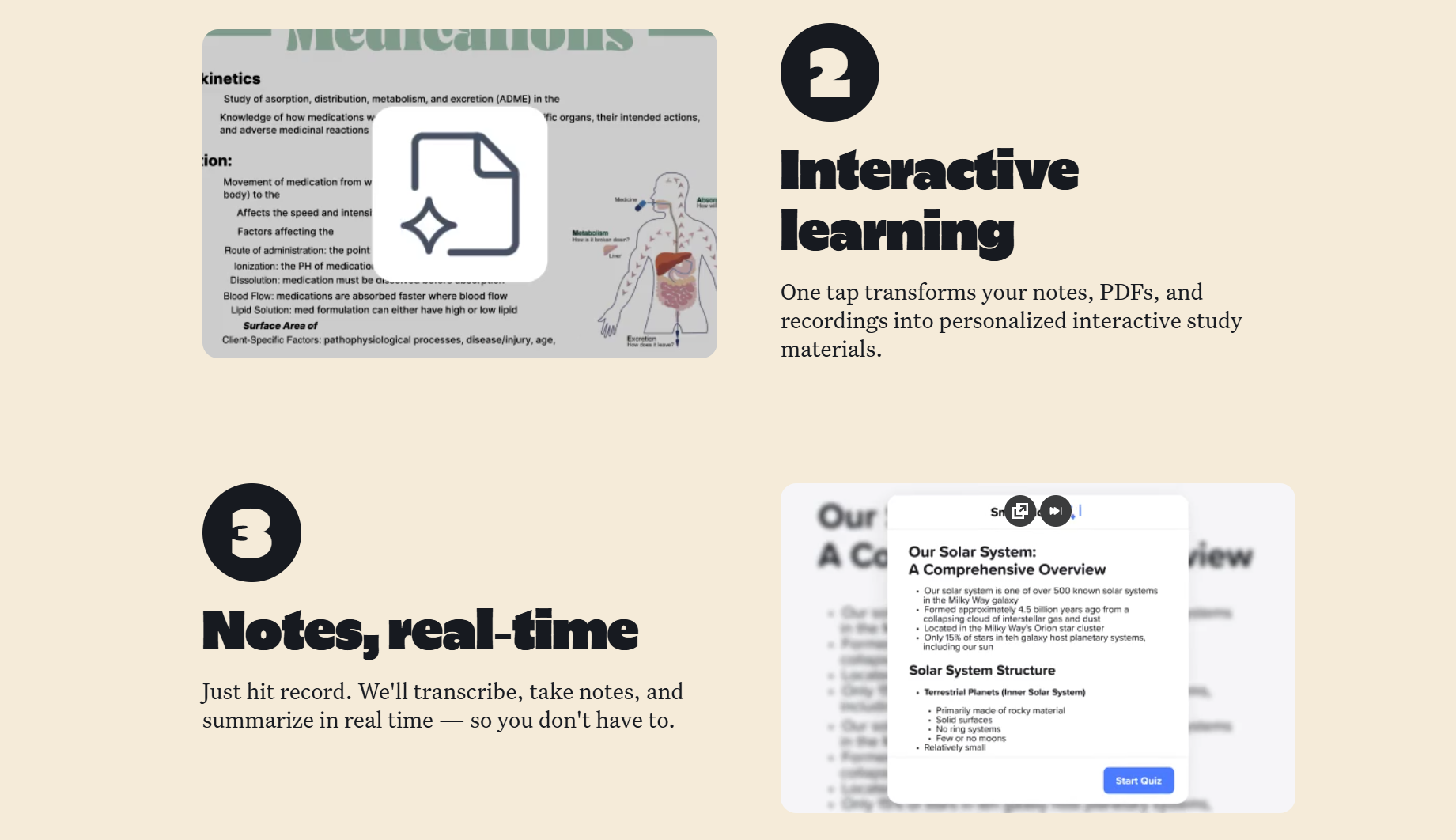
Paid tiers extend what you can do with that content after the fact. Handwriting search, AI-generated summaries, quizzes, and flashcards turn recorded sessions into learning tools. They help ensure you never lose your place when studying or referencing a past lecture.
Notability isn't a PDF editor. It doesn't do redaction, OCR, or page-level production work. And because audio, annotations, and imported PDFs are tied together as notes rather than managed as standalone documents, PDFs don't travel cleanly outside that context. If the document needs to be routed for approval, handed to a colleague in a different app, or managed across a team, Notability isn't built for that.
For students and professionals who spend a lot of time in meetings, lectures, or interviews, Notability brings together annotation, notes, and spoken content in a way that standalone PDF apps don't attempt.
Notability offers a free Starter plan, paid individual plans, and a Business plan.
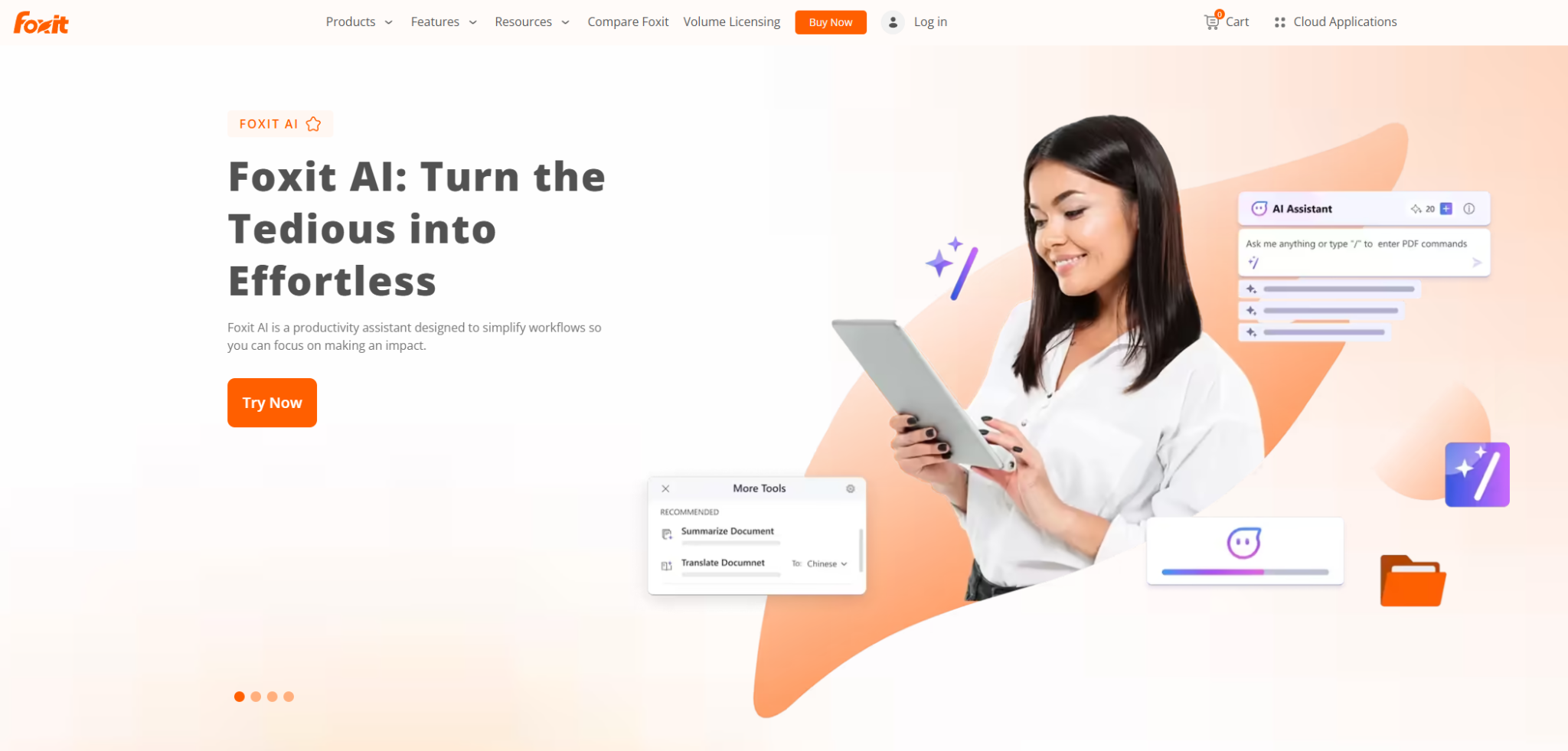
Foxit PDF Editor covers the full document lifecycle on iPad: editing, OCR, forms, e-signatures, redaction, and document security, with the iPad app handling the same core tasks you'd run on desktop rather than a stripped-down mobile companion.
The editing depth is where it pulls ahead. Working more like a word processor than a markup tool, you can reflow text across paragraphs and pages, modify layout, and make substantive changes to document content directly on iPad, so a contract or report that needs real revision doesn't have to wait until you're back at a desk.
Smart Redact sits on top of that editing foundation, automatically identifying and removing sensitive information before a document goes out. For legal or compliance teams preparing documents for distribution, that removes a manual step that's easy to miss under time pressure.
OCR feeds into the same workflow, converting scanned files and handwritten notes into editable text and pulling them into the same production pipeline as any other document. The built-in scanner adds automatic border detection on iPad, which speeds up capture when working from physical documents in the field or office.
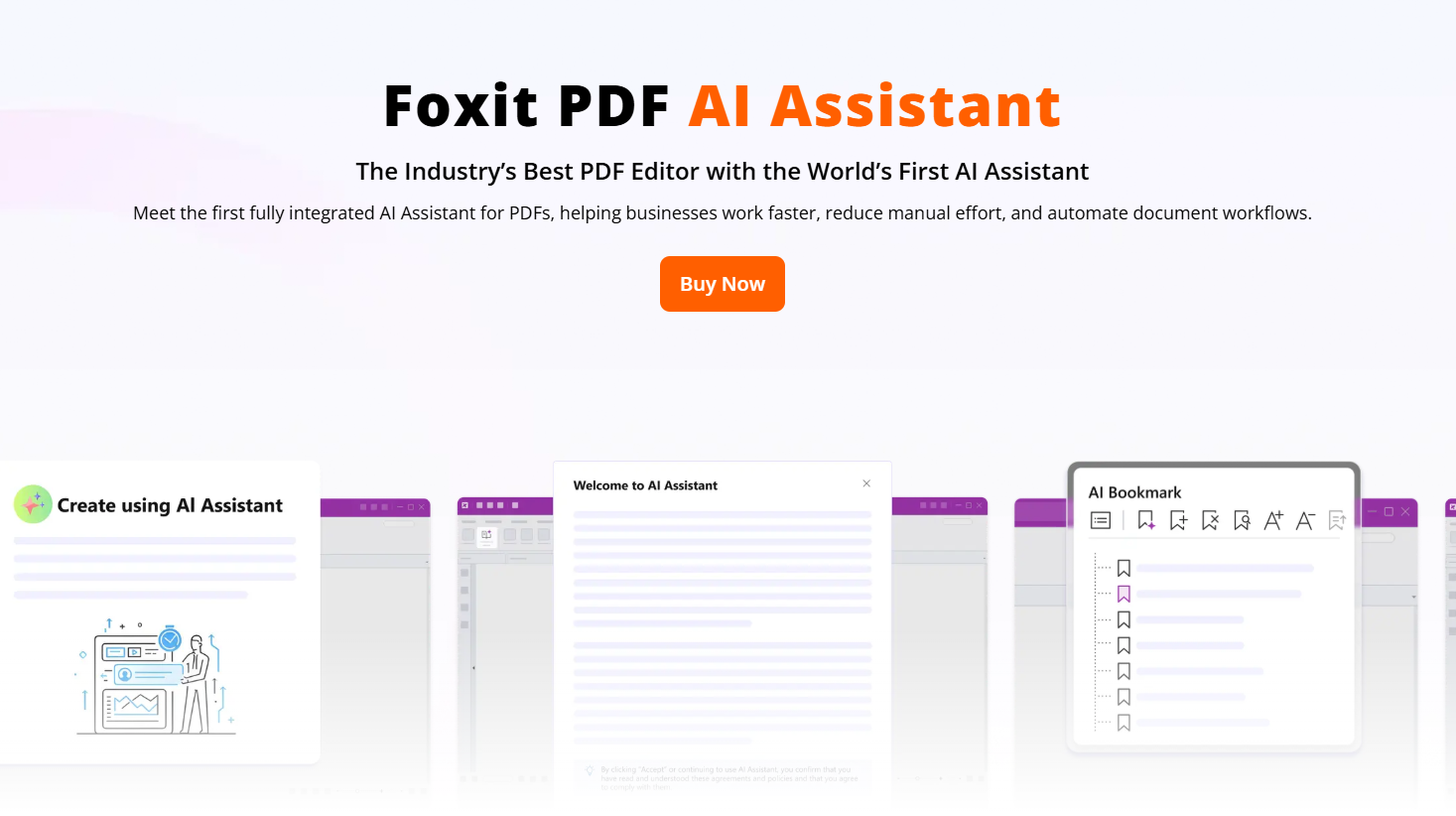
Foxit's AI Assistant is aimed at teams that spend a lot of time reviewing and processing documents. It can summarize, translate, clarify, fix grammar, and chat about documents (via text or voice) without leaving the file. The AI chat history is managed per document so previous sessions stay organized.
Picking Foxit means choosing document editing, security, and administration over markup-focused workflows. The annotation tools are functional, but they sit alongside a much deeper production toolset rather than being what the platform is built around.
You can also expect to pay for high-level eSign features separately, and with limited AI Assistant credits included with plans, most AI functionality will require its own add-on.
Foxit earns its place for legal, finance, compliance, and operations teams that regularly create, edit, and process PDFs as part of a business workflow rather than simply reviewing and returning them. But it’s more complex and costly than most individuals or non-technical teams need.
Foxit offers separate paid plans for PDF editing and eSignature workflows, with add-ons for the AI Assistant and Connectors. PDF Editor+ is required for the native iPad app.
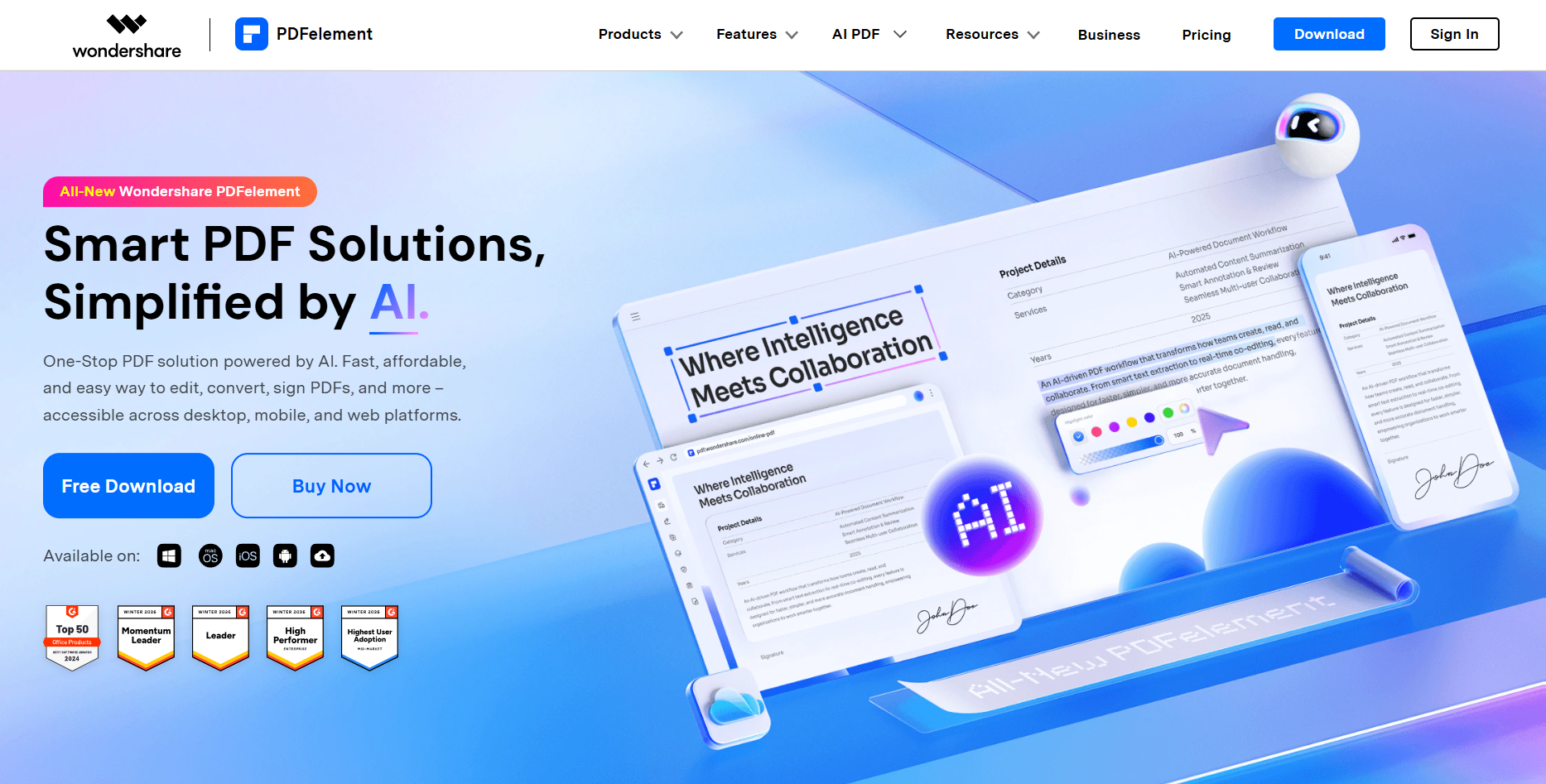
PDFelement is built around the idea that an iPad should handle document work that typically stays on a desktop. Scanning physical paperwork, converting files between formats, extracting text from scanned documents, and editing PDF content directly are all available without routing anything through a computer first.
You can modify text and images directly inside a PDF, so a proposal with an outdated figure or a contract with a name change doesn't have to wait for desktop access. Between meetings or in the field, page-level work including merging, splitting, cropping, and rearranging handles document cleanup quickly, while file conversion turns a scanned invoice into an editable Word document or consolidates a set of images into a single PDF without the usual app-switching.
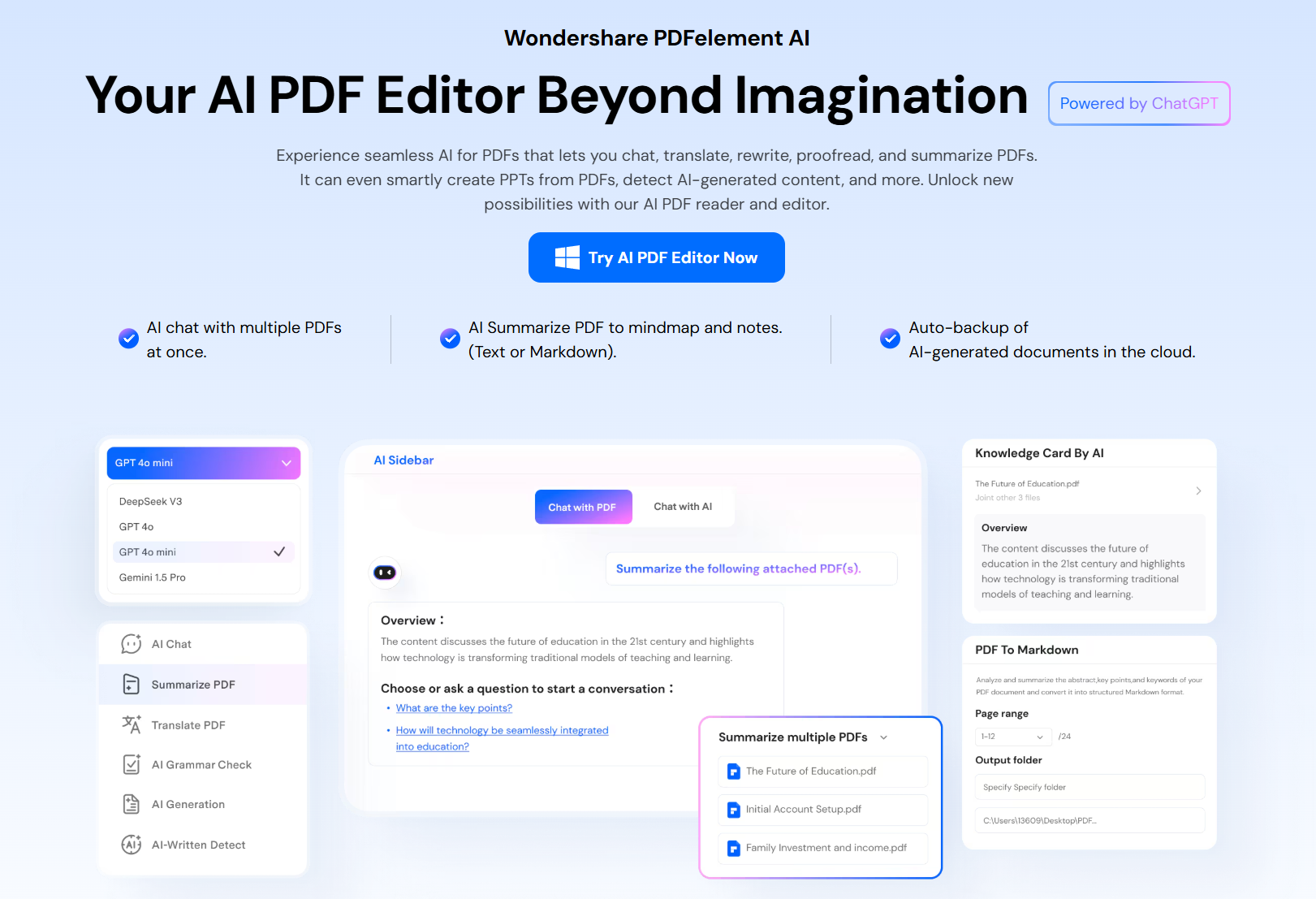
The AI features, powered by ChatGPT, add another layer for users who review long or messy documents. PDFelement can chat with PDFs, translate, summarize, check grammar, and detect AI-written text. These features all require AI credits, though, which are available as an add-on.
The platform also includes Liquid Mode and reading options that can reflow content into a more mobile-friendly layout, making lengthy PDFs easier to read and navigate on an iPad when the original formatting is difficult to work with.
With such a wide breadth of features, especially on iPad, Wondershare PDFelement lacks the depth of specialized tools. Each individual capability, scanning, annotation, AI, conversion, is functional but rarely best-in-class compared to apps built around that single job. Users with one clearly defined need will likely find a more refined experience elsewhere.
PDFelement suits iPad users who regularly handle document-heavy work away from a desk and want scanning, OCR, conversion, editing, and AI review in one place rather than spread across several apps.
PDFelement offers both single-platform and cross-platform subscriptions spanning quarterly, yearly, and perpetual terms, but only the cross-platform plans include native iPad support. Each plan includes all features, except additional AI credits to use AI tools.
Perpetual plans only include the current version of PDFelement (PDFelement 12) without future updates.
Extra AI credits can be added if needed, beginning at $3.99 per month.
The right iPad PDF app depends on the file workflow behind the markup. Before comparing plan prices, decide whether you need a PDF editor, a note-taking workspace, a research environment, or a team review system.
Here are factors you should consider before choosing an iPad PDF app:
One of the most important decisions is whether the PDF is the end product or simply part of a larger workflow.
Goodnotes and Notability are excellent when the PDF becomes part of a notebook. On the other hand, Drawboard PDF, PDF Expert, Acrobat, Xodo, Foxit, and PDFelement offer more value when the PDF file itself needs to stay editable, shareable, and ready for external review.
Most people don't need every PDF feature under the sun. The right choice usually comes down to the type of work you do most often.
Some apps are built around editing and document management, others focus on note-taking or review workflows. Once you identify which category matches your needs, narrowing the field becomes much easier.
For markup-heavy workflows, Drawboard PDF is the strongest fit on iPad. Apple Pencil support, technical markup tools, and reusable annotation libraries make it the most capable pen-first option on this list. And if you use more than iPad for PDF work, its multi-device access lets you pick up where you left off on any device.
Download Drawboard PDF for iPad and start marking up with Apple Pencil and reusable review tools.
For AEC teams that need a structured review process across drawings and revisions, Drawboard Projects on iPad adds Tasks and Issues, review statuses, revision control, and real-time stakeholder coordination on top of the markup experience.
The best PDF app for your iPad depends on what you actually do with PDFs.
Architects, engineers, and contractors need precise annotation tools for large-format drawings and dense spec sheets, where every comment and revision cloud needs to be legible, placed precisely, and traceable back to whoever left it.
Professionals working with contracts and agreements need to edit text, fill forms, and collect signatures without touching a printer. Students want to take handwritten notes in class with an Apple Pencil and still feel like they're writing with pen on paper.
No matter what you need an iPad PDF app for, we’ll help you find the right one based on the jobs they're best suited for.
Drawboard PDF on iPad treats Apple Pencil markup as the center of the workflow rather than a secondary feature. The experience feels closer to working with pen on paper than a traditional PDF editor, with pressure-sensitive ink that responds naturally to Apple Pencil input across highlights, freeform drawing, detailed markups, comments, and signatures.
The same document also travels with you across devices. Drawboard PDF runs on iPhone, Windows, macOS, Android, and web, so tablet markup, desktop review, and browser access all run through the same account without exporting or re-uploading.
The Markup Toolbar keeps the heaviest annotation work efficient. Navigation, selection, freeform tools, shapes, review tools, measurement tools, insert tools, and Markup Library access all live directly on the canvas, so repeat markup work doesn't require digging through menus. Architects can redline drawings, engineers can drop in measurements and notes, and students can mark up class materials without switching to a heavier tool.
On paid plans, teams reviewing technical drawings get a few additional tools that go beyond standard PDF annotation. For example, Markup Library stores reusable annotations such as engineering symbols, stamps, common notes, ink marks, shapes, lines, text, and callouts, then lets you reuse them across documents.
There are also measurement tools that support length, polylength, rectangle area, polygon area, and calibration, which makes Drawboard PDF a better fit for scale-aware drawings than a basic highlighter app.
When a document needs to stay connected after the first markup pass, Store+Share keeps it in Drawboard Cloud so collaborators can access the same file across devices and review rounds. That's a more reliable approach than circulating exported PDFs by email, particularly when feedback accumulates across multiple revisions and you need a single source of truth.
For teams that eventually need formal review coordination across stakeholders and drawing revisions, Drawboard Projects adds task tracking, issue management, review statuses, and revision control directly on top of the drawings themselves.
Drawboard PDF is the right fit when markup is the work itself. Architects, engineers, construction teams, and anyone working through complex technical PDFs with an Apple Pencil will find it closer to the precision of pen on paper than any general-purpose editor on this list.
Drawboard pricing includes a free Basic plan and paid Pro tiers for Drawboard PDF.
“I love this app! I use it in my iPad, HP laptop, and my phone. It works amazingly on all of them! I read a lot of articles/textbooks since I'm a college student and this app has never failed me” — Apple App Store User
“It can handle large pdf files quickly as compared with other software. Easy to give Markups on drawing in pdf format. Lots of pdf editing & markup features are available.” — G2 User
PDF Expert makes the most sense for people who exclusively live in Apple's ecosystem. Whether you're reviewing contracts on an iPad, signing documents on an iPhone, or making edits from a Mac, the experience stays consistent across devices. Beyond annotation, it also covers common PDF tasks like form filling, page management, signatures, and text editing.
PDF Expert’s best use case is day-to-day document work. You can read a contract, mark up comments, rearrange pages, add a signature, and make small corrections, all within the same app. That makes PDF Expert useful for consultants, educators, legal professionals, and business users who need a clean PDF workspace rather than a specialized technical markup tool.
The paid version moves beyond annotation into document editing. With a paid plan, you can update existing text, make image changes, and add, delete, rotate, merge, and combine pages. You can also use PDF Copilot to generate summaries and answer questions about content in the PDF, which can save time when you're trying to understand a report or contract before diving into the details.
The main limitation is platform fit. Since PDF Expert is only available for Mac and iOS, it works best when all team members use Apple devices. Teams that also use non-Apple devices should look for a different editor. The iOS version also lacks some of the app’s core features, like OCR and advanced AI editing that uses PDF Copilot to reformat PDFs automatically and enhance scanned documents.
Overall, PDF Expert is a strong fit for iPad users who want one Apple-native PDF editor for everyday reading, annotation, signatures, and light document production. But without measurement tools or reusable markups, it’s not ideal for technical reviews or structured markup at scale.
PDF Expert offers a free download and Premium access through subscription options. There’s also a Lifetime option, but it doesn’t include updates or the iPad version.
Adobe Acrobat makes the most sense for organizations that already rely on Adobe's document ecosystem. Acrobat covers reading, commenting, filling, signing, sharing, and managing PDFs on iPad, with paid plans adding deeper editing, OCR, redaction, comparison, forms, and AI-backed document work.
Adobe Acrobat's biggest advantage on iPad is how seamlessly it fits into the rest of Adobe's document workflow. A reviewer can mark up a contract on iPad, route it for signature, edit it on desktop, and keep the file inside an enterprise-approved toolchain without exporting or switching platforms. For legal, compliance, HR, and finance teams where PDFs carry approval workflows and security requirements, that continuity saves time and improves consistency.
Paid plans push Acrobat beyond a PDF reader into document management territory, adding deeper editing, conversion, forms, and redaction, with Acrobat AI Assistant and PDF Spaces available for teams that need AI-supported document analysis on top of that.
Adobe’s biggest shortcoming is complexity. If your main goal is marking up a drawing, worksheet, or document with an Apple Pencil, much of Acrobat's feature set may go unused.
The platform performs well when documents need signatures, approvals, security controls, or formal review processes, but that same depth can feel excessive for users who primarily want a fast and natural markup experience or a reliable page management tool.
Acrobat earns its place when PDFs sit at the center of a business process. A paralegal routing contracts for partner review, or an HR team managing offer letters and policy acknowledgments, will find the platform built around exactly that kind of work.
Adobe sells Acrobat through individual and team plans, with annual billing represented as monthly pricing.
Goodnotes isn't really a PDF app. It's a note-taking workspace that happens to handle PDFs well, which is why many of its features lean towards academic work rather than office workflows.
Importing a PDF brings it into a notebook alongside your handwritten notes, templates, and other materials. A student can pull in lecture slides, write around them with an Apple Pencil, search their handwriting later, and keep everything organized by subject without bouncing between apps. It works the same way for meeting notes, planning documents, or anything where reference materials and written notes need to live together.
The app adds AI and productivity features on paid tiers. Features like handwriting recognition, transcription, summaries, and text conversion make it easier to organize information so notes become something you can revisit and study from rather than just a record of what was written. It also includes built-in study guide tools (with Pro or higher, or AI add-on plans) to turn your notes into mini lessons.
Limitations show up when the PDF needs more than annotation. Goodnotes can’t use OCR on scanned files and doesn’t offer redaction, form creation, or document comparison, so anything beyond writing and highlighting on top of a file requires a different tool. For note-heavy workflows it rarely matters, but it's worth knowing if your PDF work extends into editing or document production.
Goodnotes works best when the PDF supports the note-taking rather than the other way around. If the document is what gets handed off at the end, a dedicated PDF app will serve that job better.
Goodnotes publishes annual plan pricing for individual and team use. In addition to included AI features, there’s also a separate advanced AI add-on for $10/month.
Apple Preview and Markup is where most iPad users should start before downloading a dedicated PDF app. You can open PDFs, fill out forms, add text boxes, create signatures with Apple Pencil or your finger, and make basic page edits using tools already built into iPadOS.
The biggest advantage is availability. If you need to fill a form, sign a document, drop in a quick note, or mark up a file before sending it back, Preview and Markup handles the job without another download or subscription. For occasional PDF work, that covers a surprising amount of what dedicated apps are often used for.
When PDF work becomes a regular part of the job, iPad’s native app falls short. Preview and Markup aren't built for reusable annotation libraries, technical measurement, OCR, or any workflow that involves tracking who changed what and when. Power users, frequent reviewers, and anyone managing documents across a team will outgrow the built-in toolset quickly.
For forms, signatures, quick annotations, and occasional edits, many iPad users will find the built-in tools already cover what they need. The moment PDF work becomes a regular part of the job, a dedicated app will fill the gaps.
Preview and Markup are included with supported iPads.
LiquidText is built around pulling out excerpts, connecting ideas, and reviewing multiple documents at once rather than marking up or editing files. It helps anyone working through large volumes of material, where understanding relationships between sources and establishing context is critical for connecting ideas.
The standout feature is the workspace beside the document. Key quotes, facts, and notes pull into a parallel area while keeping live links back to the source page, so nothing loses its context as research grows. Drawing connections between excerpts, pages, and documents builds a visual map of how ideas relate, and pinching or collapsing content lets you compare distant sections without losing your place.
Multi-document projects extend that further, bringing PDFs, Word files, PowerPoint decks, web content, and reference manager metadata into a single workspace. Comparing sources, tracking arguments, or building a case from scattered evidence becomes considerably more manageable than juggling separate files.
Complexity is what holds LiquidText back as a general PDF tool for iPad. It rewards users who commit to its research-focused approach, but feels like overkill for highlighting, commenting, or simple annotation. Collaboration also requires everyone to be on LiquidText, since shared projects can't be accessed outside the app.
Researchers, academics, legal professionals, and anyone regularly working through dense multi-document material will find LiquidText’s capabilities a better fit than standard annotation or notetaking apps.
LiquidText offers a free Basic plan, a one-time Pro 2023 purchase, and paid LIVE subscriptions.
Xodo is a practical choice when PDF work doesn't stay on one device or platform. The same account covers iOS, Android, web, Windows, macOS, and Linux, so opening a document on iPad, editing it in a browser, and finalizing it on desktop doesn't require exporting or re-uploading at each step. Cloud storage works across Xodo Drive, Google Drive, OneDrive, Dropbox, and iCloud, so files stay accessible wherever the work happens to land.
Annotation, form filling, e-signatures, redaction, OCR on scanned documents, file conversion, and compression are all available without switching tools. Additionally, a built-in chat feature lets collaborators discuss documents in context rather than through a separate thread, and real-time collaboration means multiple people can work on the same file simultaneously.
The customizable toolbar also lets you bring the tools you actually use to the front, which helps on a smaller screen where menu depth can slow things down.
Where Xodo trades off is depth on any individual platform. The cross-platform breadth means no single experience is tuned specifically for iPad. The Apple Pencil works for freehand annotation, but the markup experience isn't built around it the way a pen-first app would be.
Users who primarily want a polished, touch-native annotation experience will notice the difference. Performance can also be an issue on some larger files, so if your work involves dense documents, an app built for scale may work better.
Xodo fits best when device and platform flexibility matter more than a best-in-class experience on any one of them. Mixed-device teams, remote professionals who move between office and field, and anyone managing documents across operating systems will get more mileage out of its breadth than a platform-specific app.
Xodo publishes separate plans for web tools, desktop software, and the full document suite. However, the iPad app is only available in Document Suite via personal or team subscriptions.
Notability is built around keeping notes connected to spoken content. PDF annotation, handwriting, audio recording, and transcription all live in the same workspace, which makes it a natural fit for lectures, meetings, interviews, and review sessions where what was said matters as much as what's on the page.
With Notability, a student can import a reading packet, mark it up during class, and keep the audio recording beside the handwritten notes. Outside of classrooms, a consultant can annotate a client document during a meeting, then use the transcription to recover what was discussed around a specific point without scrubbing through the full recording.
Paid tiers extend what you can do with that content after the fact. Handwriting search, AI-generated summaries, quizzes, and flashcards turn recorded sessions into learning tools. They help ensure you never lose your place when studying or referencing a past lecture.
Notability isn't a PDF editor. It doesn't do redaction, OCR, or page-level production work. And because audio, annotations, and imported PDFs are tied together as notes rather than managed as standalone documents, PDFs don't travel cleanly outside that context. If the document needs to be routed for approval, handed to a colleague in a different app, or managed across a team, Notability isn't built for that.
For students and professionals who spend a lot of time in meetings, lectures, or interviews, Notability brings together annotation, notes, and spoken content in a way that standalone PDF apps don't attempt.
Notability offers a free Starter plan, paid individual plans, and a Business plan.
Foxit PDF Editor covers the full document lifecycle on iPad: editing, OCR, forms, e-signatures, redaction, and document security, with the iPad app handling the same core tasks you'd run on desktop rather than a stripped-down mobile companion.
The editing depth is where it pulls ahead. Working more like a word processor than a markup tool, you can reflow text across paragraphs and pages, modify layout, and make substantive changes to document content directly on iPad, so a contract or report that needs real revision doesn't have to wait until you're back at a desk.
Smart Redact sits on top of that editing foundation, automatically identifying and removing sensitive information before a document goes out. For legal or compliance teams preparing documents for distribution, that removes a manual step that's easy to miss under time pressure.
OCR feeds into the same workflow, converting scanned files and handwritten notes into editable text and pulling them into the same production pipeline as any other document. The built-in scanner adds automatic border detection on iPad, which speeds up capture when working from physical documents in the field or office.
Foxit's AI Assistant is aimed at teams that spend a lot of time reviewing and processing documents. It can summarize, translate, clarify, fix grammar, and chat about documents (via text or voice) without leaving the file. The AI chat history is managed per document so previous sessions stay organized.
Picking Foxit means choosing document editing, security, and administration over markup-focused workflows. The annotation tools are functional, but they sit alongside a much deeper production toolset rather than being what the platform is built around.
You can also expect to pay for high-level eSign features separately, and with limited AI Assistant credits included with plans, most AI functionality will require its own add-on.
Foxit earns its place for legal, finance, compliance, and operations teams that regularly create, edit, and process PDFs as part of a business workflow rather than simply reviewing and returning them. But it’s more complex and costly than most individuals or non-technical teams need.
Foxit offers separate paid plans for PDF editing and eSignature workflows, with add-ons for the AI Assistant and Connectors. PDF Editor+ is required for the native iPad app.
PDFelement is built around the idea that an iPad should handle document work that typically stays on a desktop. Scanning physical paperwork, converting files between formats, extracting text from scanned documents, and editing PDF content directly are all available without routing anything through a computer first.
You can modify text and images directly inside a PDF, so a proposal with an outdated figure or a contract with a name change doesn't have to wait for desktop access. Between meetings or in the field, page-level work including merging, splitting, cropping, and rearranging handles document cleanup quickly, while file conversion turns a scanned invoice into an editable Word document or consolidates a set of images into a single PDF without the usual app-switching.
The AI features, powered by ChatGPT, add another layer for users who review long or messy documents. PDFelement can chat with PDFs, translate, summarize, check grammar, and detect AI-written text. These features all require AI credits, though, which are available as an add-on.
The platform also includes Liquid Mode and reading options that can reflow content into a more mobile-friendly layout, making lengthy PDFs easier to read and navigate on an iPad when the original formatting is difficult to work with.
With such a wide breadth of features, especially on iPad, Wondershare PDFelement lacks the depth of specialized tools. Each individual capability, scanning, annotation, AI, conversion, is functional but rarely best-in-class compared to apps built around that single job. Users with one clearly defined need will likely find a more refined experience elsewhere.
PDFelement suits iPad users who regularly handle document-heavy work away from a desk and want scanning, OCR, conversion, editing, and AI review in one place rather than spread across several apps.
PDFelement offers both single-platform and cross-platform subscriptions spanning quarterly, yearly, and perpetual terms, but only the cross-platform plans include native iPad support. Each plan includes all features, except additional AI credits to use AI tools.
Perpetual plans only include the current version of PDFelement (PDFelement 12) without future updates.
Extra AI credits can be added if needed, beginning at $3.99 per month.
The right iPad PDF app depends on the file workflow behind the markup. Before comparing plan prices, decide whether you need a PDF editor, a note-taking workspace, a research environment, or a team review system.
Here are factors you should consider before choosing an iPad PDF app:
One of the most important decisions is whether the PDF is the end product or simply part of a larger workflow.
Goodnotes and Notability are excellent when the PDF becomes part of a notebook. On the other hand, Drawboard PDF, PDF Expert, Acrobat, Xodo, Foxit, and PDFelement offer more value when the PDF file itself needs to stay editable, shareable, and ready for external review.
Most people don't need every PDF feature under the sun. The right choice usually comes down to the type of work you do most often.
Some apps are built around editing and document management, others focus on note-taking or review workflows. Once you identify which category matches your needs, narrowing the field becomes much easier.
For markup-heavy workflows, Drawboard PDF is the strongest fit on iPad. Apple Pencil support, technical markup tools, and reusable annotation libraries make it the most capable pen-first option on this list. And if you use more than iPad for PDF work, its multi-device access lets you pick up where you left off on any device.
Download Drawboard PDF for iPad and start marking up with Apple Pencil and reusable review tools.
For AEC teams that need a structured review process across drawings and revisions, Drawboard Projects on iPad adds Tasks and Issues, review statuses, revision control, and real-time stakeholder coordination on top of the markup experience.


We are a PDF and collaboration company. We believe that creating more effective connections between people reduces waste.
Our best work has been overtaken by busywork. That’s why we’ve created ways to help people get back to working wonders without any paper in sight.
Drawboard PDF lets you mark up and share with ease, and Drawboard Projects brings collaborative design review to architecture and engineering teams.
At Drawboard, we work our magic so our customers can get back to working theirs.
We are a PDF and collaboration company. We believe that creating more effective connections between people reduces waste.
Our best work has been overtaken by busywork. That’s why we’ve created ways to help people get back to working wonders without any paper in sight.
Drawboard PDF lets you mark up and share with ease, and Drawboard Projects brings collaborative design review to architecture and engineering teams.
At Drawboard, we work our magic so our customers can get back to working theirs.


