


Marking up and editing a PDF should feel immediate. You open a document, pick up the right tool, make your changes, and keep moving. But when the tools you need are buried behind setup, properties are tucked away in separate menus, or your workspace starts competing with your canvas for space, annotation work slows down.
That is what the updated Markup Toolbar is designed to fix.
Now available on Windows, alongside the iOS, macOS, Android, and Web Apps, the Markup Toolbar gives you a comprehensive, always-visible way to access your tools directly from the top of the canvas. It’s faster to get started, easier to customize, and more flexible to shape around the way you work.
It also changes the role of the Favorites bar in an important way; your Favorites bar is still here, and still useful, but it no longer has to do all the heavy lifting. Instead of acting as the only practical way to get started, it can go back to doing what it does best: home for your most-used tools and property combinations.
Here’s how the new Markup Toolbar helps you annotate, review, and sign-off faster.
Small delays add up. Not even major interruptions; just the repeated need to stop, find a tool, expand a menu, or remember where a function lives.
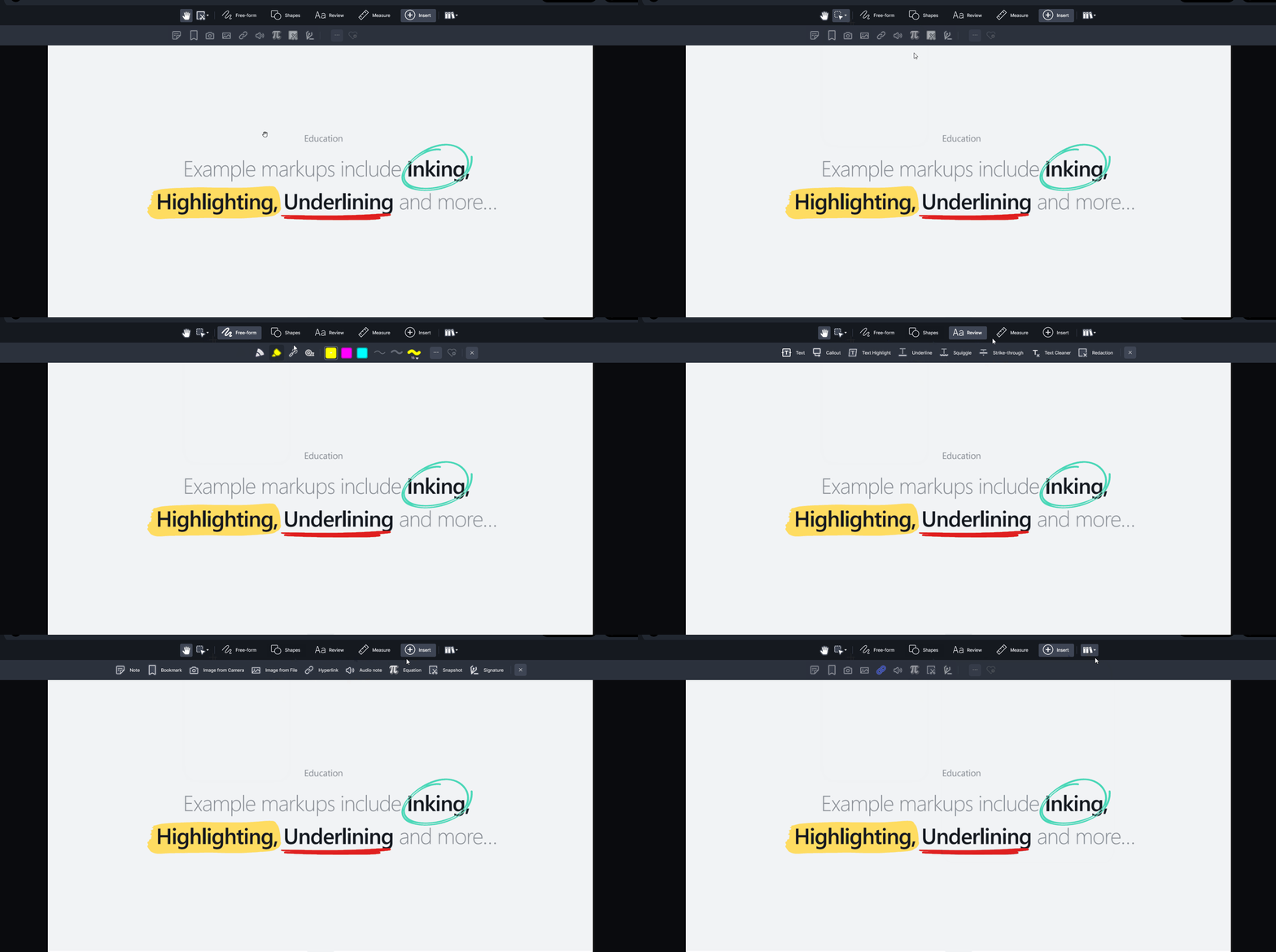
The Markup Toolbar reduces that overhead by making the whole toolset visible and easy to navigate from the moment you open a document. When you open a document on Windows, the Markup Toolbar sits at the top of the canvas and gives you direct access to the full range of tools in Drawboard PDF.
Drawing, review, measure, insert, and saved markup assets are grouped into clear categories, so moving between them no longer breaks your rhythm. That includes tools you use every day, tools you only reach for occasionally, and more advanced options you do not want hidden behind extra clicks when you suddenly need them.
With the new Markup Toolbar, you no longer have to prepare your workspace before you can work comfortably in it. Just jump right into working your way.
Good PDF viewing, editing and annotating software should not force everyone into the same layout.
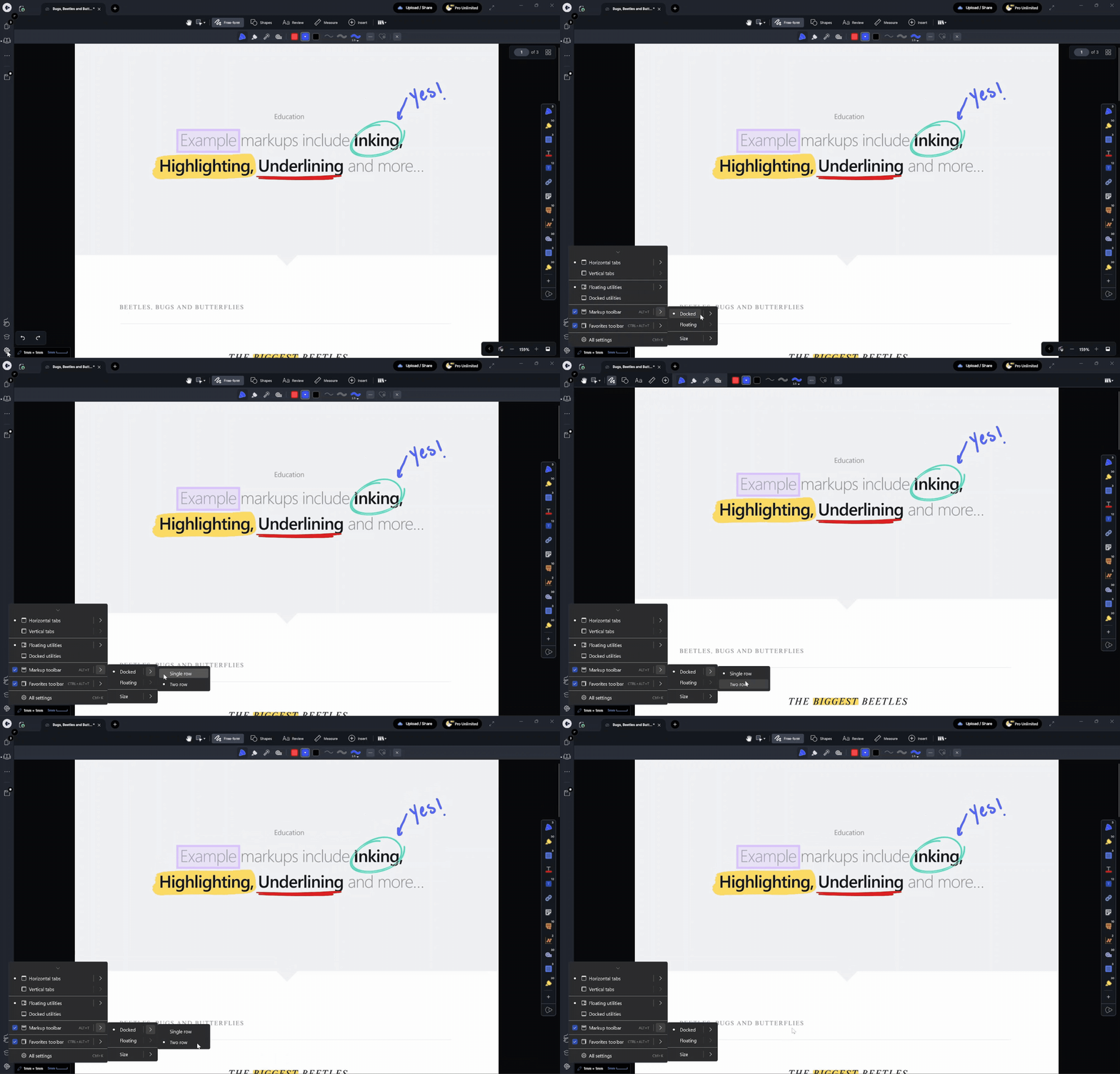
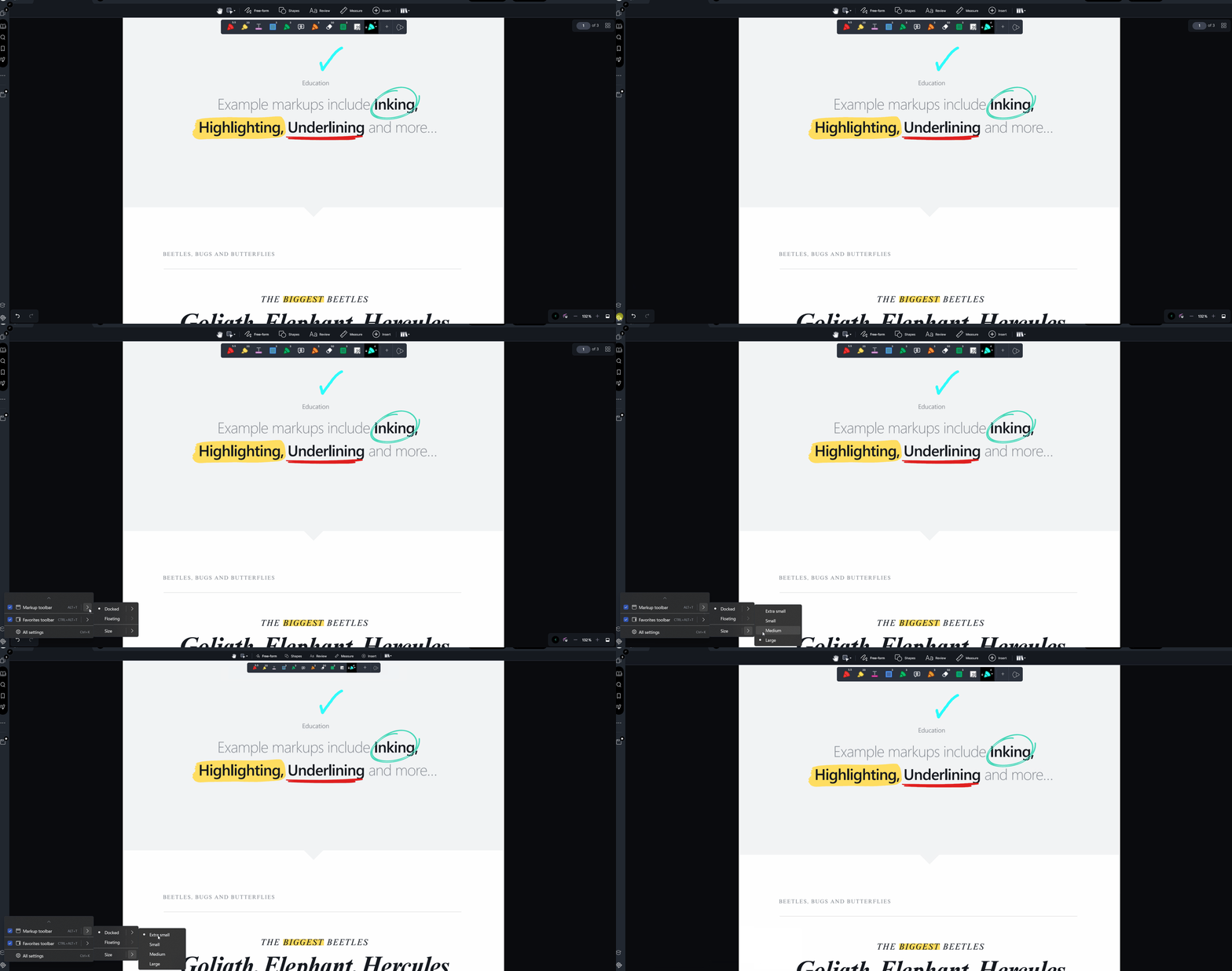
The new Markup Toolbar gives you the flexibility to shape your workspace around how you prefer to work. You can keep it docked at the top of the canvas in either a two-row or single-row layout, or switch to floating mode to give yourself more control over placement and spacing.
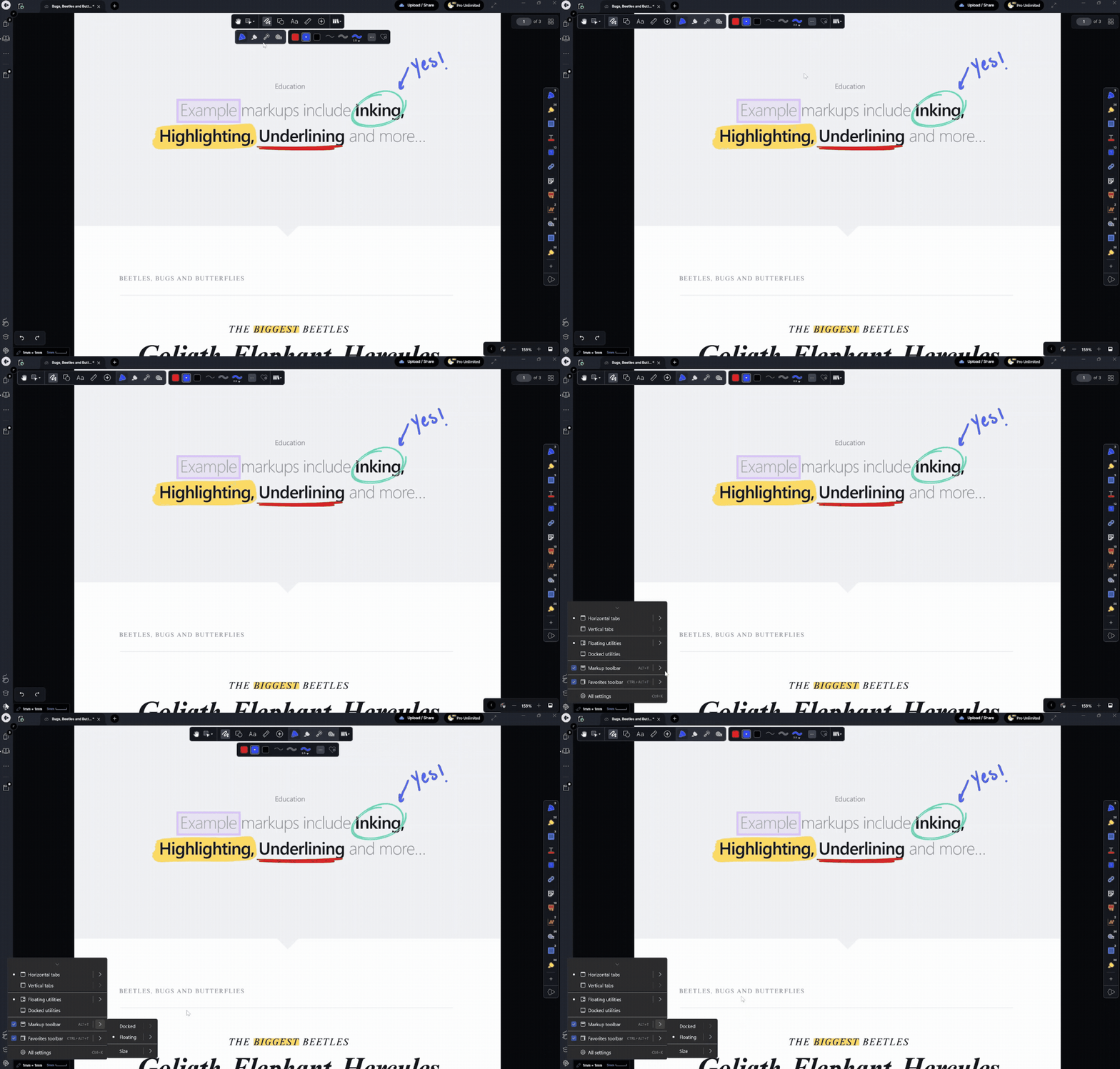
In floating mode, the toolbar becomes more modular. You can keep everything stacked together, separate properties from the main toolbar, or combine everything into a single compact row depending on how much context or canvas space you want. Toolbar icons can also scale from extra small to large, making it easier to prioritize either density or clarity.
All of this is managed through a redesigned settings menu, so adjusting your layout feels straightforward rather than something you need to configure once and leave.
Once you have the right tool, the next step is getting it configured correctly.
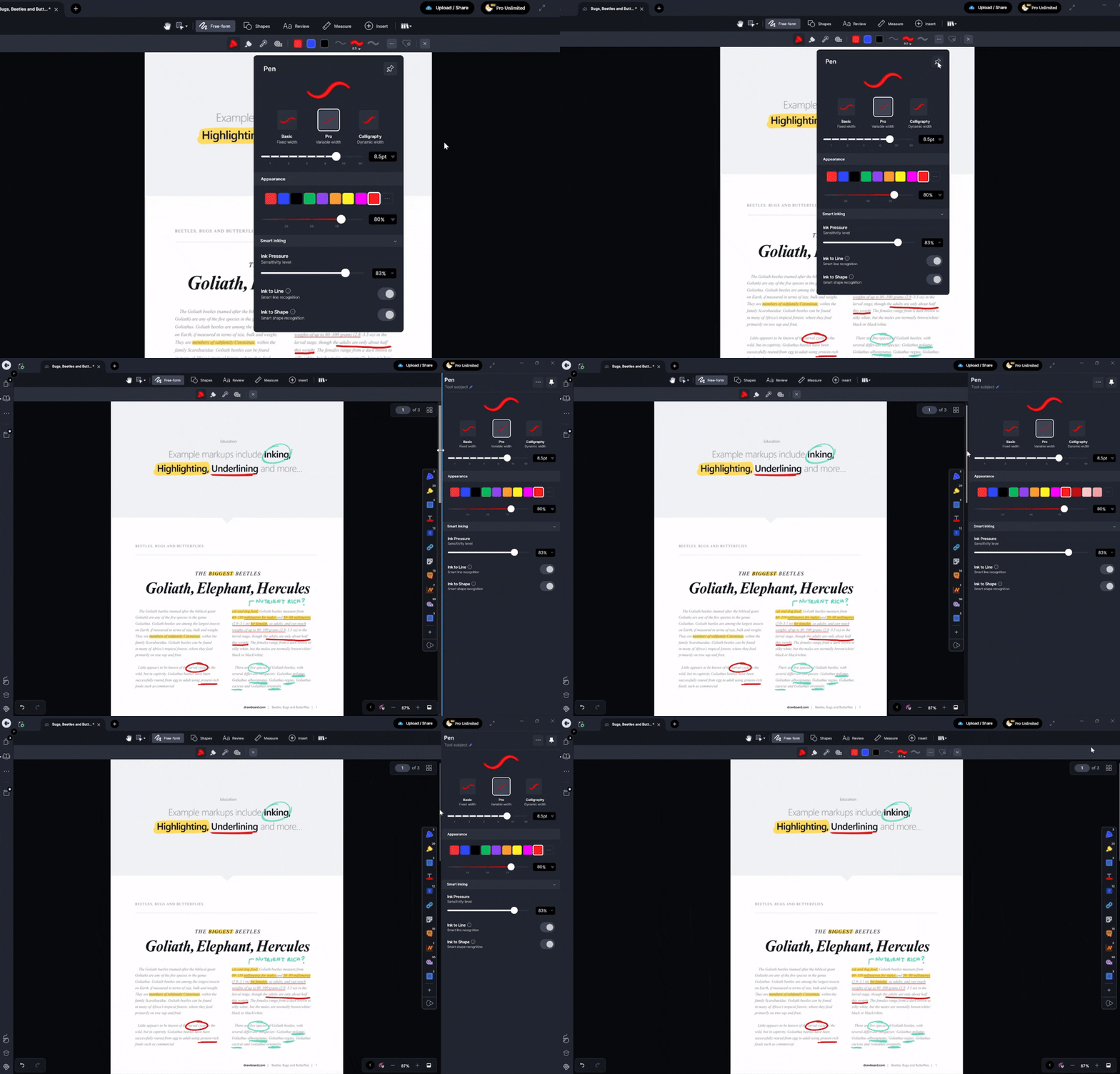
Tool properties, like color, stroke weight, and opacity, can now be pinned to the right-hand side of your canvas so they remain constantly visible while you annotate. Instead of opening and closing panels each time you need to adjust a setting, you can make changes in place as you work.
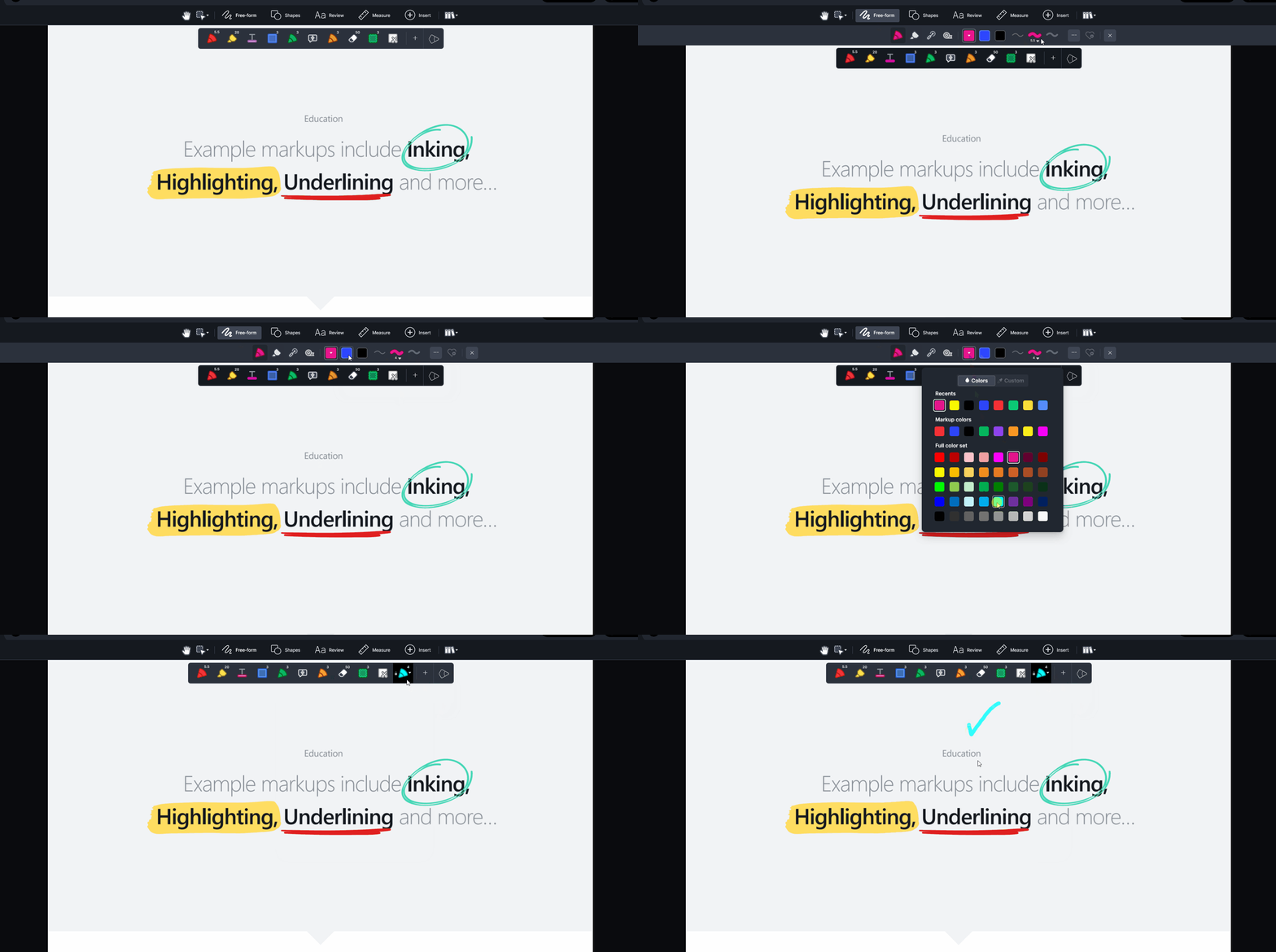
You can adjust common properties directly from the toolbar, and use the full properties panel when you need more control. Once you have a tool set up the way you want it, that configuration can be saved to Favorites for fast reuse later.
Speed is not only about layout. It is also about recognition.
The refreshed toolbar icons and expanded keyboard shortcut support make common actions faster to reach and easier to remember. Tools now have dedicated shortcuts: P for Pen, V for Selection, and so on across the toolbar. This provides keyboard-first users a more direct path into the full annotation workflow.
Clearer icons reduce the time spent scanning the interface and keep momentum up, especially when switching between tools mid-review or working across multiple pages.
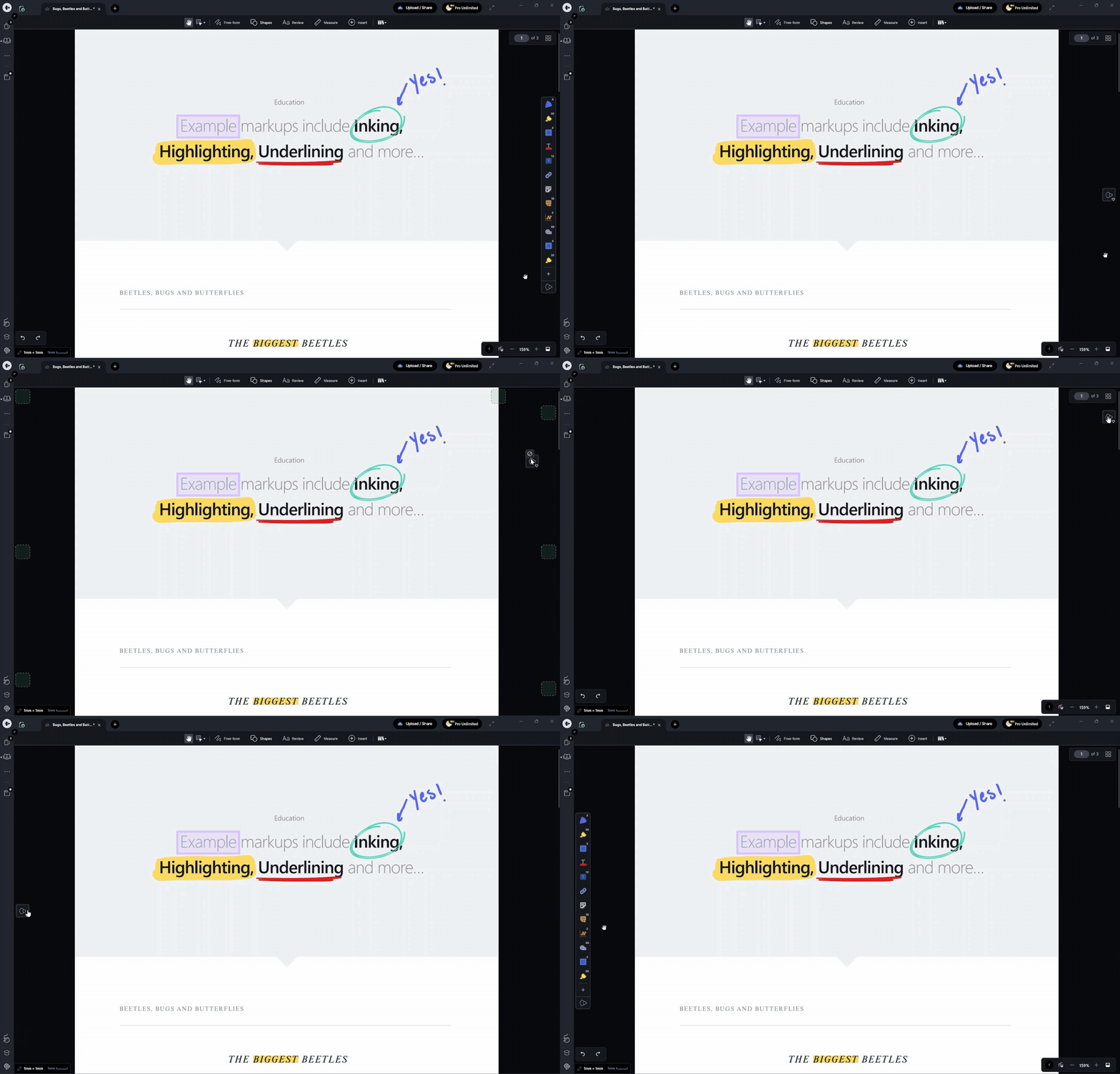
With the Markup Toolbar giving you complete access to tools upfront, Favorites can return to its best use: a fast-access strip for the combinations you reach for constantly, like your preferred pen setup, a recurring review tool, or a saved markup with the exact properties you use every day.
The Favorites bar is also more flexible than before. Collapse it into a compact indicator to reclaim canvas space, move it to different anchor points around the canvas, and expand it again when you need it. That control over space does not cost you quick access to your own preferred setup.
This shift makes the Favorites bar simpler and more focused. It’s no longer something you rely on to get started, just the place for the tools you use most.
The Markup Toolbar changes how real annotation workflows feel. You can get started immediately, keep the tools you need within reach, and shape the workspace around the task in front of you.
Instead of managing panels and setup, you spend more time working on the document itself. The experience feels more direct, with fewer interruptions and less friction between choosing a tool and using it.
It’s a small shift in how everything is organized, but it adds up quickly. Over the course of a review session or a full day of work, those small improvements make annotation faster, more consistent, and easier to stay focused on.
The Markup Toolbar is available now on Windows. For a full walkthrough of layout options and customization controls, visit its Drawboard Help Center article.
Marking up and editing a PDF should feel immediate. You open a document, pick up the right tool, make your changes, and keep moving. But when the tools you need are buried behind setup, properties are tucked away in separate menus, or your workspace starts competing with your canvas for space, annotation work slows down.
That is what the updated Markup Toolbar is designed to fix.
Now available on Windows, alongside the iOS, macOS, Android, and Web Apps, the Markup Toolbar gives you a comprehensive, always-visible way to access your tools directly from the top of the canvas. It’s faster to get started, easier to customize, and more flexible to shape around the way you work.
It also changes the role of the Favorites bar in an important way; your Favorites bar is still here, and still useful, but it no longer has to do all the heavy lifting. Instead of acting as the only practical way to get started, it can go back to doing what it does best: home for your most-used tools and property combinations.
Here’s how the new Markup Toolbar helps you annotate, review, and sign-off faster.
Small delays add up. Not even major interruptions; just the repeated need to stop, find a tool, expand a menu, or remember where a function lives.
The Markup Toolbar reduces that overhead by making the whole toolset visible and easy to navigate from the moment you open a document. When you open a document on Windows, the Markup Toolbar sits at the top of the canvas and gives you direct access to the full range of tools in Drawboard PDF.
Drawing, review, measure, insert, and saved markup assets are grouped into clear categories, so moving between them no longer breaks your rhythm. That includes tools you use every day, tools you only reach for occasionally, and more advanced options you do not want hidden behind extra clicks when you suddenly need them.
With the new Markup Toolbar, you no longer have to prepare your workspace before you can work comfortably in it. Just jump right into working your way.
Good PDF viewing, editing and annotating software should not force everyone into the same layout.
The new Markup Toolbar gives you the flexibility to shape your workspace around how you prefer to work. You can keep it docked at the top of the canvas in either a two-row or single-row layout, or switch to floating mode to give yourself more control over placement and spacing.
In floating mode, the toolbar becomes more modular. You can keep everything stacked together, separate properties from the main toolbar, or combine everything into a single compact row depending on how much context or canvas space you want. Toolbar icons can also scale from extra small to large, making it easier to prioritize either density or clarity.
All of this is managed through a redesigned settings menu, so adjusting your layout feels straightforward rather than something you need to configure once and leave.
Once you have the right tool, the next step is getting it configured correctly.
Tool properties, like color, stroke weight, and opacity, can now be pinned to the right-hand side of your canvas so they remain constantly visible while you annotate. Instead of opening and closing panels each time you need to adjust a setting, you can make changes in place as you work.
You can adjust common properties directly from the toolbar, and use the full properties panel when you need more control. Once you have a tool set up the way you want it, that configuration can be saved to Favorites for fast reuse later.
Speed is not only about layout. It is also about recognition.
The refreshed toolbar icons and expanded keyboard shortcut support make common actions faster to reach and easier to remember. Tools now have dedicated shortcuts: P for Pen, V for Selection, and so on across the toolbar. This provides keyboard-first users a more direct path into the full annotation workflow.
Clearer icons reduce the time spent scanning the interface and keep momentum up, especially when switching between tools mid-review or working across multiple pages.
With the Markup Toolbar giving you complete access to tools upfront, Favorites can return to its best use: a fast-access strip for the combinations you reach for constantly, like your preferred pen setup, a recurring review tool, or a saved markup with the exact properties you use every day.
The Favorites bar is also more flexible than before. Collapse it into a compact indicator to reclaim canvas space, move it to different anchor points around the canvas, and expand it again when you need it. That control over space does not cost you quick access to your own preferred setup.
This shift makes the Favorites bar simpler and more focused. It’s no longer something you rely on to get started, just the place for the tools you use most.
The Markup Toolbar changes how real annotation workflows feel. You can get started immediately, keep the tools you need within reach, and shape the workspace around the task in front of you.
Instead of managing panels and setup, you spend more time working on the document itself. The experience feels more direct, with fewer interruptions and less friction between choosing a tool and using it.
It’s a small shift in how everything is organized, but it adds up quickly. Over the course of a review session or a full day of work, those small improvements make annotation faster, more consistent, and easier to stay focused on.
The Markup Toolbar is available now on Windows. For a full walkthrough of layout options and customization controls, visit its Drawboard Help Center article.


We are a PDF and collaboration company. We believe that creating more effective connections between people reduces waste.
Our best work has been overtaken by busywork. That’s why we’ve created ways to help people get back to working wonders without any paper in sight.
Drawboard PDF lets you mark up and share with ease, and Drawboard Projects brings collaborative design review to architecture and engineering teams.
At Drawboard, we work our magic so our customers can get back to working theirs.
We are a PDF and collaboration company. We believe that creating more effective connections between people reduces waste.
Our best work has been overtaken by busywork. That’s why we’ve created ways to help people get back to working wonders without any paper in sight.
Drawboard PDF lets you mark up and share with ease, and Drawboard Projects brings collaborative design review to architecture and engineering teams.
At Drawboard, we work our magic so our customers can get back to working theirs.


