


When PDFs are kept in OneDrive, reviewing and annotating them becomes more of an inconvenience than it should be. And if you’re working closely with someone else, downloading, annotating, and uploading again just to share changes slows progress down immensely.
With Drawboard PDF’s OneDrive integration, you can open PDFs straight from your OneDrive folders and work on them inside Drawboard PDF. Your markups and edits are then synced back to the original file, so collaborators can always access the most up-to-date version without chasing attachments or duplicate copies.
Here’s how to edit PDFs in OneDrive with Drawboard PDF.
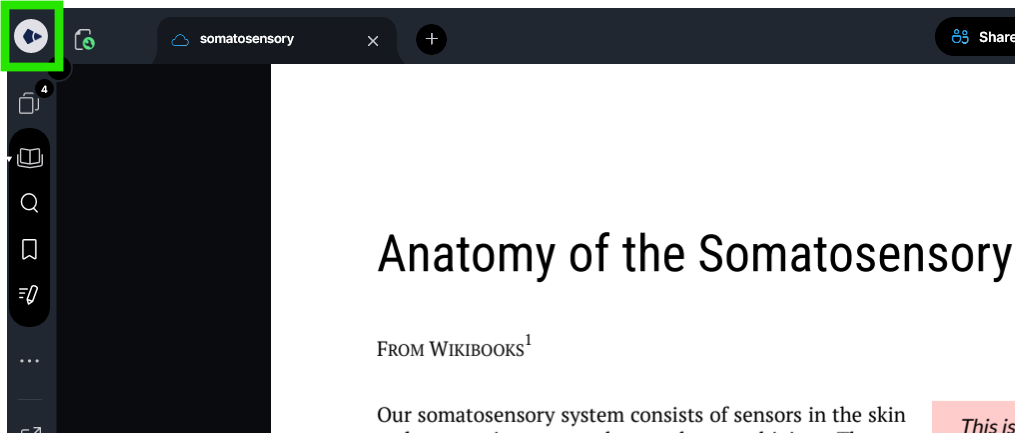
The dashboard is your central workspace in Drawboard PDF, where recently used documents and connected sources are accessible.
If you’ve just launched the app, you’ll arrive here by default. If you’re currently editing a document, use the Drawboard logo in the top-left corner to exit the file and return to the dashboard.
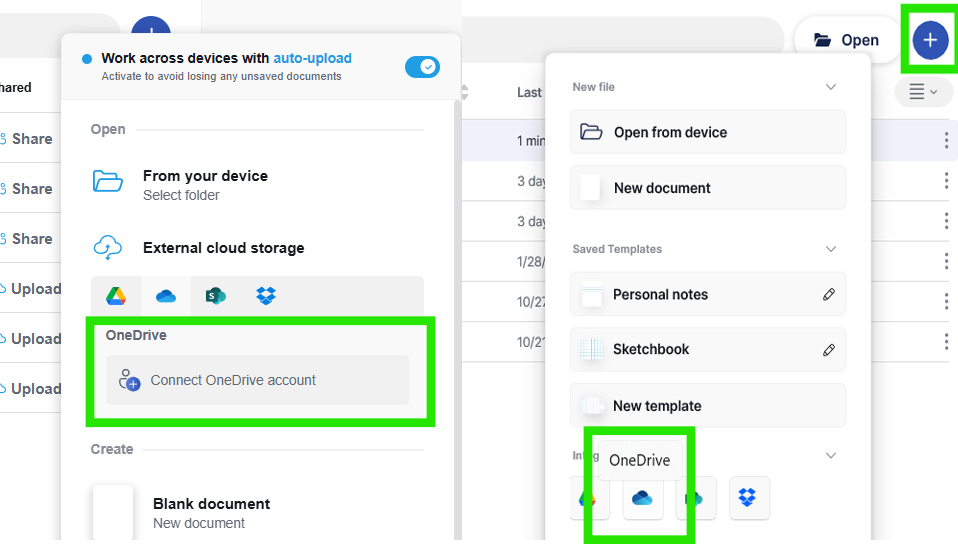
From the dashboard, you can start from scratch, with a template or bring in files from your device or from cloud storage services like Google Drive, OneDrive, SharePoint, and Dropbox.
Click or tap the ‘+’ icon in the top-right corner to open the list of available sources.
In the “External cloud storage section” (or “Integrations” on Windows), choose OneDrive, then select ‘Connect OneDrive account’ to start the setup process.
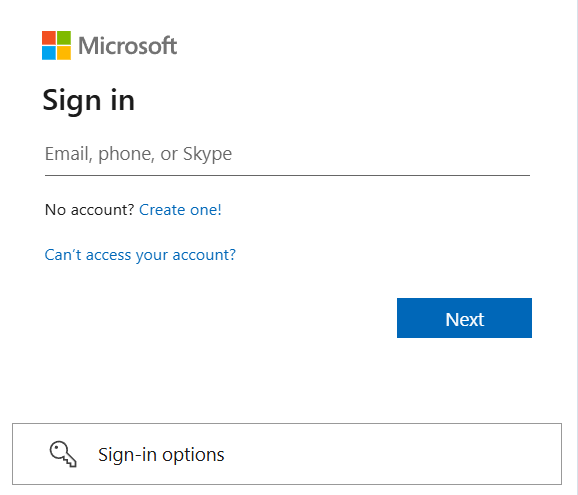
When you choose to connect OneDrive, Drawboard PDF will redirect you to Microsoft’s sign-in flow in a browser window or pop-up.
Log in using your OneDrive credentials and approve the access request. After authentication is complete, you’ll be returned to Drawboard PDF or taken directly to the OneDrive file picker.
Once your account is connected, your OneDrive folder structure becomes available inside Drawboard PDF.
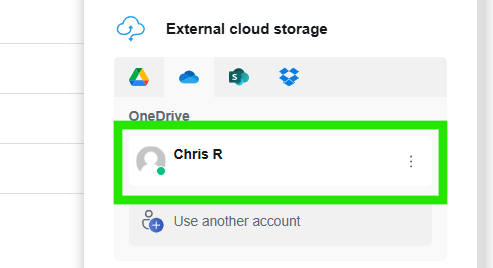
Return to the dashboard and click the ‘+’ icon again. Under OneDrive, click or tap your connected account to view folders and files.
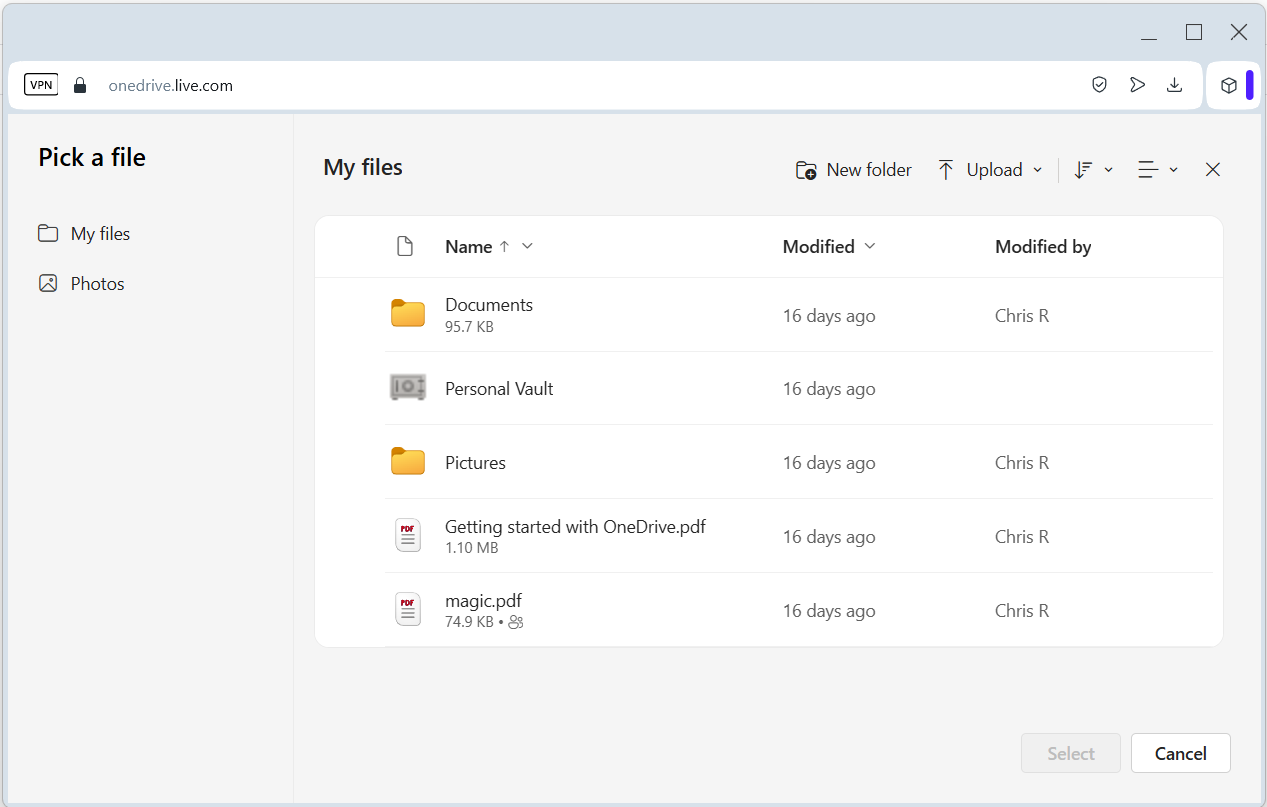
Select the PDFs you want to work on, then click ‘Choose’ to add them to your OneDrive section on the dashboard for easier access later.
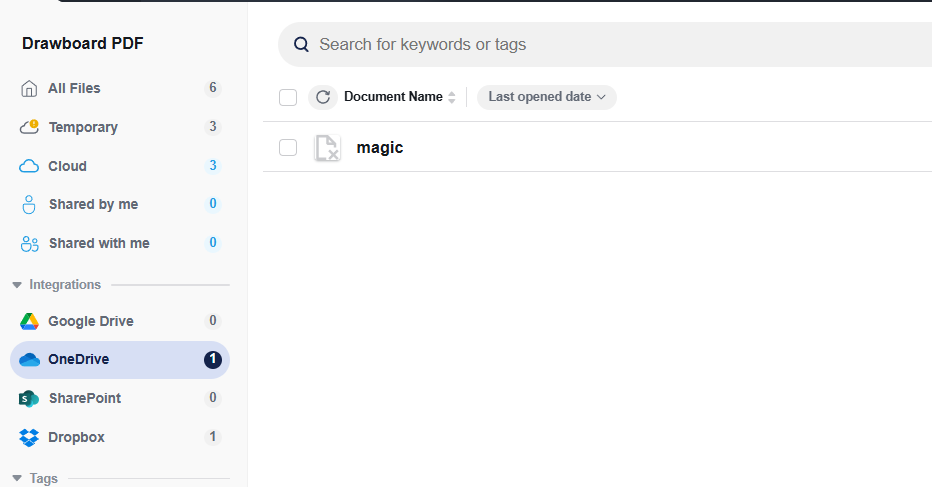
After files are added, open them from the “All” tab or switch to the OneDrive tab to view only documents pulled from OneDrive.
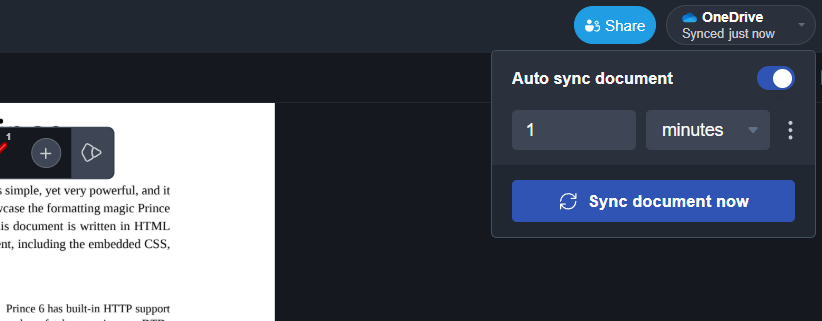
Inside the editor, use the sync controls in the top-right corner to manage how updates are saved back to OneDrive. From here, you can adjust how often syncing occurs, manually push changes, or disable syncing if needed.
When a PDF is opened from OneDrive, Drawboard PDF lets you decide how updates are sent back to the original file.
This makes it easy to keep OneDrive updated continuously, or hold changes until you decide it’s time to commit them.
If you want to reduce the back-and-forth involved in reviewing PDFs stored in OneDrive, you can start a 14-day free trial of Drawboard PDF and test the integration in a real workflow.
Students and educators can also access discounted multi-year plans designed for longer-term use across a degree path.
When PDFs are kept in OneDrive, reviewing and annotating them becomes more of an inconvenience than it should be. And if you’re working closely with someone else, downloading, annotating, and uploading again just to share changes slows progress down immensely.
With Drawboard PDF’s OneDrive integration, you can open PDFs straight from your OneDrive folders and work on them inside Drawboard PDF. Your markups and edits are then synced back to the original file, so collaborators can always access the most up-to-date version without chasing attachments or duplicate copies.
Here’s how to edit PDFs in OneDrive with Drawboard PDF.
The dashboard is your central workspace in Drawboard PDF, where recently used documents and connected sources are accessible.
If you’ve just launched the app, you’ll arrive here by default. If you’re currently editing a document, use the Drawboard logo in the top-left corner to exit the file and return to the dashboard.
From the dashboard, you can start from scratch, with a template or bring in files from your device or from cloud storage services like Google Drive, OneDrive, SharePoint, and Dropbox.
Click or tap the ‘+’ icon in the top-right corner to open the list of available sources.
In the “External cloud storage section” (or “Integrations” on Windows), choose OneDrive, then select ‘Connect OneDrive account’ to start the setup process.
When you choose to connect OneDrive, Drawboard PDF will redirect you to Microsoft’s sign-in flow in a browser window or pop-up.
Log in using your OneDrive credentials and approve the access request. After authentication is complete, you’ll be returned to Drawboard PDF or taken directly to the OneDrive file picker.
Once your account is connected, your OneDrive folder structure becomes available inside Drawboard PDF.
Return to the dashboard and click the ‘+’ icon again. Under OneDrive, click or tap your connected account to view folders and files.
Select the PDFs you want to work on, then click ‘Choose’ to add them to your OneDrive section on the dashboard for easier access later.
After files are added, open them from the “All” tab or switch to the OneDrive tab to view only documents pulled from OneDrive.
Inside the editor, use the sync controls in the top-right corner to manage how updates are saved back to OneDrive. From here, you can adjust how often syncing occurs, manually push changes, or disable syncing if needed.
When a PDF is opened from OneDrive, Drawboard PDF lets you decide how updates are sent back to the original file.
This makes it easy to keep OneDrive updated continuously, or hold changes until you decide it’s time to commit them.
If you want to reduce the back-and-forth involved in reviewing PDFs stored in OneDrive, you can start a 14-day free trial of Drawboard PDF and test the integration in a real workflow.
Students and educators can also access discounted multi-year plans designed for longer-term use across a degree path.


We are a PDF and collaboration company. We believe that creating more effective connections between people reduces waste.
Our best work has been overtaken by busywork. That’s why we’ve created ways to help people get back to working wonders without any paper in sight.
Drawboard PDF lets you mark up and share with ease, and Drawboard Projects brings collaborative design review to architecture and engineering teams.
At Drawboard, we work our magic so our customers can get back to working theirs.
We are a PDF and collaboration company. We believe that creating more effective connections between people reduces waste.
Our best work has been overtaken by busywork. That’s why we’ve created ways to help people get back to working wonders without any paper in sight.
Drawboard PDF lets you mark up and share with ease, and Drawboard Projects brings collaborative design review to architecture and engineering teams.
At Drawboard, we work our magic so our customers can get back to working theirs.


