


Reviewing drawing revisions shouldn’t mean flipping between PDFs and trying to work out what actually changed. The more you have to piece together across separate files, the slower coordination moves.
On a live project, even small updates can create confusion if they’re missed. A moved gridline, a shifted duct or pipe, or a revised detail can be easy to overlook when you’re comparing sheets by eye. And when review comments live on earlier revisions, it can take extra time to confirm whether those issues were actually addressed.
Drawing Overlay in Drawboard Projects gives you a clearer way to review updates. Instead of jumping between separate PDFs, you can layer revisions or related drawings together and compare them visually in one place. That makes it easier to spot changes, verify updates, and keep your review connected to the live drawing record.
Overlaying drawings in Drawboard Projects only takes a few steps and gives you a quick visual check of what changed between revisions. Once your drawings are uploaded and stacked, you can open an overlay, choose the revisions you want to compare, and review the differences directly on the sheet.
Start by uploading the updated sheet into Drawboard Projects as a new revision.
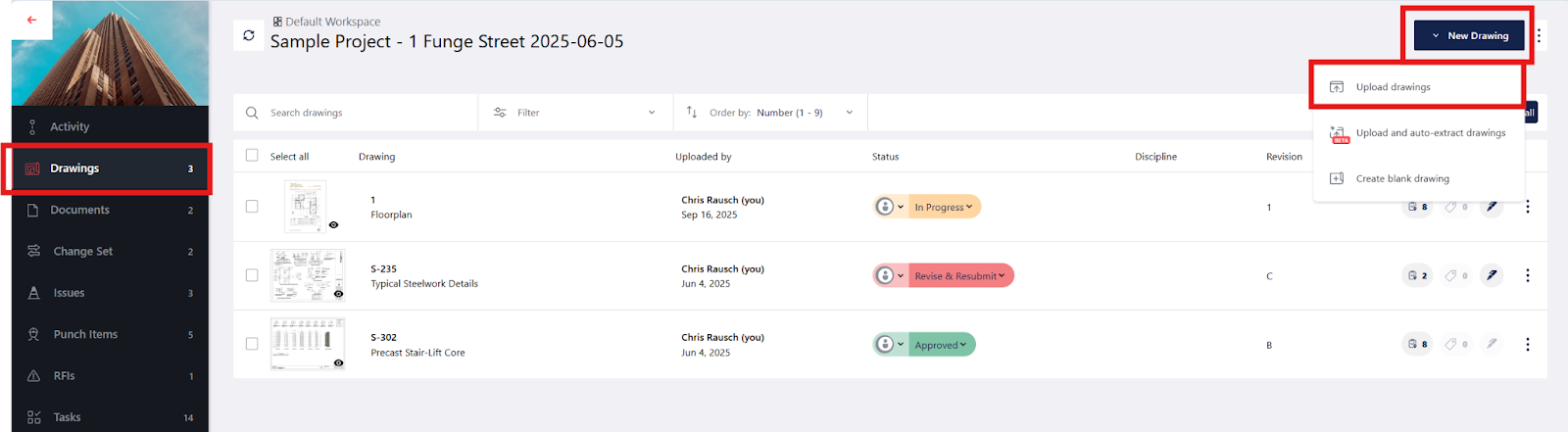
From the project dashboard, click “Drawings” on the left ribbon, then “New Drawing” and “Upload drawings.”
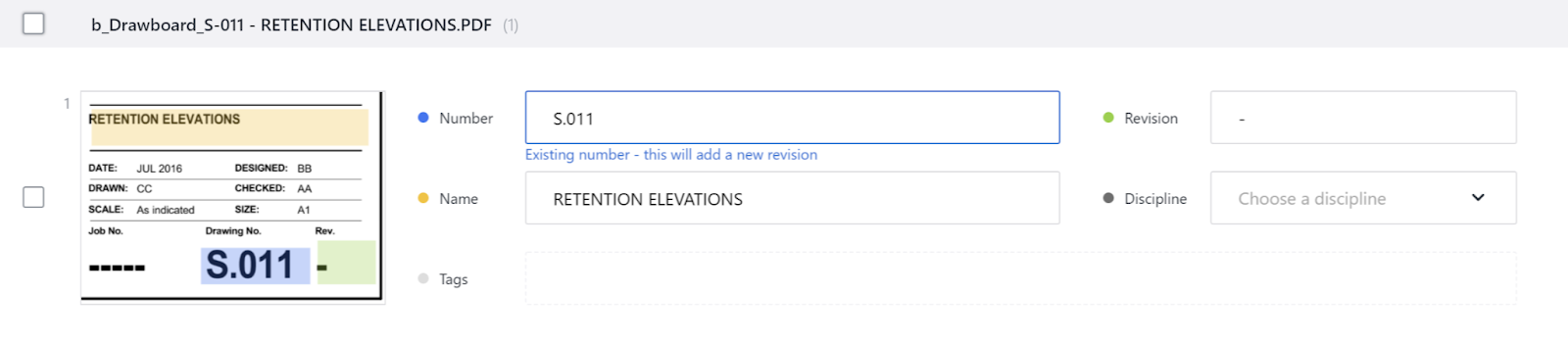
When you upload a new version of a drawing, Drawboard Projects automatically stacks it with the previous versions under the same drawing record. That keeps the revision history together in one place, instead of splitting each issue into separate files.
You can open the latest drawing, access earlier revisions from the same record, and compare changes without hunting through folders, downloads, or email attachments. It also keeps your review context connected, tying markups, comments, and revision history to the drawing, so you have a clearer record of what changed and what still needs to be checked.
Once your revisions are stacked in the drawing list, open the latest version and start your comparison. You can do this in two ways.
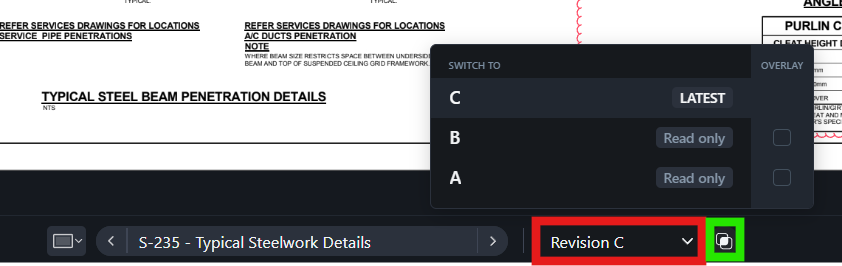
If you already know which revisions you want to review, open the Revision dropdown (red), check the versions you want to compare, then click Apply.
Or, if you want to jump straight into the most recent comparison, click the Overlay icon to the right (green) to open the current drawing together with the previous revision automatically.
Once you’ve selected your revisions, Drawboard Projects overlays them on the drawing so you can review the differences in the same space instead of switching back and forth between sheets.
This is where revision review becomes much clearer. You’re no longer relying on memory or manual side-by-side checking. You’re looking at the revisions directly on the drawing, with the changes visible in context.
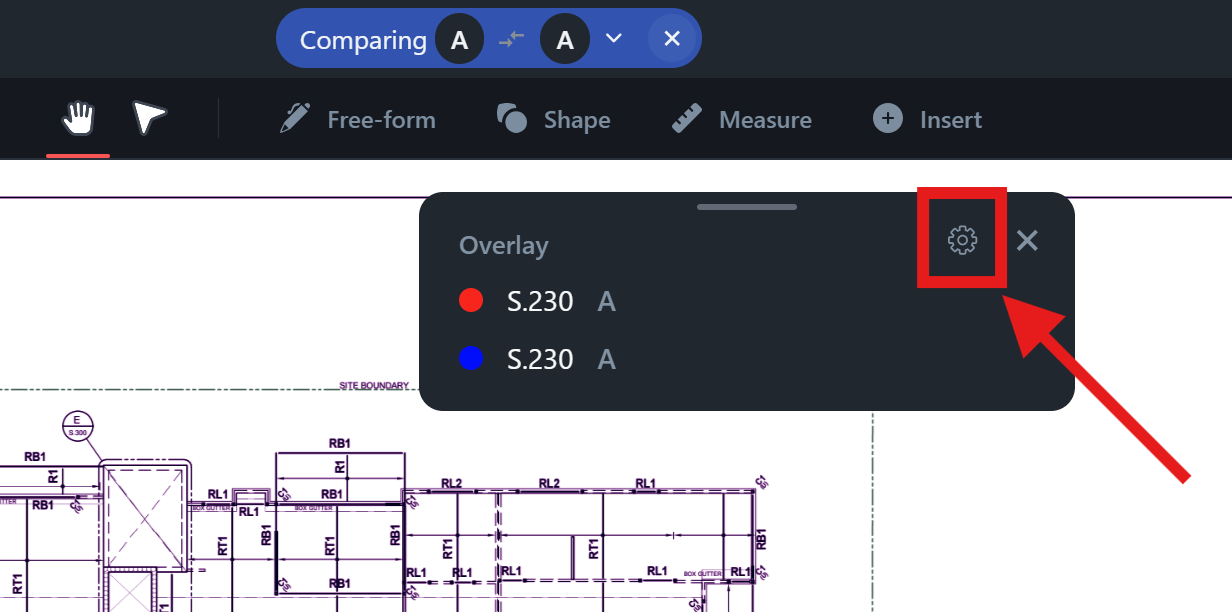
Once the overlay is open, you can adjust the view settings to make the comparison easier to read.
If you need to compare more than the current and previous revision, use + Add overlay to bring in additional revisions or related drawings. This is useful when you want to review how a drawing changed across multiple issues or check related sheets in the same view.
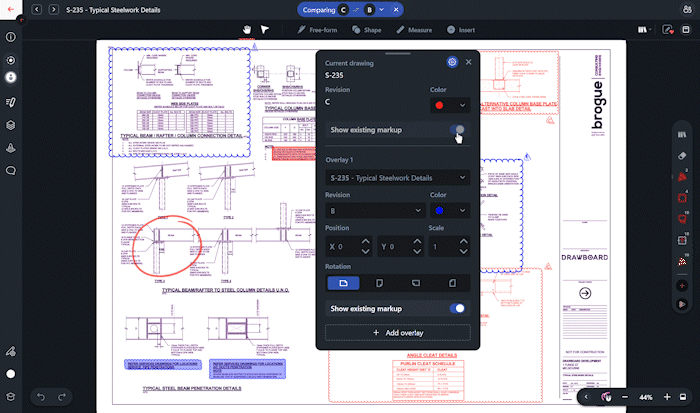
From there, you can assign distinct colors to each overlaid drawing so differences are easier to separate visually. If needed, turn on annotations to bring earlier review comments into the comparison.
You can also fine-tune the overlay using the alignment controls. Adjust the position, scale, or rotation of each drawing so the comparison is accurate and subtle changes are easier to interpret.
With the drawings layered and aligned, you can start reviewing the differences between revisions.
Overlay makes it easier to see where geometry, layouts, dimensions, or notes have changed. Instead of scanning multiple PDFs and trying to remember what moved, you can inspect updates directly on the drawing.
You can also use the overlay to confirm whether earlier comments were addressed in the latest revision. Reviewing the drawings this way helps you catch unresolved issues earlier and move the review forward with more confidence.
A few small habits can make overlay comparisons easier to read and more useful during review. These tips help you focus on the changes that matter, reduce visual noise, and make it quicker to confirm what needs follow-up.
Overlay works best when you know what you’re checking for.
Sometimes that means comparing the latest revision against the previous one, like when you need to catch up quickly after being away from the project. Other times, you may want to compare a much earlier revision to the current drawing to see the full extent of a change or understand when a detail first shifted.
Starting with a clear question helps you choose the right revisions and avoid overloading the view.
A visible change is only part of the review.
As you compare revisions, go back to the original markup and check whether the updated drawing addresses that specific issue. If a comment flagged a clash, confirm the revised element now clears it. If it pointed out a missing detail or incorrect dimension, check that the latest revision updates that information clearly.
The goal is not just to spot a difference, but to confirm that the right change was made.
If the comparison feels hard to read, adjust the overlay before drawing a conclusion.
Remove any overlays you do not need, use colors that make each revision easy to distinguish, and make sure the drawings are aligned properly.
A cleaner comparison makes it easier to assess the update confidently and avoid unnecessary back-and-forth.
When revision comparisons are quick and easy to read, it becomes much easier to keep reviews moving and catch updates before they create confusion later in the project.
Drawing Overlay in Drawboard Projects helps you check changes directly on the drawing, follow revision history more clearly, and keep the review process anchored to a single source of truth.
That means less time spent piecing together context and more confidence moving the review forward.
Still comparing drawing revisions manually? Schedule a demo today to see how Drawboard Projects makes overlay comparisons simple.
Reviewing drawing revisions shouldn’t mean flipping between PDFs and trying to work out what actually changed. The more you have to piece together across separate files, the slower coordination moves.
On a live project, even small updates can create confusion if they’re missed. A moved gridline, a shifted duct or pipe, or a revised detail can be easy to overlook when you’re comparing sheets by eye. And when review comments live on earlier revisions, it can take extra time to confirm whether those issues were actually addressed.
Drawing Overlay in Drawboard Projects gives you a clearer way to review updates. Instead of jumping between separate PDFs, you can layer revisions or related drawings together and compare them visually in one place. That makes it easier to spot changes, verify updates, and keep your review connected to the live drawing record.
Overlaying drawings in Drawboard Projects only takes a few steps and gives you a quick visual check of what changed between revisions. Once your drawings are uploaded and stacked, you can open an overlay, choose the revisions you want to compare, and review the differences directly on the sheet.
Start by uploading the updated sheet into Drawboard Projects as a new revision.
From the project dashboard, click “Drawings” on the left ribbon, then “New Drawing” and “Upload drawings.”
When you upload a new version of a drawing, Drawboard Projects automatically stacks it with the previous versions under the same drawing record. That keeps the revision history together in one place, instead of splitting each issue into separate files.
You can open the latest drawing, access earlier revisions from the same record, and compare changes without hunting through folders, downloads, or email attachments. It also keeps your review context connected, tying markups, comments, and revision history to the drawing, so you have a clearer record of what changed and what still needs to be checked.
Once your revisions are stacked in the drawing list, open the latest version and start your comparison. You can do this in two ways.
If you already know which revisions you want to review, open the Revision dropdown (red), check the versions you want to compare, then click Apply.
Or, if you want to jump straight into the most recent comparison, click the Overlay icon to the right (green) to open the current drawing together with the previous revision automatically.
Once you’ve selected your revisions, Drawboard Projects overlays them on the drawing so you can review the differences in the same space instead of switching back and forth between sheets.
This is where revision review becomes much clearer. You’re no longer relying on memory or manual side-by-side checking. You’re looking at the revisions directly on the drawing, with the changes visible in context.
Once the overlay is open, you can adjust the view settings to make the comparison easier to read.
If you need to compare more than the current and previous revision, use + Add overlay to bring in additional revisions or related drawings. This is useful when you want to review how a drawing changed across multiple issues or check related sheets in the same view.
From there, you can assign distinct colors to each overlaid drawing so differences are easier to separate visually. If needed, turn on annotations to bring earlier review comments into the comparison.
You can also fine-tune the overlay using the alignment controls. Adjust the position, scale, or rotation of each drawing so the comparison is accurate and subtle changes are easier to interpret.
With the drawings layered and aligned, you can start reviewing the differences between revisions.
Overlay makes it easier to see where geometry, layouts, dimensions, or notes have changed. Instead of scanning multiple PDFs and trying to remember what moved, you can inspect updates directly on the drawing.
You can also use the overlay to confirm whether earlier comments were addressed in the latest revision. Reviewing the drawings this way helps you catch unresolved issues earlier and move the review forward with more confidence.
A few small habits can make overlay comparisons easier to read and more useful during review. These tips help you focus on the changes that matter, reduce visual noise, and make it quicker to confirm what needs follow-up.
Overlay works best when you know what you’re checking for.
Sometimes that means comparing the latest revision against the previous one, like when you need to catch up quickly after being away from the project. Other times, you may want to compare a much earlier revision to the current drawing to see the full extent of a change or understand when a detail first shifted.
Starting with a clear question helps you choose the right revisions and avoid overloading the view.
A visible change is only part of the review.
As you compare revisions, go back to the original markup and check whether the updated drawing addresses that specific issue. If a comment flagged a clash, confirm the revised element now clears it. If it pointed out a missing detail or incorrect dimension, check that the latest revision updates that information clearly.
The goal is not just to spot a difference, but to confirm that the right change was made.
If the comparison feels hard to read, adjust the overlay before drawing a conclusion.
Remove any overlays you do not need, use colors that make each revision easy to distinguish, and make sure the drawings are aligned properly.
A cleaner comparison makes it easier to assess the update confidently and avoid unnecessary back-and-forth.
When revision comparisons are quick and easy to read, it becomes much easier to keep reviews moving and catch updates before they create confusion later in the project.
Drawing Overlay in Drawboard Projects helps you check changes directly on the drawing, follow revision history more clearly, and keep the review process anchored to a single source of truth.
That means less time spent piecing together context and more confidence moving the review forward.
Still comparing drawing revisions manually? Schedule a demo today to see how Drawboard Projects makes overlay comparisons simple.


We are a PDF and collaboration company. We believe that creating more effective connections between people reduces waste.
Our best work has been overtaken by busywork. That’s why we’ve created ways to help people get back to working wonders without any paper in sight.
Drawboard PDF lets you mark up and share with ease, and Drawboard Projects brings collaborative design review to architecture and engineering teams.
At Drawboard, we work our magic so our customers can get back to working theirs.
We are a PDF and collaboration company. We believe that creating more effective connections between people reduces waste.
Our best work has been overtaken by busywork. That’s why we’ve created ways to help people get back to working wonders without any paper in sight.
Drawboard PDF lets you mark up and share with ease, and Drawboard Projects brings collaborative design review to architecture and engineering teams.
At Drawboard, we work our magic so our customers can get back to working theirs.


