


Saving annotations should be simple. Whether you’re reviewing drawings, leaving comments, or marking up documents, you need a reliable way to keep your annotations, find them later, and reuse the ones you rely on most.
Drawboard gives you a consistent way to save and organize markups so they are easy to access across your documents. It also helps you maintain consistency in how annotations are applied, especially when the same symbols, callouts, or notes are used repeatedly.
This guide walks through how to save document annotations, how to store reusable markups, and how to extend that workflow for team use in Drawboard Projects.
The steps below show how to save annotations so you can reuse them later. Once saved, you can organize them in your Markup Library for quick access across documents, and share them with your team when consistency matters.
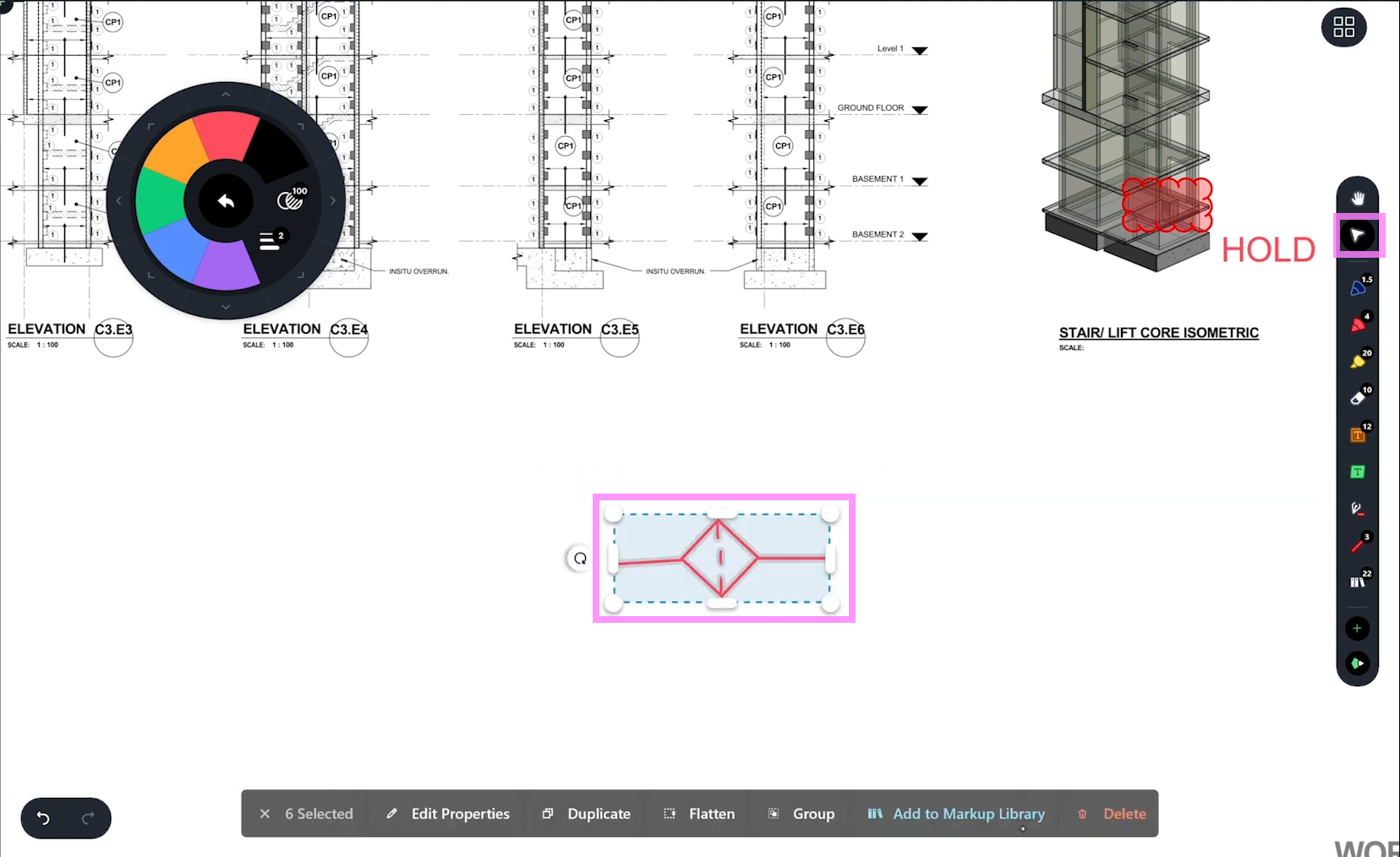
Selecting annotations on both Drawboard PDF and Drawboard Projects follow roughly the same steps.
Start by choosing the annotation or group of annotations you want to save. Use the Select tool to click or tap on individual annotations, or drag to select multiple annotations at once.
You can save the following annotation types to the Markup Library:
Note: Image annotations, measurements (Length, Poly Area, Rect Area), and stamps cannot be saved to the Markup Library.
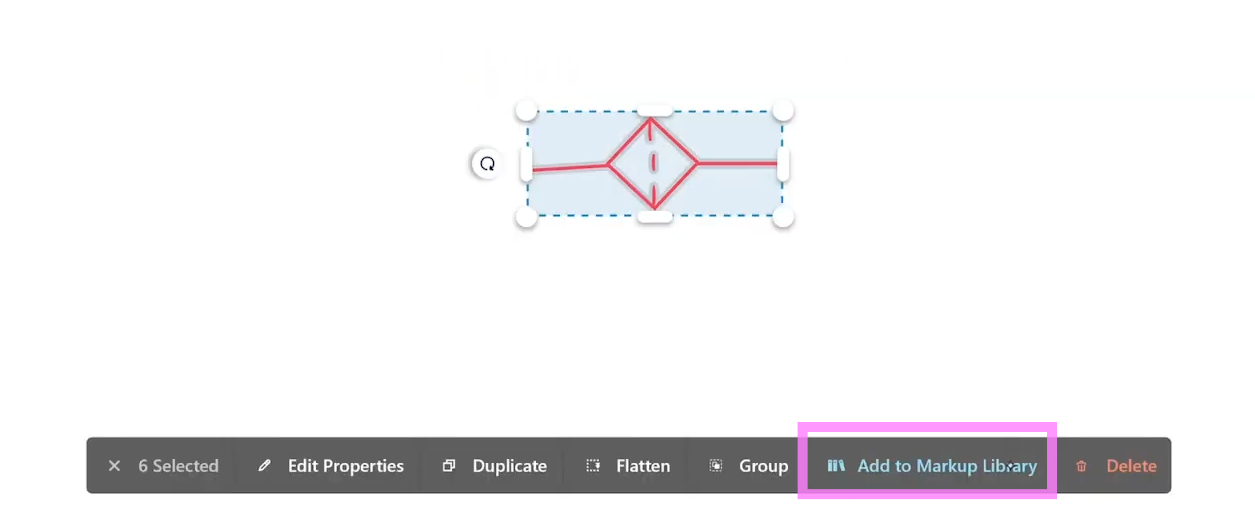
With your annotation(s) selected, click or tap Save to Markup Library.
If you’re a Project Admin in Drawboard Projects, you’ll be asked whether to save the markup to your Personal Markup Library or the shared Project Markup Library. Otherwise, it saves directly to your Personal library.
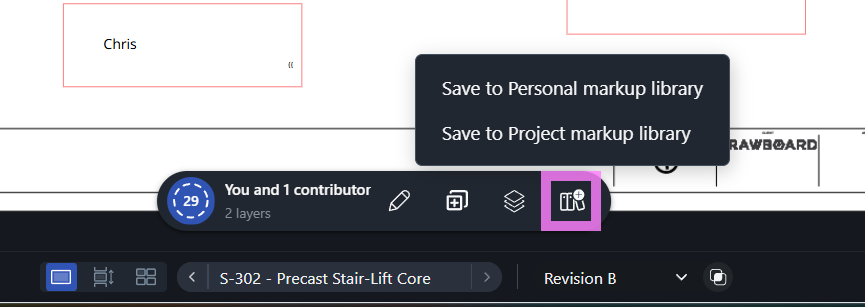
Your Personal Markup Library is exactly that—personal. It’s private to you, syncs across devices when you’re logged in, and is available on any drawing or document in any project. No one else can see what you’ve saved.
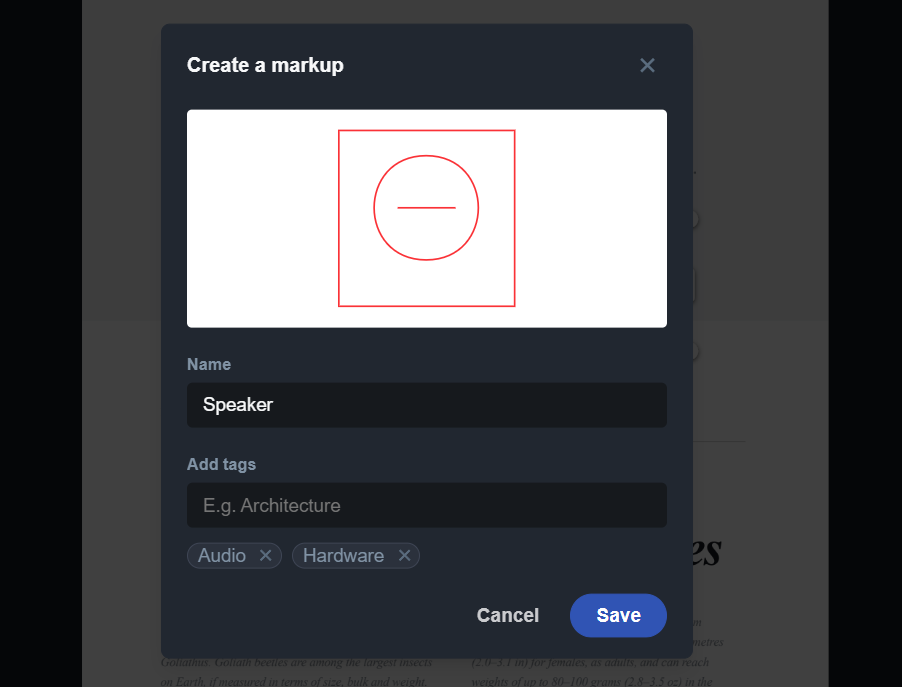
After saving, you’ll be prompted to give your markup a name. Choose something descriptive that you and your team will recognize later. For example, “HVAC Return Air Symbol” or “Revision Cloud - Electrical.”
You can also add tags at this point to categorize your markups. Tags make it easy to search and filter when your library grows. Think of tags as categories: heating and cooling, electrical, mechanical, structural, company annotations, and so on.
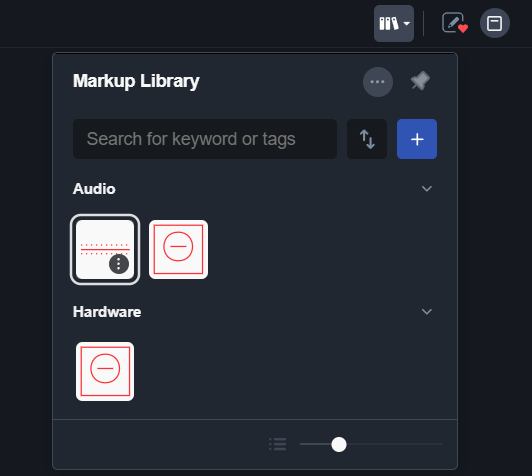
As your Markup Library grows, organization becomes essential. Use these built-in tools to keep things manageable:
A well-organized library saves time every session. Instead of scrolling through dozens of annotations, you can find exactly what you need in seconds.
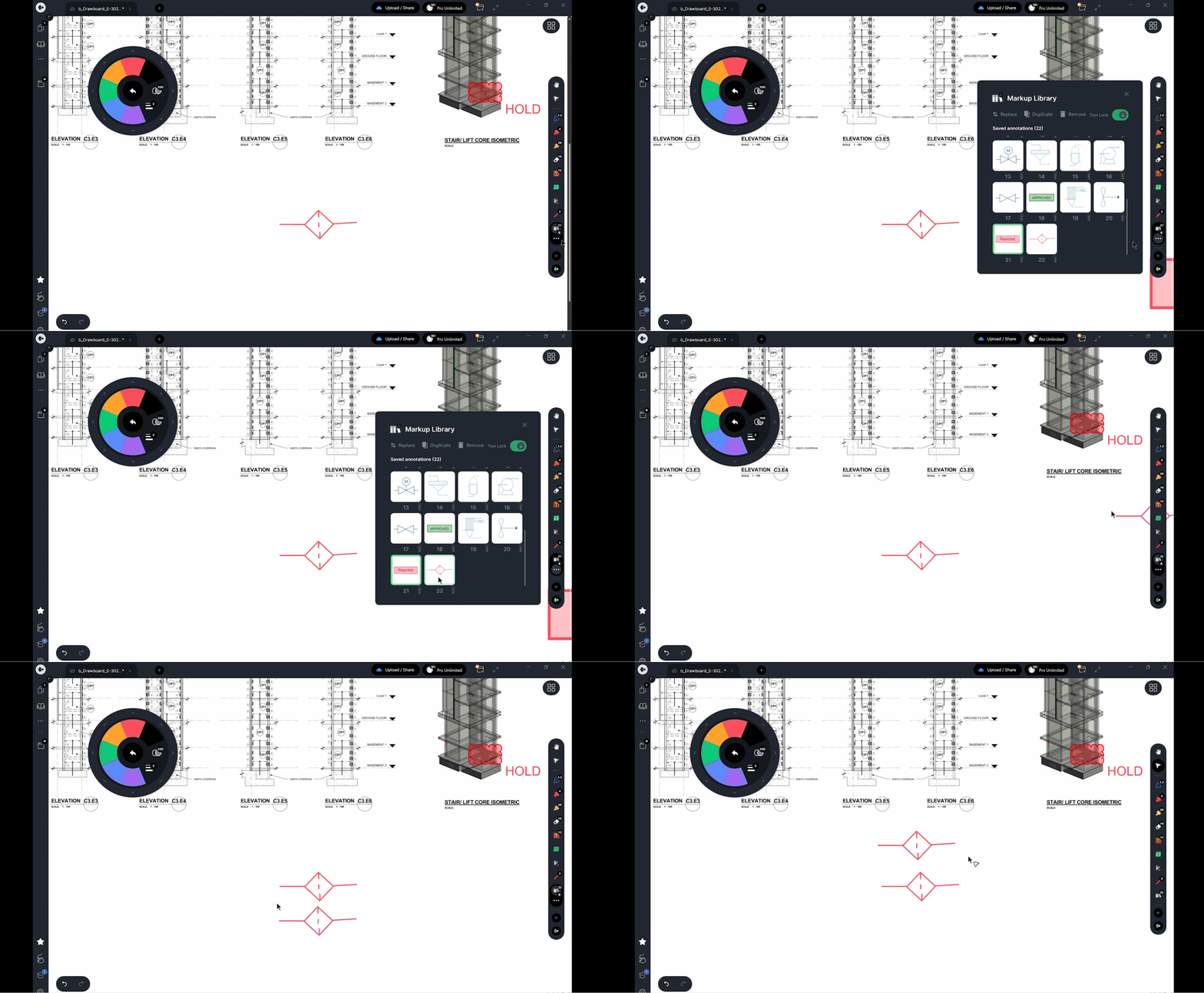
Once your annotations are saved, you can use them on any drawing or document, across any project. Open the Markup Library panel, select the markup you want, and click or tap on the drawing to place it.
Tip: On the Web app, click and hold when placing a markup to drag it into the exact position you need. If snapping is turned on, your markup will snap to other existing annotations while you drag.
Because your Personal Markup Library syncs across devices, a markup you save on your desktop is immediately available on your tablet in the field. That means your standard review symbols, approval stamps, and engineering annotations travel with you.
Saving a markup is only part of the workflow. You also need to decide whether it should remain part of your own toolkit or become something the wider team can reuse. Getting that right helps teams stay consistent across reviews, reduce duplicated effort, and keep common markup standards easy to access.
Once you start saving markups regularly, it helps to think about them in two groups: the ones you want to keep for your own workflow, and the ones your team should be able to reuse.
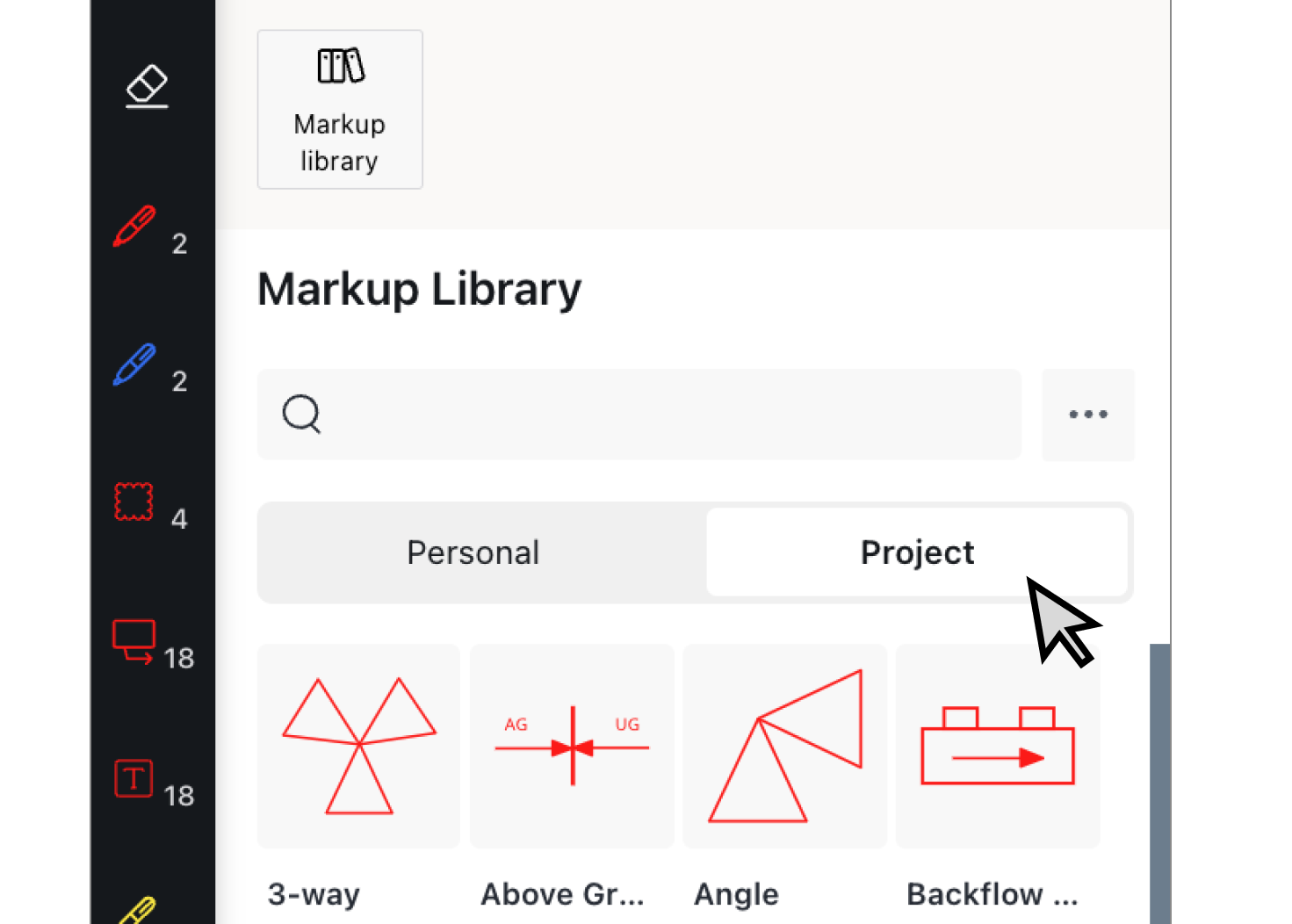
On Growth and Enterprise plans, every project includes its own Project Markup Library. Only Project, Workspace, and Organization Admins can add, rename, or delete markups in these shared libraries.
In Drawboard Projects, Admins can save markups directly to a shared Project Markup Library while they work. After selecting an annotation, choose Save to Markup Library, and select Project when prompted.
You can also take markups you have already saved in your Personal Markup Library and add them to a Project library for team use.
To move or duplicate a saved markup into a Project library:
For bulk moves, use the multi-select feature: press the three dots next to the search bar, choose Select, pick your annotations, and then choose Move to project or Duplicate at the bottom of the panel.
Need to bring your standardized markup set from one project to another? Admins can export and import entire libraries in Drawboard Projects.
To export:
To import:
Your annotations now appear in the new project’s library, ready for the whole team to use.
Beyond saving annotations for reuse, you’ll sometimes need to export them for documentation, reporting, or backup purposes.
In Drawboard PDF, export options are mainly about annotation data, review text, and document recordkeeping rather than creating a separate marked-up PDF or TIFF from Document Options.
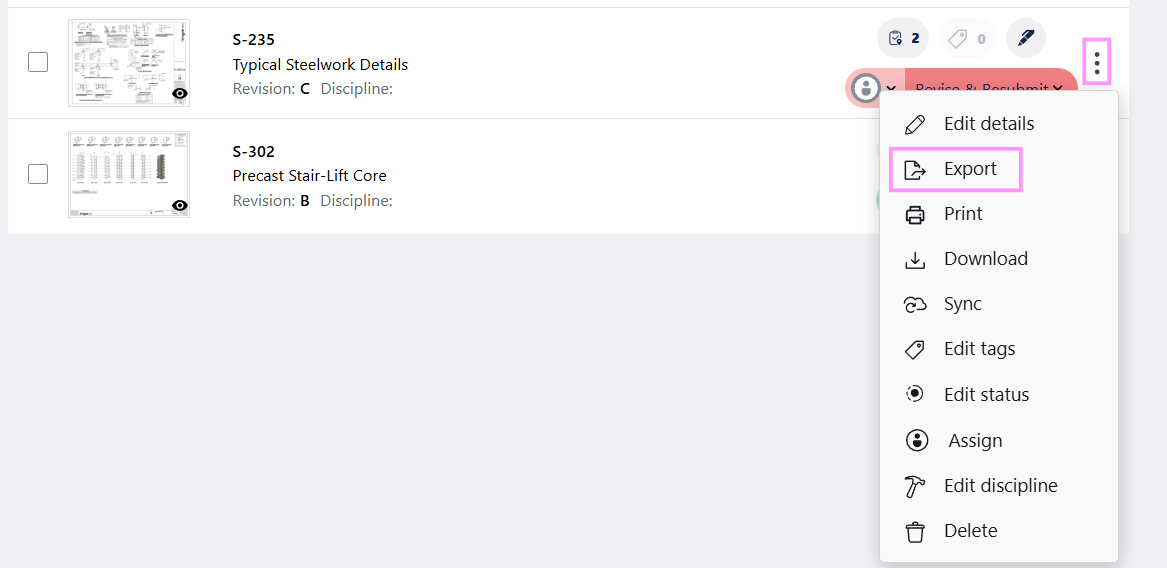
In Drawboard Projects, export workflows are broader. It supports exporting drawings and documents as PDF or TIFF, with additional export options available on the web app by clicking the three dots next to your drawings or documents.
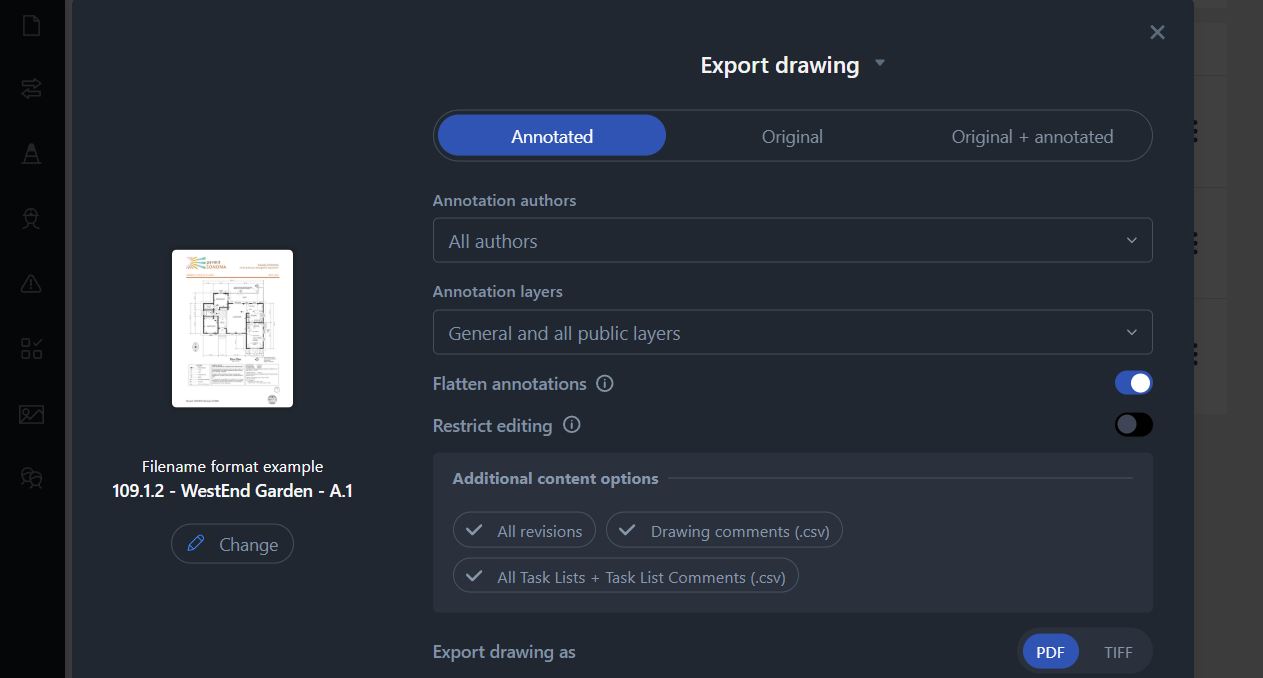
After exporting, the files will be sent to your email for download.
Saving annotations is not just about keeping markups on a document. It is also about making them easier to reuse, easier to organize, and easier to share when a team needs to work from the same set.
In Drawboard PDF, you can save reusable markups, export annotation data, and keep a clearer record of document review. In Drawboard Projects, teams can take that workflow further with shared Project Markup Libraries, so standard symbols, callouts, and notes stay consistent across reviews and projects.
Ready to streamline your annotation workflow?
Start your free trial of Drawboard PDF, or get a demo of Drawboard Projects today and see how the Markup Library can save you time on every review.
In Drawboard PDF, annotations can stay attached to the document, be flattened into the file, or be exported separately as an XFDF file. If the document is stored in Drawboard Cloud, it is linked to your account, available across devices, and its annotations are automatically saved.
Yes. If you want to move document annotations, use Export XFDF and Import XFDF from Document Options. If you mean saved reusable markups rather than document-bound annotations, Drawboard also supports importing and exporting Markup Library content, with the exact workflow depending on whether you are using Drawboard PDF or Drawboard Projects
If you’ve lost an annotation, check the Markup History first. It logs all annotation activity on a document, including who made changes and when. You can also check your Markup Library to see if the annotation was previously saved. For more detailed recovery steps, visit the Drawboard Help Centre’s guide on recovering lost annotations.
The PeMarkup Library is available in Drawboard PDF via the Pro Plus and higher plans, and on Growth or higher plans in Drawboard Projects. Every Projects user receives a personal library, plus a shared Project Markup Library, while Drawboard PDF users on the right plans have access to their personal library.
Yes, in two ways.
In Drawboard PDF, users can import and export Markup Library content, including transferring saved annotations between accounts.
In Drawboard Projects, saved annotations can be exported from a Personal or Project library and then imported into another project’s library as a .drawboardmarkups file.
Your Personal Markup Library is available across every project you’re a part of, as it follows your account. For shared Project Markup Libraries, Admins can export markups from one project and import them into another using the built-in export/import feature.
Saving annotations should be simple. Whether you’re reviewing drawings, leaving comments, or marking up documents, you need a reliable way to keep your annotations, find them later, and reuse the ones you rely on most.
Drawboard gives you a consistent way to save and organize markups so they are easy to access across your documents. It also helps you maintain consistency in how annotations are applied, especially when the same symbols, callouts, or notes are used repeatedly.
This guide walks through how to save document annotations, how to store reusable markups, and how to extend that workflow for team use in Drawboard Projects.
The steps below show how to save annotations so you can reuse them later. Once saved, you can organize them in your Markup Library for quick access across documents, and share them with your team when consistency matters.
Selecting annotations on both Drawboard PDF and Drawboard Projects follow roughly the same steps.
Start by choosing the annotation or group of annotations you want to save. Use the Select tool to click or tap on individual annotations, or drag to select multiple annotations at once.
You can save the following annotation types to the Markup Library:
Note: Image annotations, measurements (Length, Poly Area, Rect Area), and stamps cannot be saved to the Markup Library.
With your annotation(s) selected, click or tap Save to Markup Library.
If you’re a Project Admin in Drawboard Projects, you’ll be asked whether to save the markup to your Personal Markup Library or the shared Project Markup Library. Otherwise, it saves directly to your Personal library.
Your Personal Markup Library is exactly that—personal. It’s private to you, syncs across devices when you’re logged in, and is available on any drawing or document in any project. No one else can see what you’ve saved.
After saving, you’ll be prompted to give your markup a name. Choose something descriptive that you and your team will recognize later. For example, “HVAC Return Air Symbol” or “Revision Cloud - Electrical.”
You can also add tags at this point to categorize your markups. Tags make it easy to search and filter when your library grows. Think of tags as categories: heating and cooling, electrical, mechanical, structural, company annotations, and so on.
As your Markup Library grows, organization becomes essential. Use these built-in tools to keep things manageable:
A well-organized library saves time every session. Instead of scrolling through dozens of annotations, you can find exactly what you need in seconds.
Once your annotations are saved, you can use them on any drawing or document, across any project. Open the Markup Library panel, select the markup you want, and click or tap on the drawing to place it.
Tip: On the Web app, click and hold when placing a markup to drag it into the exact position you need. If snapping is turned on, your markup will snap to other existing annotations while you drag.
Because your Personal Markup Library syncs across devices, a markup you save on your desktop is immediately available on your tablet in the field. That means your standard review symbols, approval stamps, and engineering annotations travel with you.
Saving a markup is only part of the workflow. You also need to decide whether it should remain part of your own toolkit or become something the wider team can reuse. Getting that right helps teams stay consistent across reviews, reduce duplicated effort, and keep common markup standards easy to access.
Once you start saving markups regularly, it helps to think about them in two groups: the ones you want to keep for your own workflow, and the ones your team should be able to reuse.
On Growth and Enterprise plans, every project includes its own Project Markup Library. Only Project, Workspace, and Organization Admins can add, rename, or delete markups in these shared libraries.
In Drawboard Projects, Admins can save markups directly to a shared Project Markup Library while they work. After selecting an annotation, choose Save to Markup Library, and select Project when prompted.
You can also take markups you have already saved in your Personal Markup Library and add them to a Project library for team use.
To move or duplicate a saved markup into a Project library:
For bulk moves, use the multi-select feature: press the three dots next to the search bar, choose Select, pick your annotations, and then choose Move to project or Duplicate at the bottom of the panel.
Need to bring your standardized markup set from one project to another? Admins can export and import entire libraries in Drawboard Projects.
To export:
To import:
Your annotations now appear in the new project’s library, ready for the whole team to use.
Beyond saving annotations for reuse, you’ll sometimes need to export them for documentation, reporting, or backup purposes.
In Drawboard PDF, export options are mainly about annotation data, review text, and document recordkeeping rather than creating a separate marked-up PDF or TIFF from Document Options.
In Drawboard Projects, export workflows are broader. It supports exporting drawings and documents as PDF or TIFF, with additional export options available on the web app by clicking the three dots next to your drawings or documents.
After exporting, the files will be sent to your email for download.
Saving annotations is not just about keeping markups on a document. It is also about making them easier to reuse, easier to organize, and easier to share when a team needs to work from the same set.
In Drawboard PDF, you can save reusable markups, export annotation data, and keep a clearer record of document review. In Drawboard Projects, teams can take that workflow further with shared Project Markup Libraries, so standard symbols, callouts, and notes stay consistent across reviews and projects.
Ready to streamline your annotation workflow?
Start your free trial of Drawboard PDF, or get a demo of Drawboard Projects today and see how the Markup Library can save you time on every review.
In Drawboard PDF, annotations can stay attached to the document, be flattened into the file, or be exported separately as an XFDF file. If the document is stored in Drawboard Cloud, it is linked to your account, available across devices, and its annotations are automatically saved.
Yes. If you want to move document annotations, use Export XFDF and Import XFDF from Document Options. If you mean saved reusable markups rather than document-bound annotations, Drawboard also supports importing and exporting Markup Library content, with the exact workflow depending on whether you are using Drawboard PDF or Drawboard Projects
If you’ve lost an annotation, check the Markup History first. It logs all annotation activity on a document, including who made changes and when. You can also check your Markup Library to see if the annotation was previously saved. For more detailed recovery steps, visit the Drawboard Help Centre’s guide on recovering lost annotations.
The PeMarkup Library is available in Drawboard PDF via the Pro Plus and higher plans, and on Growth or higher plans in Drawboard Projects. Every Projects user receives a personal library, plus a shared Project Markup Library, while Drawboard PDF users on the right plans have access to their personal library.
Yes, in two ways.
In Drawboard PDF, users can import and export Markup Library content, including transferring saved annotations between accounts.
In Drawboard Projects, saved annotations can be exported from a Personal or Project library and then imported into another project’s library as a .drawboardmarkups file.
Your Personal Markup Library is available across every project you’re a part of, as it follows your account. For shared Project Markup Libraries, Admins can export markups from one project and import them into another using the built-in export/import feature.


We are a PDF and collaboration company. We believe that creating more effective connections between people reduces waste.
Our best work has been overtaken by busywork. That’s why we’ve created ways to help people get back to working wonders without any paper in sight.
Drawboard PDF lets you mark up and share with ease, and Drawboard Projects brings collaborative design review to architecture and engineering teams.
At Drawboard, we work our magic so our customers can get back to working theirs.
We are a PDF and collaboration company. We believe that creating more effective connections between people reduces waste.
Our best work has been overtaken by busywork. That’s why we’ve created ways to help people get back to working wonders without any paper in sight.
Drawboard PDF lets you mark up and share with ease, and Drawboard Projects brings collaborative design review to architecture and engineering teams.
At Drawboard, we work our magic so our customers can get back to working theirs.


