


Revisions are a given on any AEC project. Design intent shifts, consultants feed back, site conditions change, and client requests keep coming. The hard part is keeping everyone on the current set while the set is still moving.
When revision management slips, it usually looks the same. Someone builds from a superseded detail because the latest sheet never made it to site. Someone marks up last week’s PDF because it was still sitting in their inbox. Then the next coordination meeting turns into a version check instead of a decision-making session.
Most teams try to patch this with email chains, spreadsheet logs, and manual clouding. It works until it doesn’t. As the set grows, those methods create version confusion, slow down feedback cycles, and push even more admin onto project managers and document controllers.
Drawboard Projects helps you keep revision control inside the drawing set itself. It gives your team a single source of truth for what’s current, what changed, and what still needs action. Revisions stay stacked to the same drawing record, comparison is quick, and follow-ups stay pinned to the exact spot they came from. That means less time chasing “latest” and more time closing out the package.
This guide walks through a workflow you can reuse for every issue set, change package, and coordination round.
Most teams do not have a revision tracking problem in isolation. They have a too-many-copies problem.
As soon as drawings live in multiple places, markups get scattered across inboxes and shared drives. Decisions lose context. Document control turns into search-and-rescue. The cost shows up later as rework, delays, and avoidable RFIs.
A revision workflow holds together when there is one drawing set everyone opens, when changes between revisions are easy to verify, and when actions stay connected to the drawing instead of drifting into spreadsheets or chat threads.
Drawboard Projects supports that by keeping drawings, revisions, markups, and follow-ups in one shared workspace.
Revision control starts before the first upload. The choices you make around access, structure, and naming conventions decide whether the workflow stays clean when the set starts changing fast.
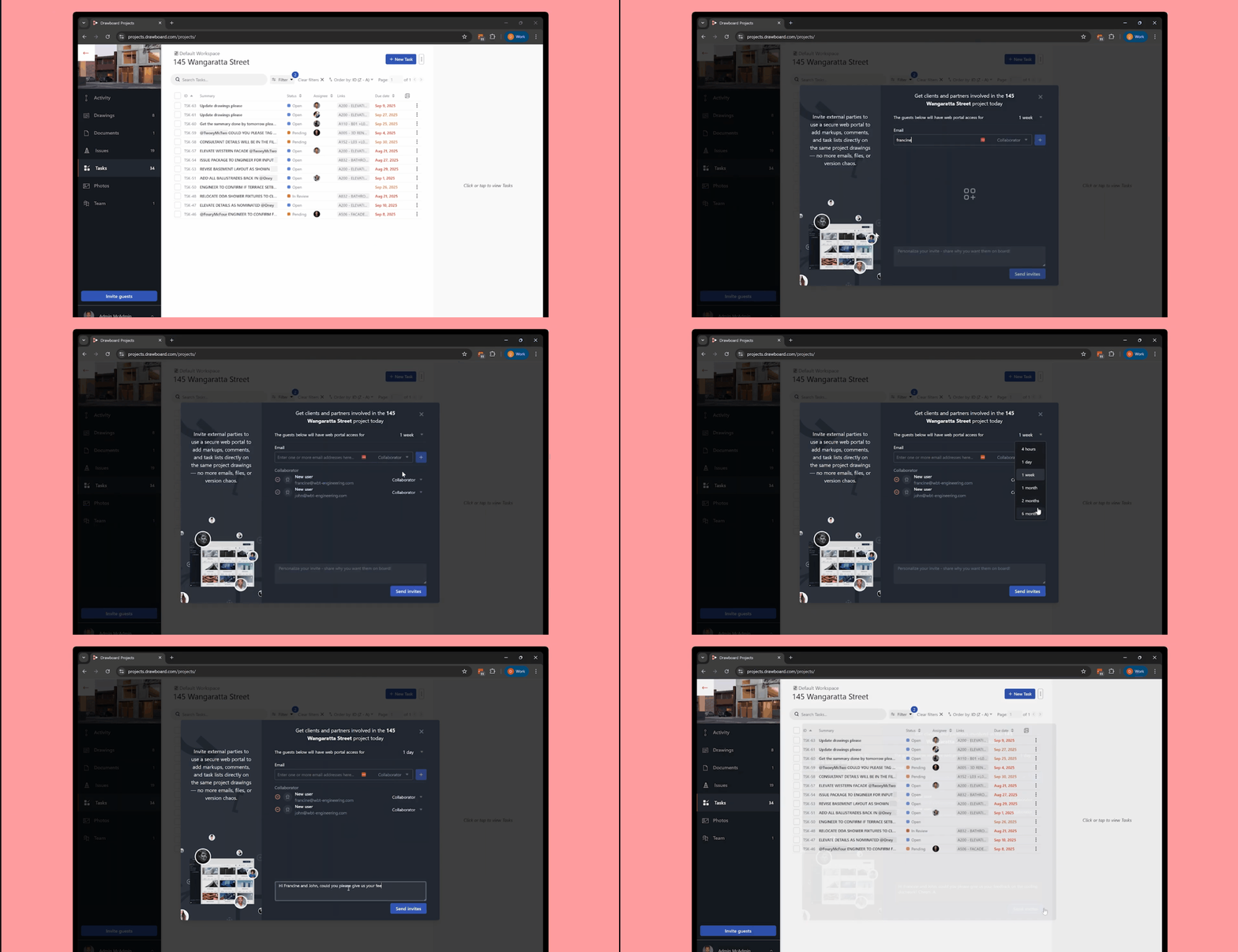
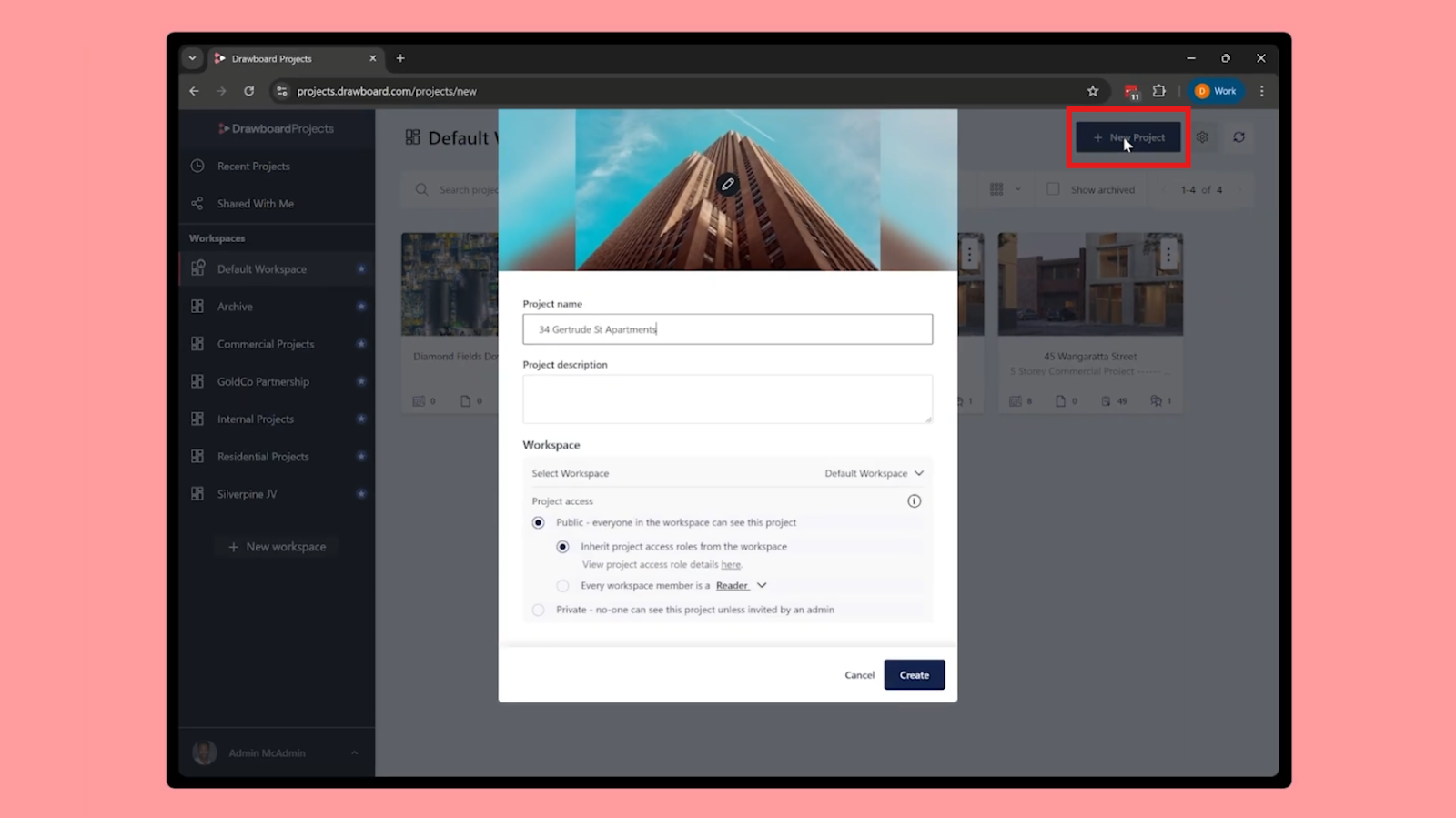
If reviewers can’t get into the set quickly, they fall back to email attachments and local copies. Start by creating a project and inviting everyone who will contribute, and assigning roles to the team members who are going to move work forward.
In most teams, it helps to separate two responsibilities clearly.
When those roles are defined, revision control stops depending on one person chasing everyone else.
Once the project is ready, upload the initial drawing set. You can upload from local files, or pull drawings in from the cloud platforms and systems your team already uses, including Procore, Oracle Aconex, OneDrive, Google Drive, Dropbox, and Revit.
As you upload, ensure you’re keeping metadata standardized. Consistent drawing numbers and revision labels are what make stacking and comparison work later. If your title blocks vary across disciplines, use OCR and title block templates to standardize how drawing number, drawing name, and revision are captured so the set stays tidy as it evolves.
With the initial set uploaded, organize drawings by discipline, set, or phase so team members can find what they need without scanning through a flat list. Drawboard Projects lets you sort drawings by recently added or by name, which helps on active projects where new revisions are arriving regularly and you want the latest sheets on top of the pile.
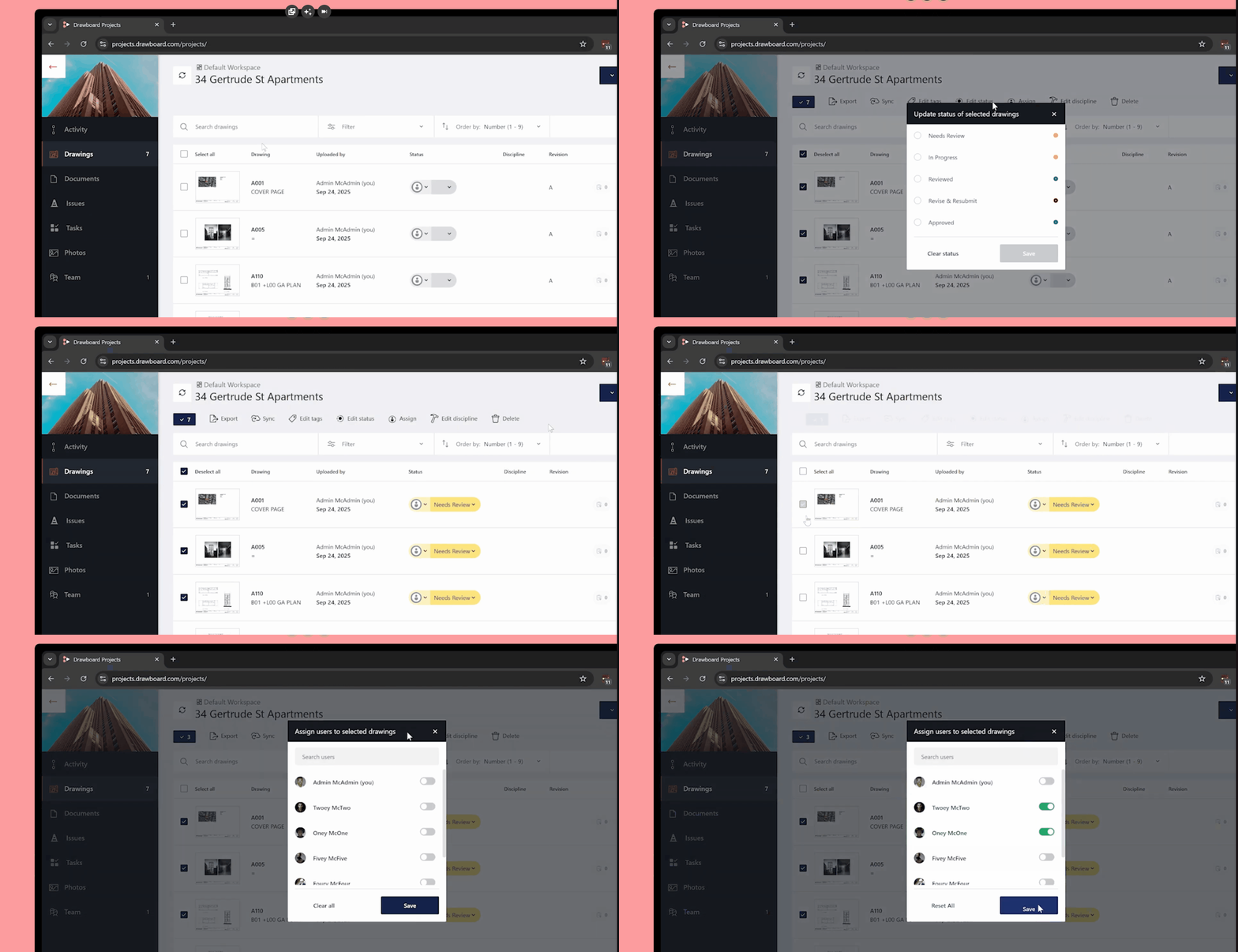
Alongside that structure, assign drawings and documents to the people who own them. That means selecting the drawings for a discipline or package, bulk assigning them to the right reviewer or lead, and leaving anything out of scope unassigned.
From day one, everyone can open the project and immediately see what they own, without needing a separate tracker. Admins can also filter the list to spot unassigned items quickly, which is useful when you are trying to keep coverage tight across a large set.
Every new revision is a fork in the road. You either keep a single source of truth, or you introduce drift that compounds with every upload.
When Rev C lands, the goal is simple: add it to the existing drawing record, not as a separate file that competes with the old one.
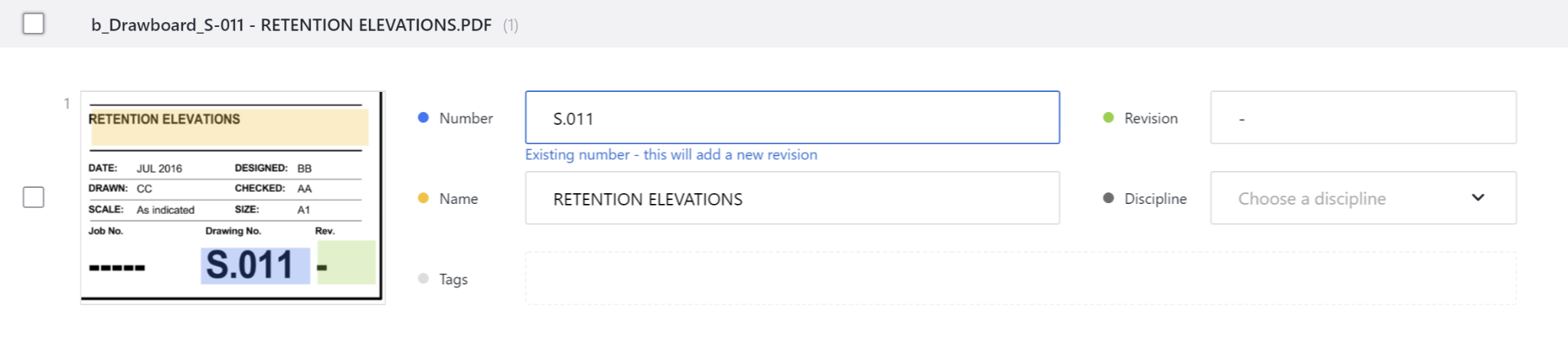
In Drawboard Projects, revisions of the same drawing are stacked. The drawing stays in one place with its revision history attached, instead of multiplying across folders and email threads. When an uploaded revision’s drawing number matches an existing record, the upload flow guides you to add it as the next revision rather than creating a duplicate. Each upload is logged with revision details, so the history stays clear.
With this newest-first approach, reviewers naturally land on the current sheet first. Older revisions are still there when you need them, but the workspace is designed to keep the team oriented to what is current.
To keep this reliable over time, avoid “quick fixes” like renaming sheets under pressure. If the drawing number changes, you lose the continuity revision stacking depends on. Agree on a revision convention early, apply it consistently, and keep “revision” separate from purpose-of-issue codes like IFC so the set stays sortable and searchable.
Previous revisions should not disappear. They are how you verify what changed, confirm whether earlier feedback was picked up, and trace how a detail progressed from first issue to current.
That history also matters at handover and when questions come up later. Finding an old sheet in a paper-based system can take hours. In Drawboard Projects, the revision history stays attached to the drawing record and accessible to anyone with project access.
Revision clouds are helpful, but they are not verification. The fastest way to confirm changes is to compare revisions directly.
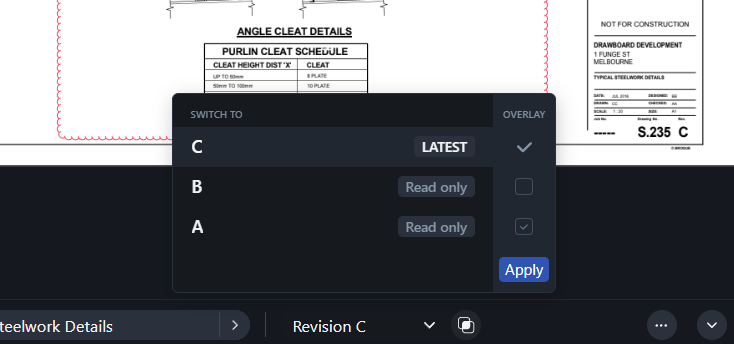
Overlay Mode lets you layer one revision over another so you can see differences without page-flipping or assuming every change was clouded perfectly. This is especially useful for subtle shifts like offsets, dimension tweaks, grid movements, and rerouted services.
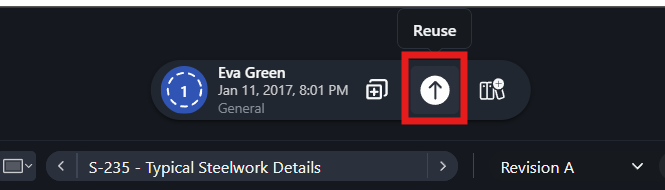
And if feedback from an older revision still matters, you don’t need to recreate it. Drawboard Projects lets you move markups from older revisions onto the latest live drawing, so important comments, checks, and open questions stay in play as the set evolves. It is a simple way to carry review context forward without dragging old versions back into the workflow.
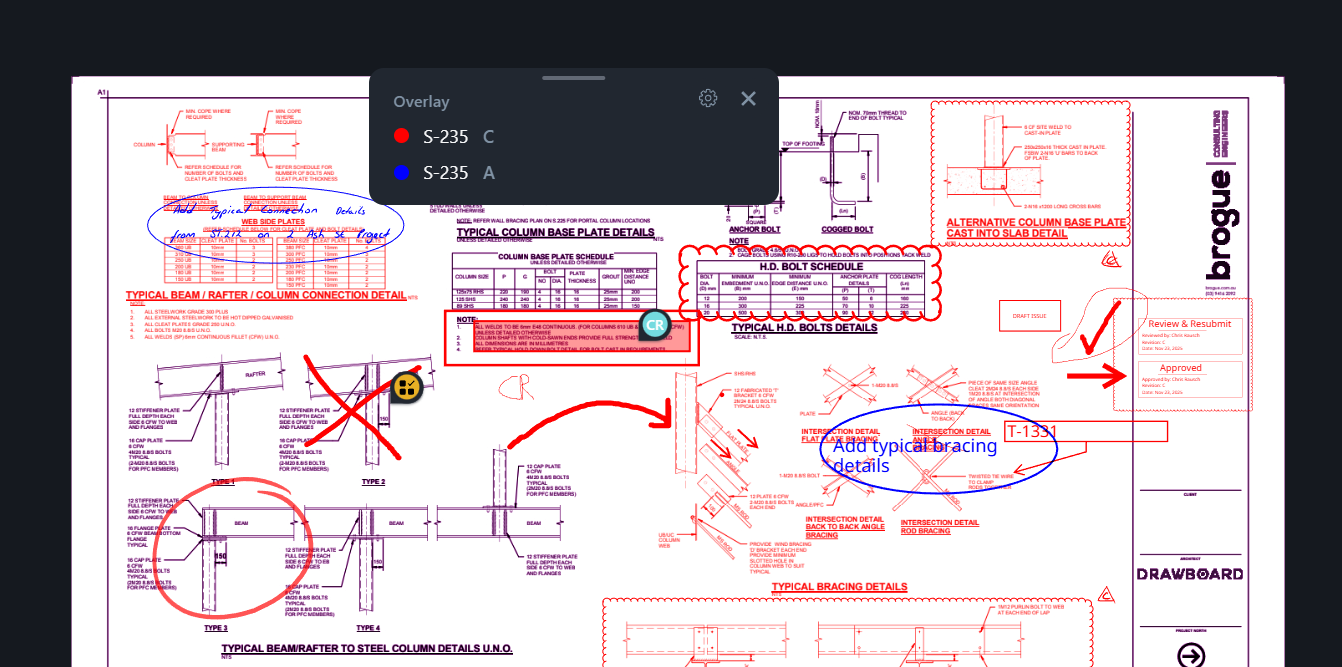
Overlays are also useful across disciplines. If an updated plan affects a related detail, or a structural change impacts architectural coordination, overlays help you confirm the change visually instead of scanning PDFs side by side.
Once revisions are uploading cleanly and comparison is fast, the next layer is feedback. This is where teams usually lose context, because the drawing lives in one place and the follow-up lives somewhere else.

Drawboard Projects includes a full set of markup tools, including ink, shapes, callouts, text, and measurement. Markups sync in real time so reviewers can see feedback as it happens, whether they’re on iPad, Windows, or web.
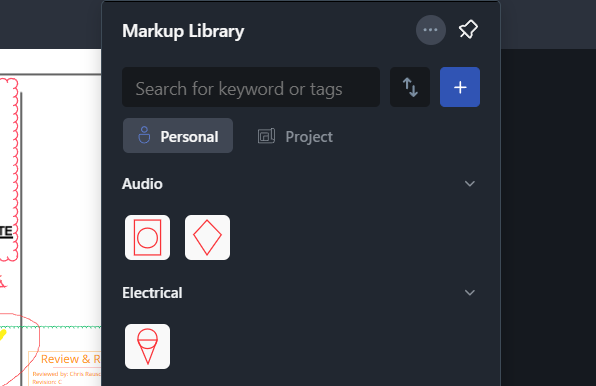
For repeatable reviews, a shared Markup Library helps keep symbols, standard notes, and stamps consistent. You can build your own library, or use the global presets for your organization with a click.

Markup layers also help teams separate inputs so the drawing stays readable, even when multiple disciplines are reviewing at once. You can sort by discipline, type of markup, and even individual contributors.
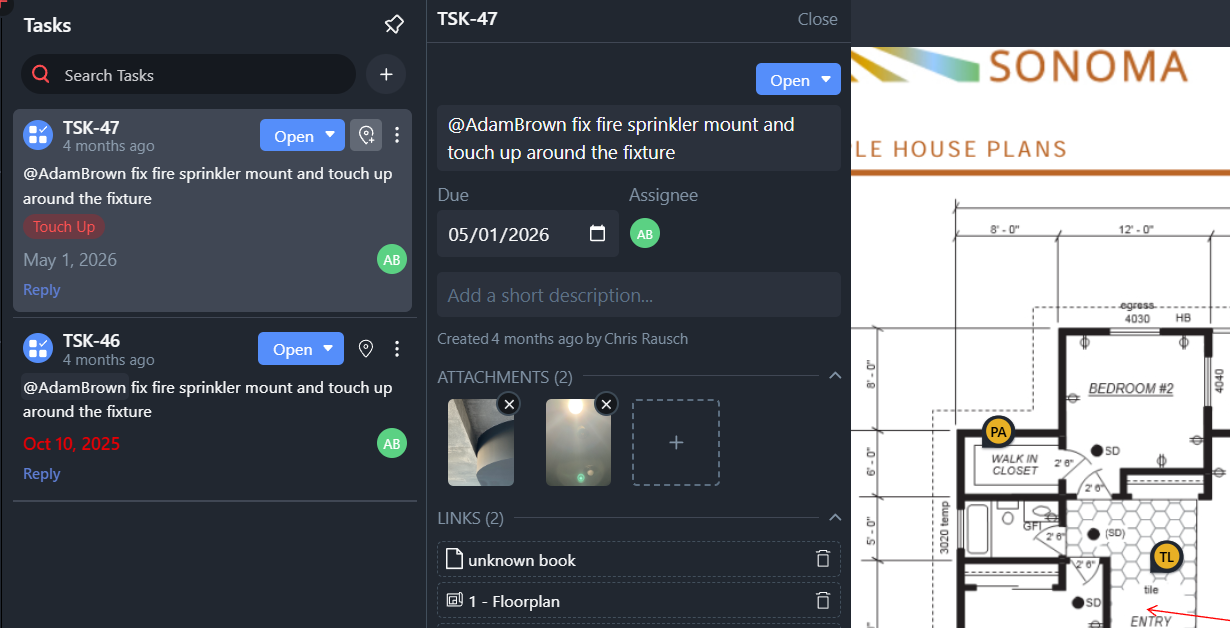
If a markup needs ownership and resolution tracking, convert it into a Task pinned to the exact location on the drawing. The pin keeps the context. The Task adds an assignee, status, due date, and a clear trail of updates. Instead of chasing status updates between meetings, the drawing shows what’s open, who owns it, and what’s next.
Comments and mentions live directly on the drawing, so the conversation stays attached to the detail that prompted it. When someone flags a query on a specific area, the response sits in the same place, not in an email thread or a chat log that loses context a week later.
That makes it much easier to reconstruct decisions at handover, during compliance checks, or when a dispute needs clarity.
Uploading revisions and resolving comments moves the review forward. Knowing where the set stands is what lets you close out confidently.
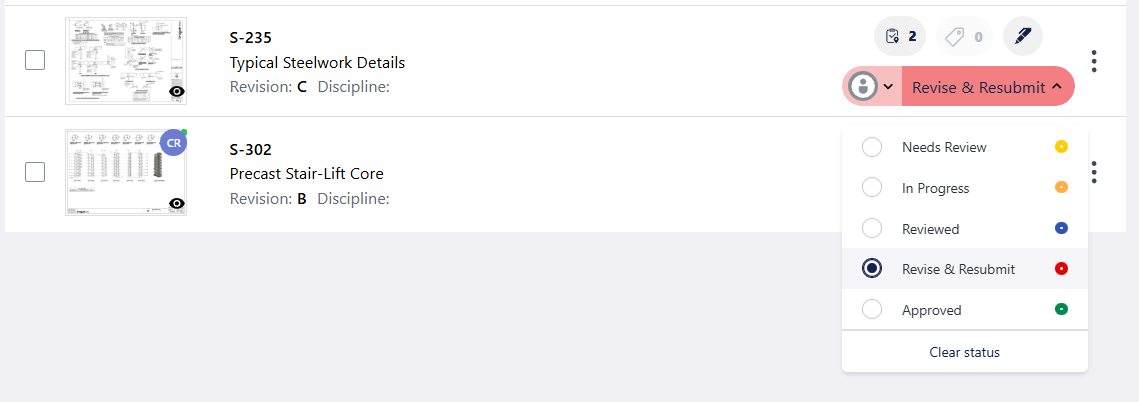
Revision control is not finished when a new sheet is uploaded. It is finished when the team can see what is still in review, what is approved, and what is blocked.
Review statuses give you that visibility at the drawing level, without opening each sheet. If a subset needs review, set that status in bulk so it’s obvious what the team should focus on next. If a package is ready for sign-off, the status trail shows how it got there.
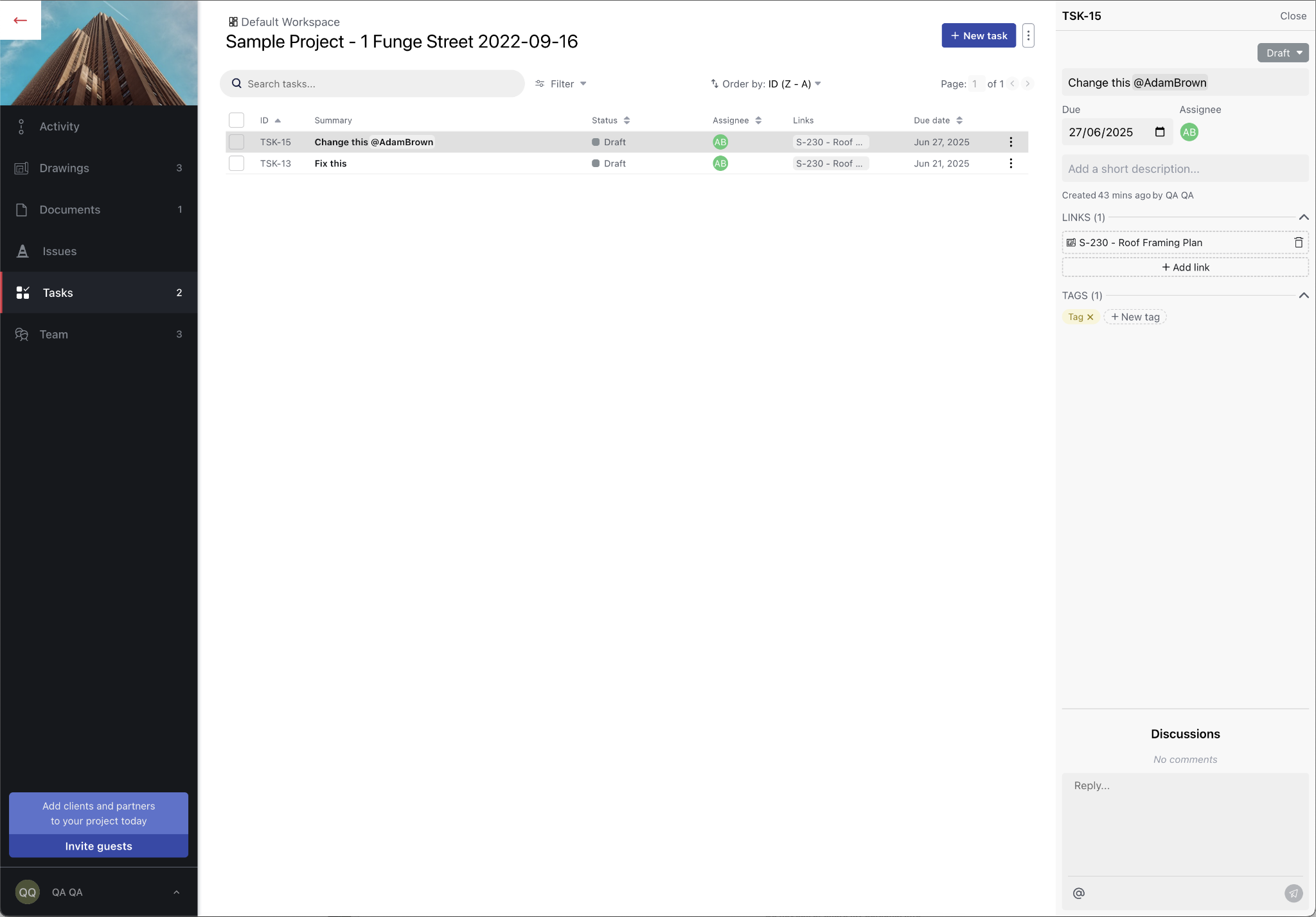
For individual-task follow-ups, the centralized Task List gives a project-wide view. Filter by assignee, status, due date, or category to see what’s still open and what’s closing.
Drawboard Projects maintains a record of revisions, markups, comments, and Tasks tied to the drawings and the people who created them. That history becomes your primary source of truth for the review, without the need to reconstruct it later from emails, meeting minutes, or scattered files.
When the review round is complete, export the set in the format stakeholders need. Some teams want clean PDFs. Others need annotated sets for QA, record, or handover. Keep exports aligned to the phase so you are not creating multiple “final” versions that immediately drift
If your organization uses a system of record like Procore or Aconex, publish the agreed outputs back at this stage so the official document register stays current. Let Drawboard Projects be the live review workspace, and keep your downstream record clean.
If revision control depends on someone manually telling the team what is current, it breaks the moment the project speeds up.
A more reliable standard is one live set where revisions stack, changes are easy to verify, and follow-ups stay pinned to the drawing until they’re resolved. That’s the workflow Drawboard Projects supports, whether you’re reviewing a milestone package, coordinating weekly issue sets, or pushing a change package through approvals.
Ready to give your team confidence they’re always working from the right revision? Start a 30-day free trial of Drawboard Projects or book a demo to see how it fits your workflow.
Revisions are a given on any AEC project. Design intent shifts, consultants feed back, site conditions change, and client requests keep coming. The hard part is keeping everyone on the current set while the set is still moving.
When revision management slips, it usually looks the same. Someone builds from a superseded detail because the latest sheet never made it to site. Someone marks up last week’s PDF because it was still sitting in their inbox. Then the next coordination meeting turns into a version check instead of a decision-making session.
Most teams try to patch this with email chains, spreadsheet logs, and manual clouding. It works until it doesn’t. As the set grows, those methods create version confusion, slow down feedback cycles, and push even more admin onto project managers and document controllers.
Drawboard Projects helps you keep revision control inside the drawing set itself. It gives your team a single source of truth for what’s current, what changed, and what still needs action. Revisions stay stacked to the same drawing record, comparison is quick, and follow-ups stay pinned to the exact spot they came from. That means less time chasing “latest” and more time closing out the package.
This guide walks through a workflow you can reuse for every issue set, change package, and coordination round.
Most teams do not have a revision tracking problem in isolation. They have a too-many-copies problem.
As soon as drawings live in multiple places, markups get scattered across inboxes and shared drives. Decisions lose context. Document control turns into search-and-rescue. The cost shows up later as rework, delays, and avoidable RFIs.
A revision workflow holds together when there is one drawing set everyone opens, when changes between revisions are easy to verify, and when actions stay connected to the drawing instead of drifting into spreadsheets or chat threads.
Drawboard Projects supports that by keeping drawings, revisions, markups, and follow-ups in one shared workspace.
Revision control starts before the first upload. The choices you make around access, structure, and naming conventions decide whether the workflow stays clean when the set starts changing fast.
If reviewers can’t get into the set quickly, they fall back to email attachments and local copies. Start by creating a project and inviting everyone who will contribute, and assigning roles to the team members who are going to move work forward.
In most teams, it helps to separate two responsibilities clearly.
When those roles are defined, revision control stops depending on one person chasing everyone else.
Once the project is ready, upload the initial drawing set. You can upload from local files, or pull drawings in from the cloud platforms and systems your team already uses, including Procore, Oracle Aconex, OneDrive, Google Drive, Dropbox, and Revit.
As you upload, ensure you’re keeping metadata standardized. Consistent drawing numbers and revision labels are what make stacking and comparison work later. If your title blocks vary across disciplines, use OCR and title block templates to standardize how drawing number, drawing name, and revision are captured so the set stays tidy as it evolves.
With the initial set uploaded, organize drawings by discipline, set, or phase so team members can find what they need without scanning through a flat list. Drawboard Projects lets you sort drawings by recently added or by name, which helps on active projects where new revisions are arriving regularly and you want the latest sheets on top of the pile.
Alongside that structure, assign drawings and documents to the people who own them. That means selecting the drawings for a discipline or package, bulk assigning them to the right reviewer or lead, and leaving anything out of scope unassigned.
From day one, everyone can open the project and immediately see what they own, without needing a separate tracker. Admins can also filter the list to spot unassigned items quickly, which is useful when you are trying to keep coverage tight across a large set.
Every new revision is a fork in the road. You either keep a single source of truth, or you introduce drift that compounds with every upload.
When Rev C lands, the goal is simple: add it to the existing drawing record, not as a separate file that competes with the old one.
In Drawboard Projects, revisions of the same drawing are stacked. The drawing stays in one place with its revision history attached, instead of multiplying across folders and email threads. When an uploaded revision’s drawing number matches an existing record, the upload flow guides you to add it as the next revision rather than creating a duplicate. Each upload is logged with revision details, so the history stays clear.
With this newest-first approach, reviewers naturally land on the current sheet first. Older revisions are still there when you need them, but the workspace is designed to keep the team oriented to what is current.
To keep this reliable over time, avoid “quick fixes” like renaming sheets under pressure. If the drawing number changes, you lose the continuity revision stacking depends on. Agree on a revision convention early, apply it consistently, and keep “revision” separate from purpose-of-issue codes like IFC so the set stays sortable and searchable.
Previous revisions should not disappear. They are how you verify what changed, confirm whether earlier feedback was picked up, and trace how a detail progressed from first issue to current.
That history also matters at handover and when questions come up later. Finding an old sheet in a paper-based system can take hours. In Drawboard Projects, the revision history stays attached to the drawing record and accessible to anyone with project access.
Revision clouds are helpful, but they are not verification. The fastest way to confirm changes is to compare revisions directly.
Overlay Mode lets you layer one revision over another so you can see differences without page-flipping or assuming every change was clouded perfectly. This is especially useful for subtle shifts like offsets, dimension tweaks, grid movements, and rerouted services.
And if feedback from an older revision still matters, you don’t need to recreate it. Drawboard Projects lets you move markups from older revisions onto the latest live drawing, so important comments, checks, and open questions stay in play as the set evolves. It is a simple way to carry review context forward without dragging old versions back into the workflow.
Overlays are also useful across disciplines. If an updated plan affects a related detail, or a structural change impacts architectural coordination, overlays help you confirm the change visually instead of scanning PDFs side by side.
Once revisions are uploading cleanly and comparison is fast, the next layer is feedback. This is where teams usually lose context, because the drawing lives in one place and the follow-up lives somewhere else.
Drawboard Projects includes a full set of markup tools, including ink, shapes, callouts, text, and measurement. Markups sync in real time so reviewers can see feedback as it happens, whether they’re on iPad, Windows, or web.
For repeatable reviews, a shared Markup Library helps keep symbols, standard notes, and stamps consistent. You can build your own library, or use the global presets for your organization with a click.
Markup layers also help teams separate inputs so the drawing stays readable, even when multiple disciplines are reviewing at once. You can sort by discipline, type of markup, and even individual contributors.
If a markup needs ownership and resolution tracking, convert it into a Task pinned to the exact location on the drawing. The pin keeps the context. The Task adds an assignee, status, due date, and a clear trail of updates. Instead of chasing status updates between meetings, the drawing shows what’s open, who owns it, and what’s next.
Comments and mentions live directly on the drawing, so the conversation stays attached to the detail that prompted it. When someone flags a query on a specific area, the response sits in the same place, not in an email thread or a chat log that loses context a week later.
That makes it much easier to reconstruct decisions at handover, during compliance checks, or when a dispute needs clarity.
Uploading revisions and resolving comments moves the review forward. Knowing where the set stands is what lets you close out confidently.
Revision control is not finished when a new sheet is uploaded. It is finished when the team can see what is still in review, what is approved, and what is blocked.
Review statuses give you that visibility at the drawing level, without opening each sheet. If a subset needs review, set that status in bulk so it’s obvious what the team should focus on next. If a package is ready for sign-off, the status trail shows how it got there.
For individual-task follow-ups, the centralized Task List gives a project-wide view. Filter by assignee, status, due date, or category to see what’s still open and what’s closing.
Drawboard Projects maintains a record of revisions, markups, comments, and Tasks tied to the drawings and the people who created them. That history becomes your primary source of truth for the review, without the need to reconstruct it later from emails, meeting minutes, or scattered files.
When the review round is complete, export the set in the format stakeholders need. Some teams want clean PDFs. Others need annotated sets for QA, record, or handover. Keep exports aligned to the phase so you are not creating multiple “final” versions that immediately drift
If your organization uses a system of record like Procore or Aconex, publish the agreed outputs back at this stage so the official document register stays current. Let Drawboard Projects be the live review workspace, and keep your downstream record clean.
If revision control depends on someone manually telling the team what is current, it breaks the moment the project speeds up.
A more reliable standard is one live set where revisions stack, changes are easy to verify, and follow-ups stay pinned to the drawing until they’re resolved. That’s the workflow Drawboard Projects supports, whether you’re reviewing a milestone package, coordinating weekly issue sets, or pushing a change package through approvals.
Ready to give your team confidence they’re always working from the right revision? Start a 30-day free trial of Drawboard Projects or book a demo to see how it fits your workflow.


We are a PDF and collaboration company. We believe that creating more effective connections between people reduces waste.
Our best work has been overtaken by busywork. That’s why we’ve created ways to help people get back to working wonders without any paper in sight.
Drawboard PDF lets you mark up and share with ease, and Drawboard Projects brings collaborative design review to architecture and engineering teams.
At Drawboard, we work our magic so our customers can get back to working theirs.
We are a PDF and collaboration company. We believe that creating more effective connections between people reduces waste.
Our best work has been overtaken by busywork. That’s why we’ve created ways to help people get back to working wonders without any paper in sight.
Drawboard PDF lets you mark up and share with ease, and Drawboard Projects brings collaborative design review to architecture and engineering teams.
At Drawboard, we work our magic so our customers can get back to working theirs.


